Upload Unit Details Using Excel Spreadsheet
How to Upload Unit details using an Excel Spreadsheet
Step-by-Step Guide
Prepare Your Excel Spreadsheet
Ensure all data is entered correctly.
The following fields are compulsory:
An Example of a prepared Excel Spreadsheet
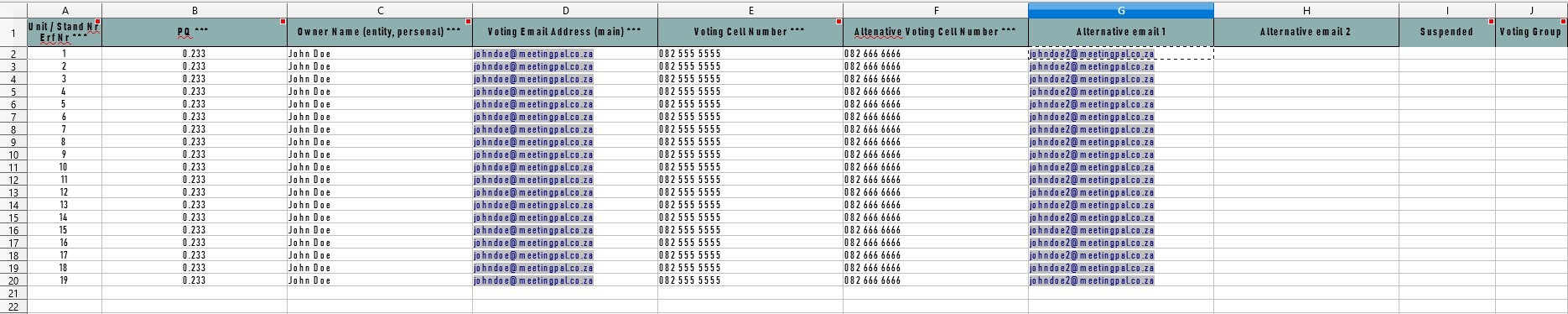
a. Unit / Stand Nr / Erf Nr b. PQ (Participation Quota) c. Owner Name (entity or personal) d. Voting Email Address (main) e. Voting Cell Number
Best Practice: Ensure that all data entered is correct and up-to-date. Incorrect or outdated Member data can cause difficulties when running meetings.
Steps to Load Units
How to access Unit Settings:
Navigate to the Units Section on the far left of the page in MeetingPal
a. Click on the “Plan Meeting” tab. b. Scroll to and select “Units”.
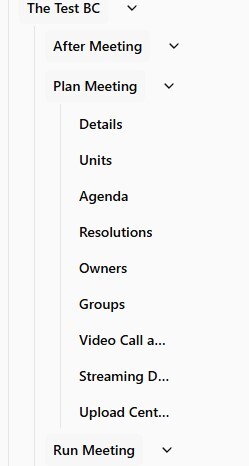
Alternatively you can navigate to the Search bar at the top of the page
c. Use the search bar and type “Units”.
Example of Unit Page
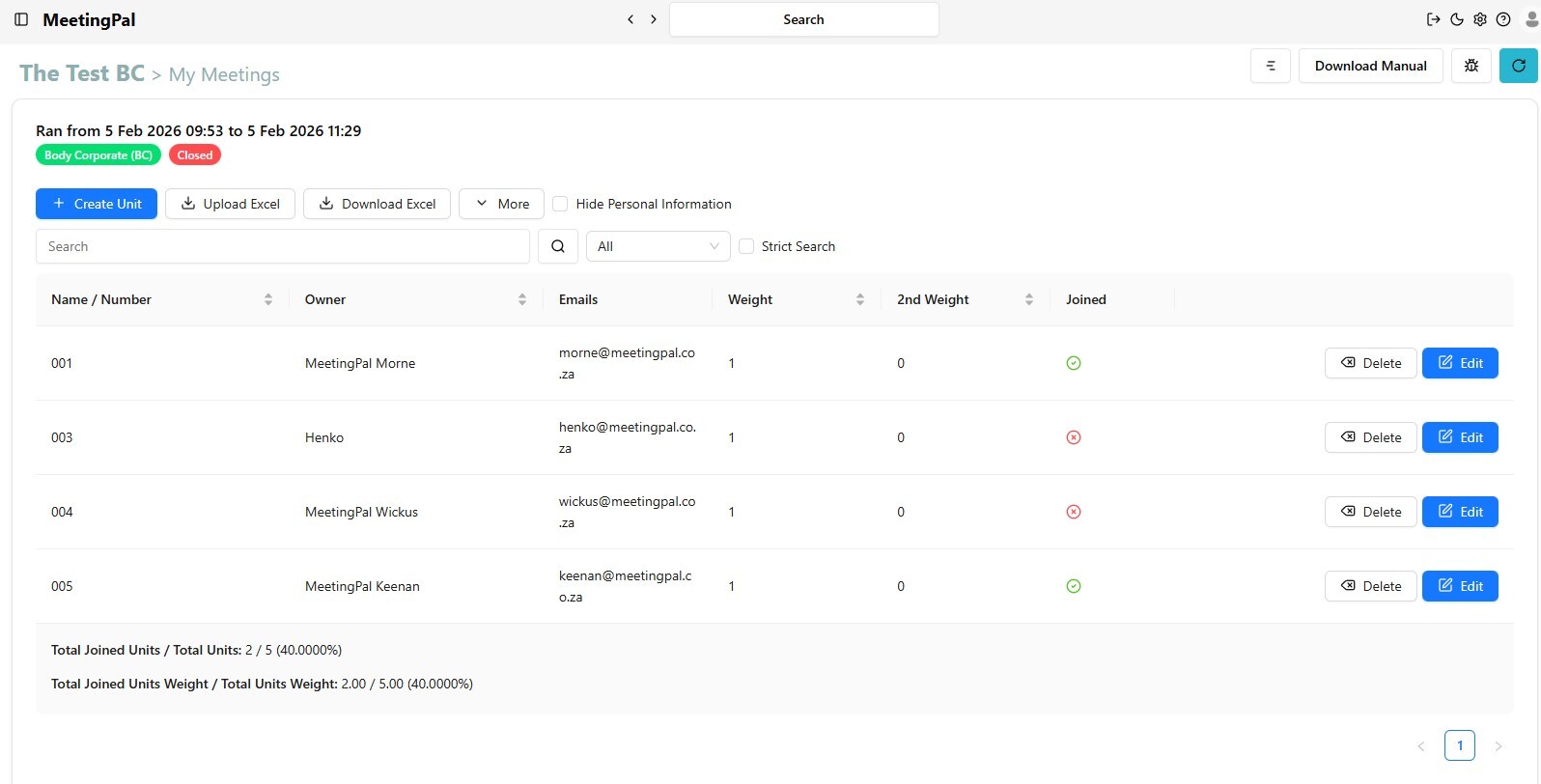
How to add Units to a meeting
### On the “Unit” page, you can:
a. Select “Create Unit” to enter member details manually, or b. Select “Upload Excel” to upload your prepared spreadsheet.
Best Practice: It is advisable to load an Excel Spreadsheet page with Members' data already checked and loaded. This is a quicker and easier method of loading data especially if Meetings have a large number of Members attending.
Adding a Unit Manually
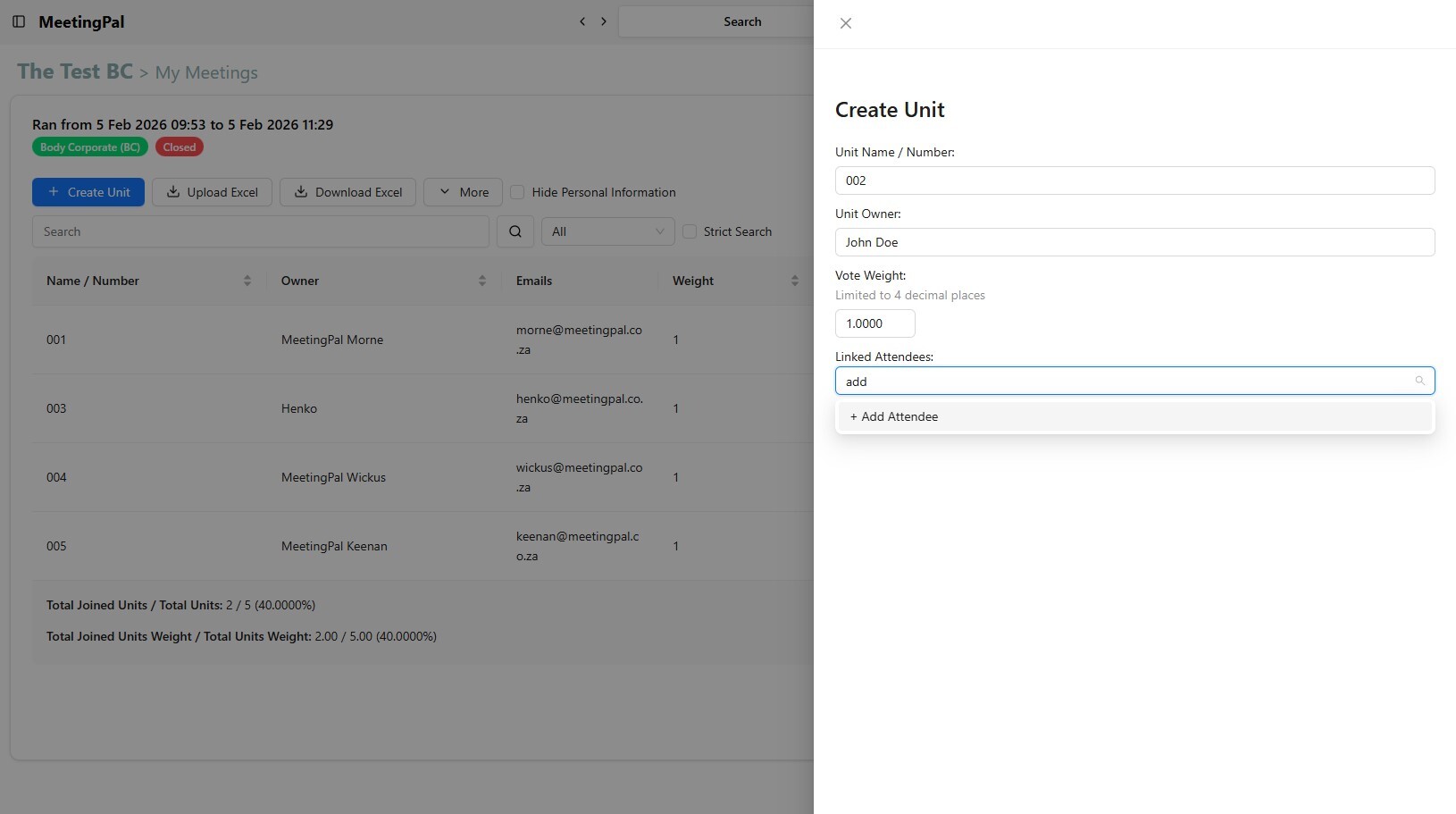
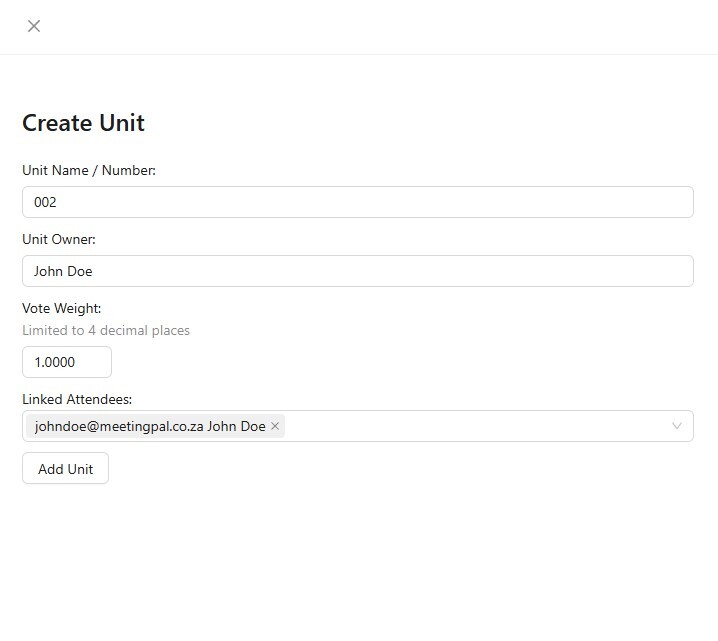
4.1 Select Create Unit 4.2 On the Create Unit Page, add the details of the new member as presented. 4.3 Type Add Attendee in the Linked Attendee section 4.4 Enter the Members' details and select Create and Send Invite or Create Invite and Don't Send
4.5 After the new Invitee details were added, select the email address entered in the Linked Attendee section and click Add Unit
Upload the Excel Spreadsheet
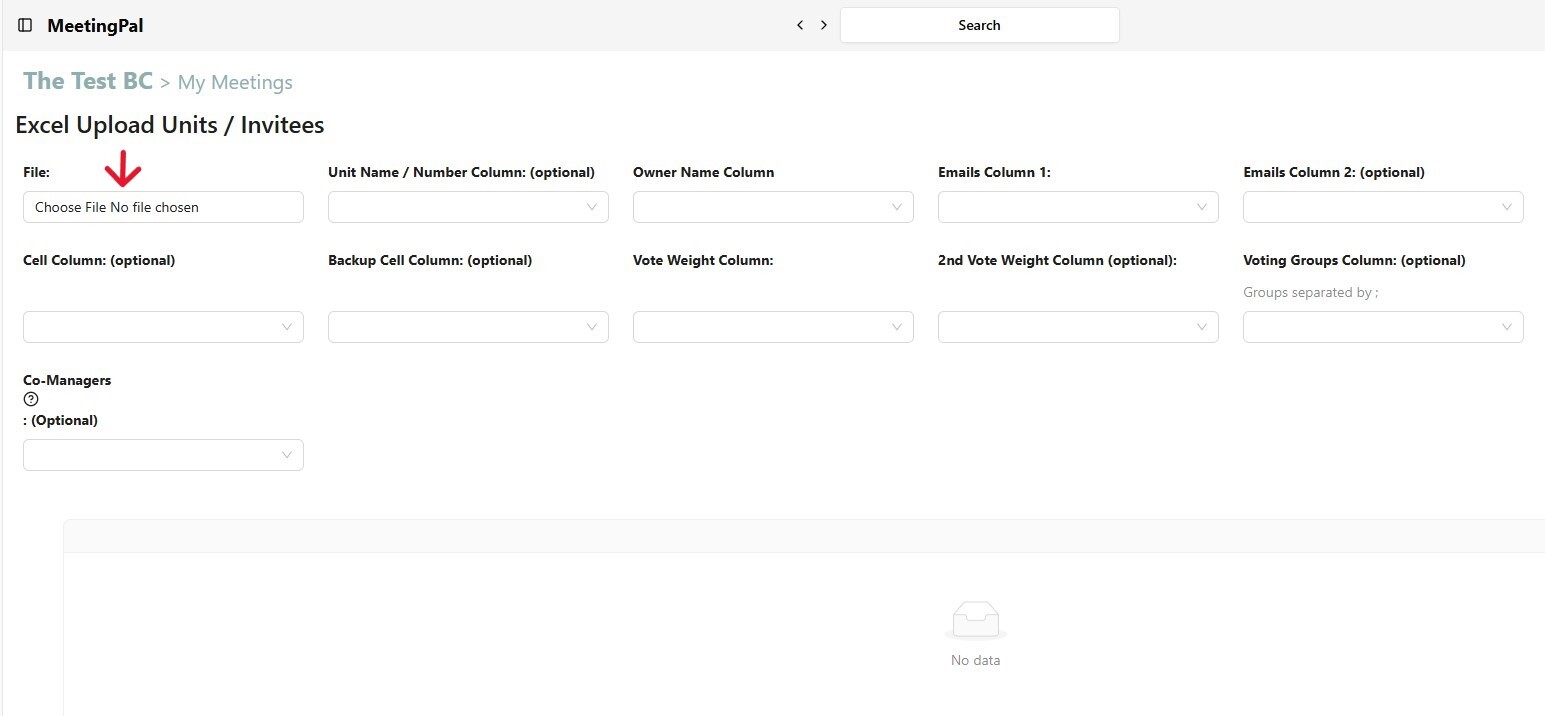
a. On the “Upload Excel” page, click “File / Choose file”. b. Select the Excel Spreadsheet from your device. c. The spreadsheet will appear on MeetingPal once it has been loaded.
Map the Data Fields
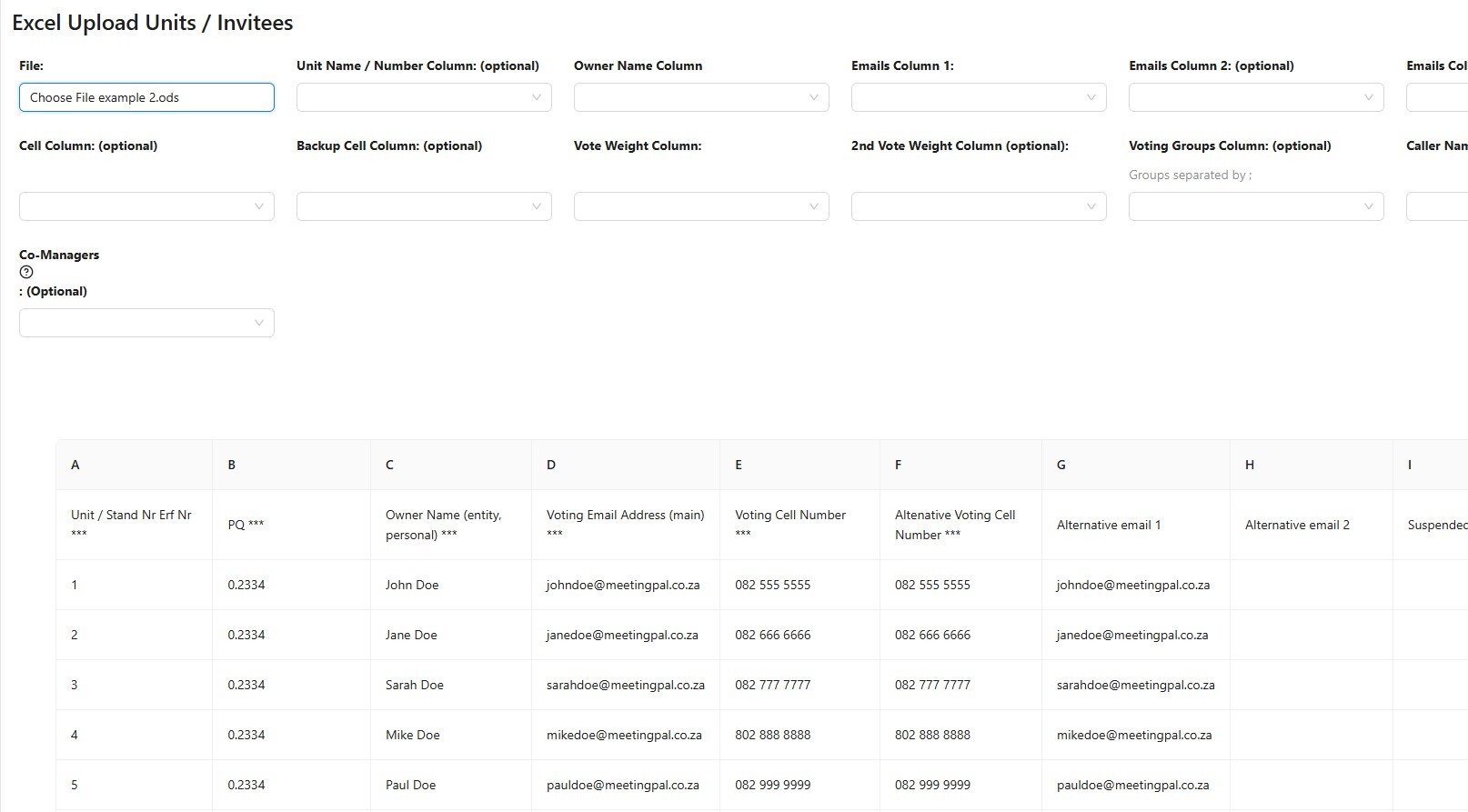
a. At the top of the page, choose the correct column for each data field. b. For example: In “Unit Name / Number Column (optional)”, choose the column in your spreadsheet that contains the information.
Complete and Submit the Upload
a. After all fields are correctly mapped, click the “Upload Excel” button. If all fields were entered correctly the Unit list will be available under the Unit sub-section in the Plan the Meeting drop down menu. b. Important Notice: Ensure that the Participation Quota(PQ) values were worked out correctly. Body Corporate or BC schemes' PQ values must add up to 100% to be compliant.