Meeting Creation
This section walks you through the full process of creating a meeting in MeetingPal, from navigation to quote generation, so you know exactly what each option does and when it matters.
Accessing the Meetings Management Page
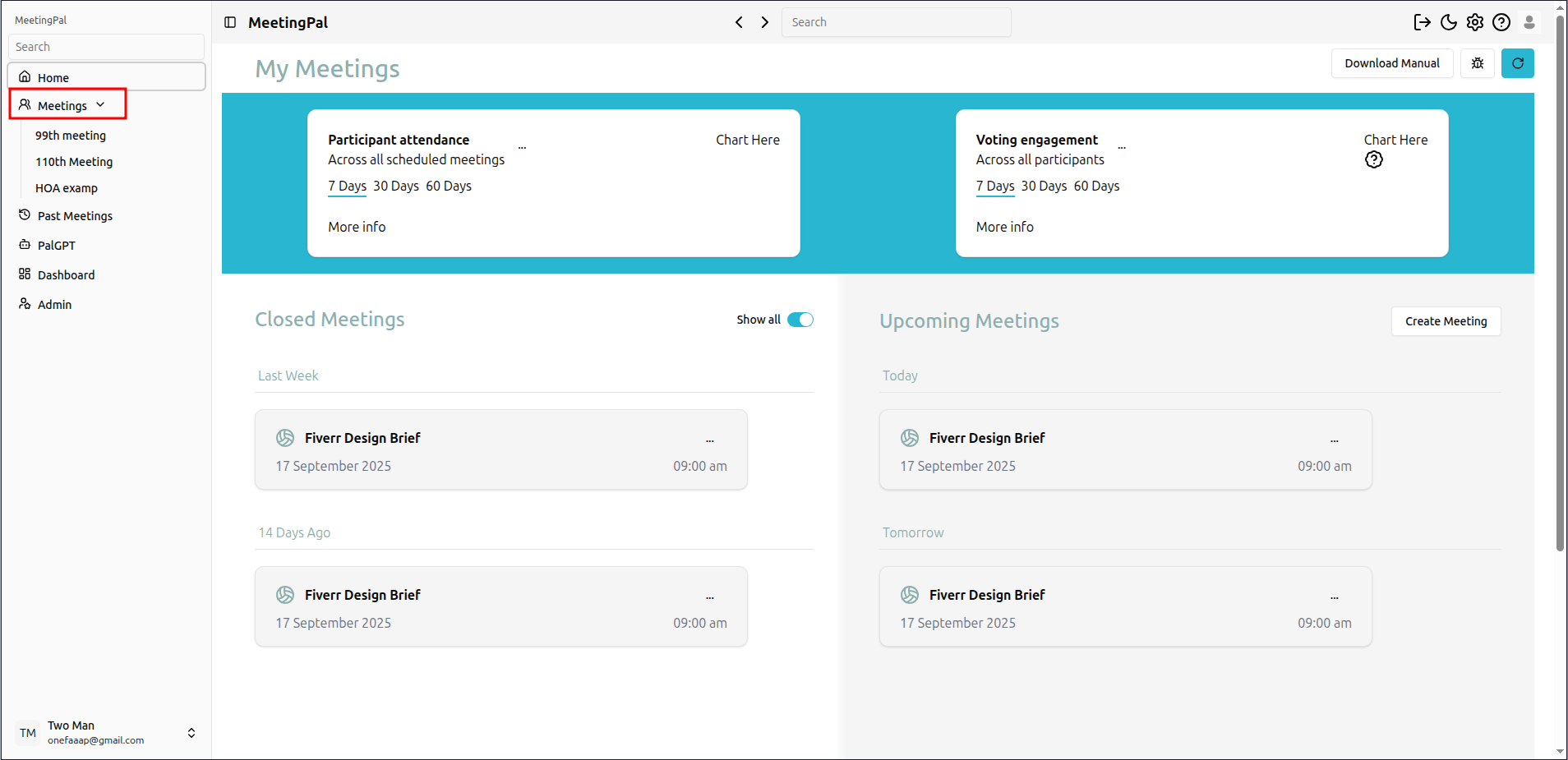
To begin, navigate to the Meetings management page by selecting Meetings from the left-hand navigation menu.
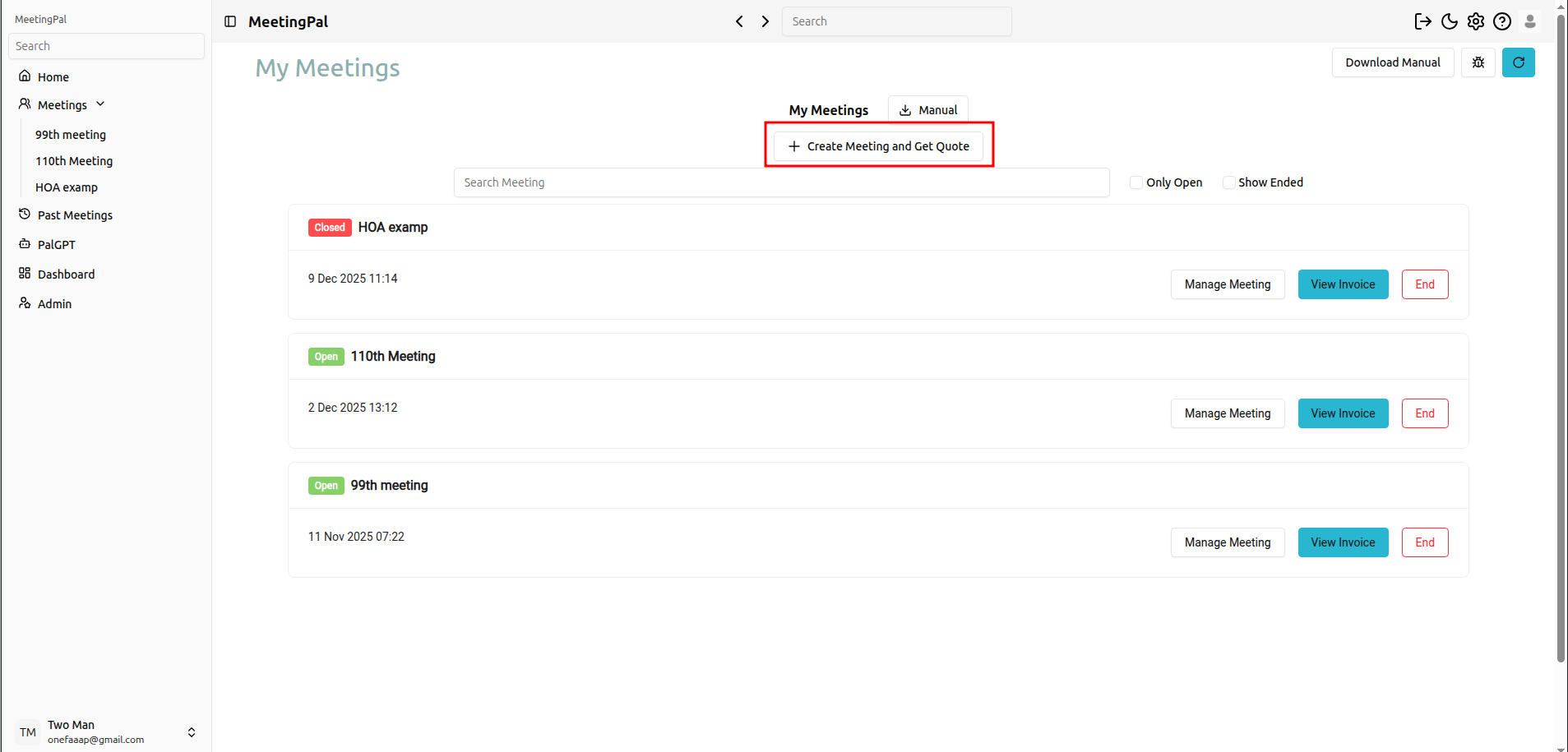
This page displays all meetings that are currently active or scheduled and have not yet been ended. From here, you can review, manage, and create meetings and quotes.
Near the top of the page, you’ll find a button for creating new meetings and quotes. Selecting this button will take you to the meeting setup flow.
Basic Meeting Details
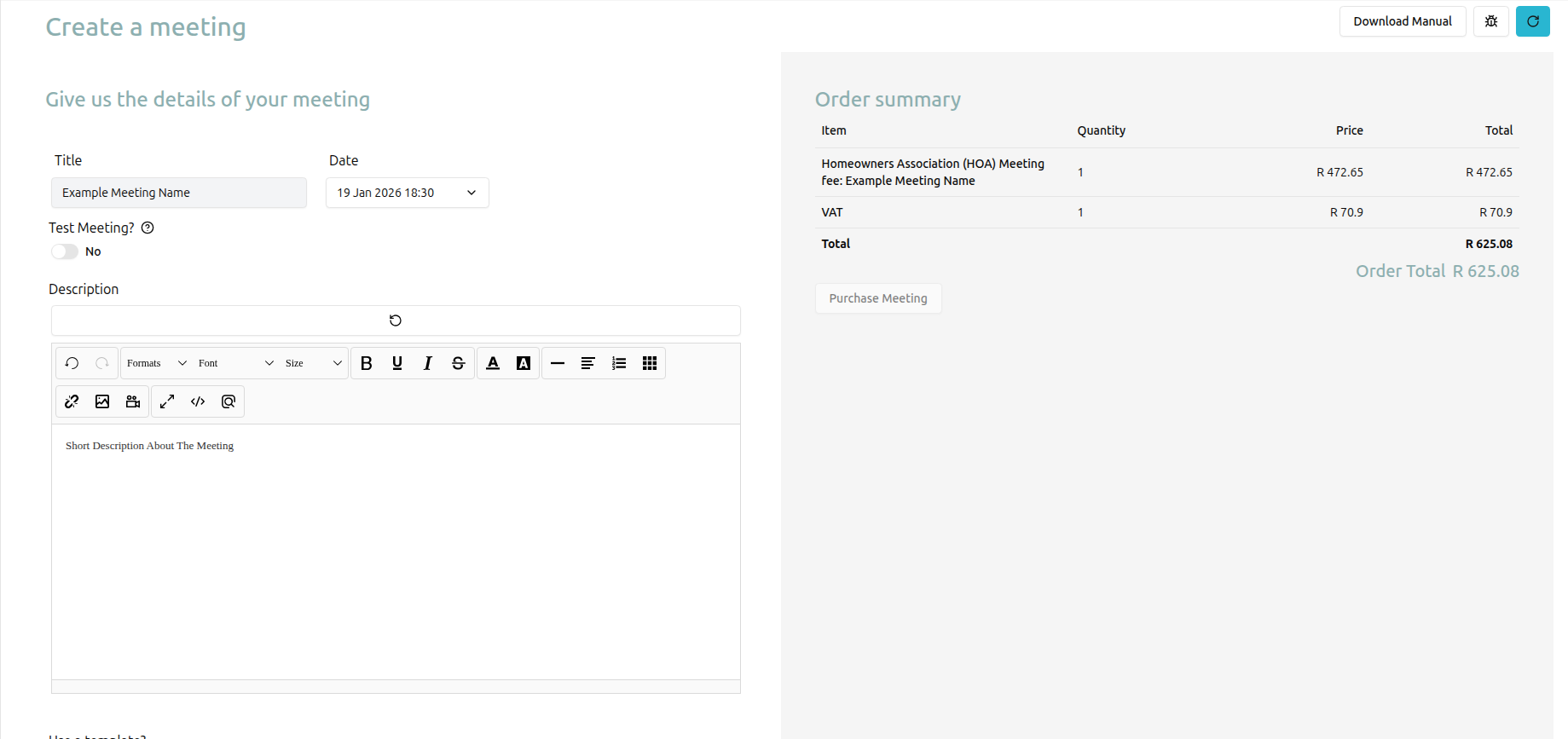
On the meeting creation page, the layout is split into two sections:
- Left side: Meeting configuration and details
- Right side: Live cost breakdown based on your selections
At the top of the form, you’ll provide the core information for your meeting:
- Meeting Name: A descriptive name to help you and attendees identify the meeting.
- Meeting Date: The future date on which the meeting will take place.
- Test Meeting (Optional): Enable this option to create a free test meeting. Test meetings have usage restrictions and are intended for internal testing or demos.
- Description (Optional): A short summary describing the purpose or agenda of the meeting. This can be changed later.
Advanced Setup Options
Scrolling down reveals additional configuration options that allow you to tailor the meeting to your needs.
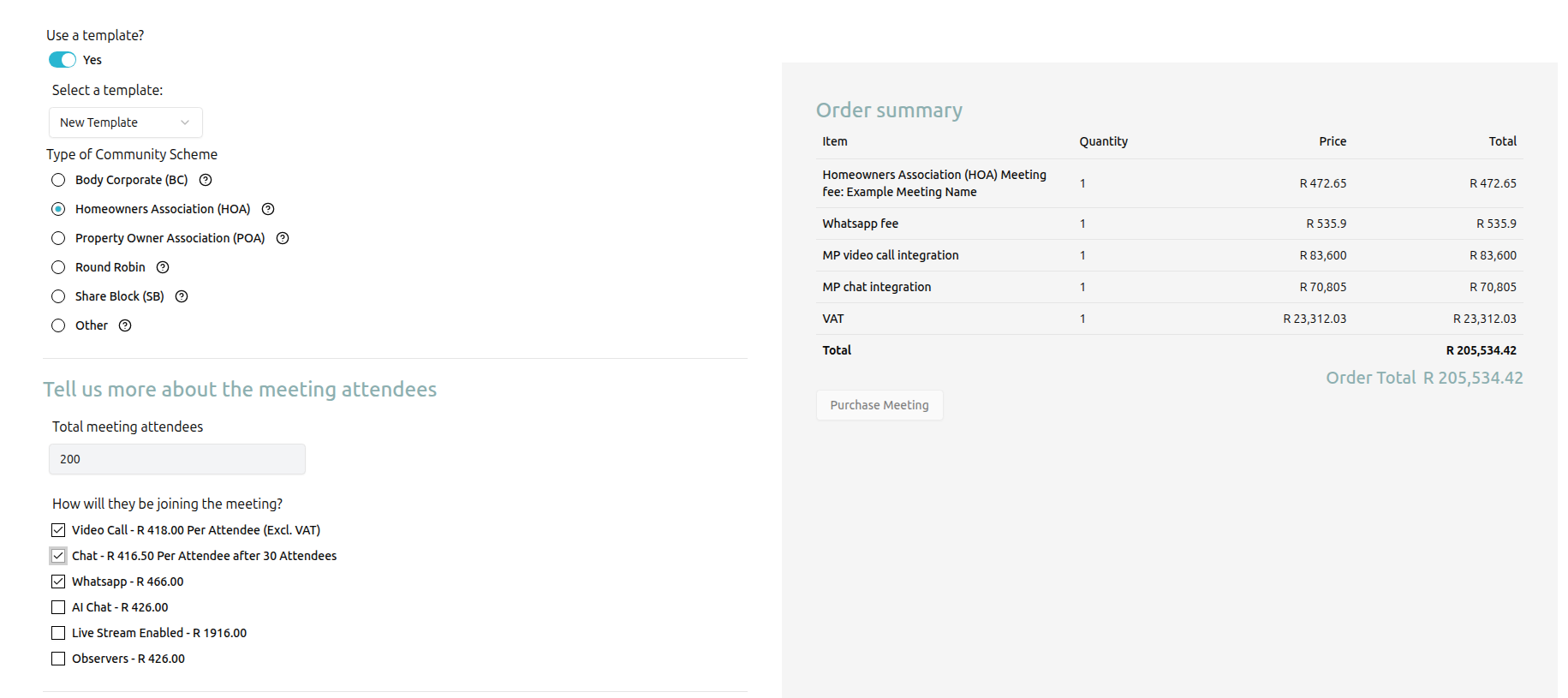
Template Selection (Optional)
If you have previously created templates, you can select one here to automatically apply predefined settings to your meeting on creation. Templates are optional and can be skipped if not needed.
Community Scheme
Selecting a community scheme is required. This choice is important because:
- It helps MeetingPal prepare the appropriate level of support
- Each scheme includes tailored defaults and features
- Certain functionality may vary depending on the selected scheme
Choosing the correct scheme makes meeting management smoother and ensures accurate pricing and support.
Number of Attendees
Specify the total number of attendees expected to participate. This number represents:
- How many people will be notified
- How many participants will be invited to join the meeting
This value directly affects pricing and support planning.
Additional Features
You can optionally enable extra features for your meeting, including:
- Built-in video calling
- Chat functionality
- WhatsApp notifications
- AI assistant
- Live stream embedding
- Observer attendees
Each selected feature updates the cost summary in real time on the right-hand side of the page.
Support Options
Further down the page, you’ll find the Support section.
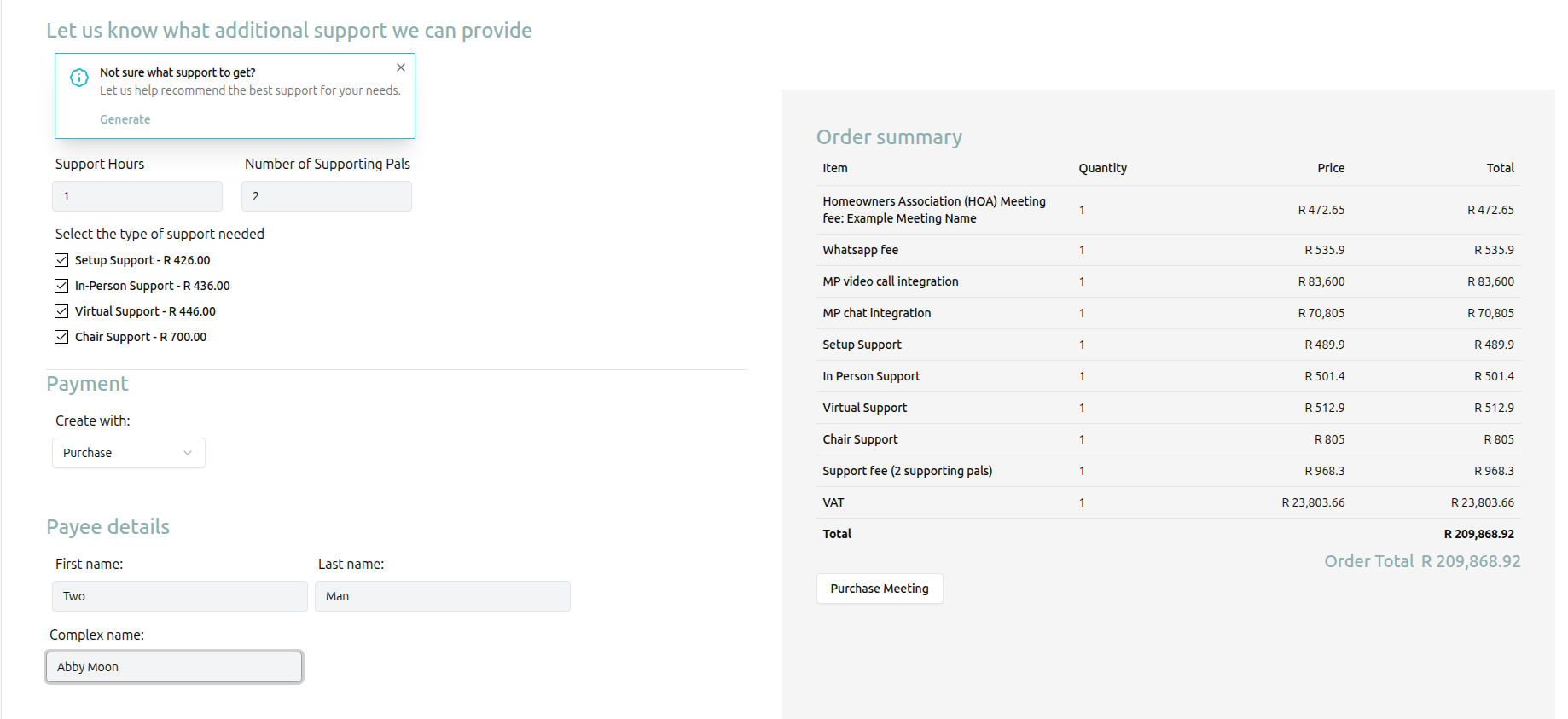
You can either allow MeetingPal to automatically generate recommended support based on your meeting details, or manually select the support options you believe best suit your meeting. Available support options include:
- Setup Support: MeetingPal staff will configure the meeting on your behalf.
- In-Person Support: A Pal will attend the meeting in person to provide technical assistance and help attendees sign up.
- Virtual Support: A Pal will join the virtual meeting to assist participants and handle technical issues.
- Chair Support: A Pal will act as the meeting chair, helping manage proceedings.
Any additional support hours required beyond what was selected will be billed after the meeting concludes.
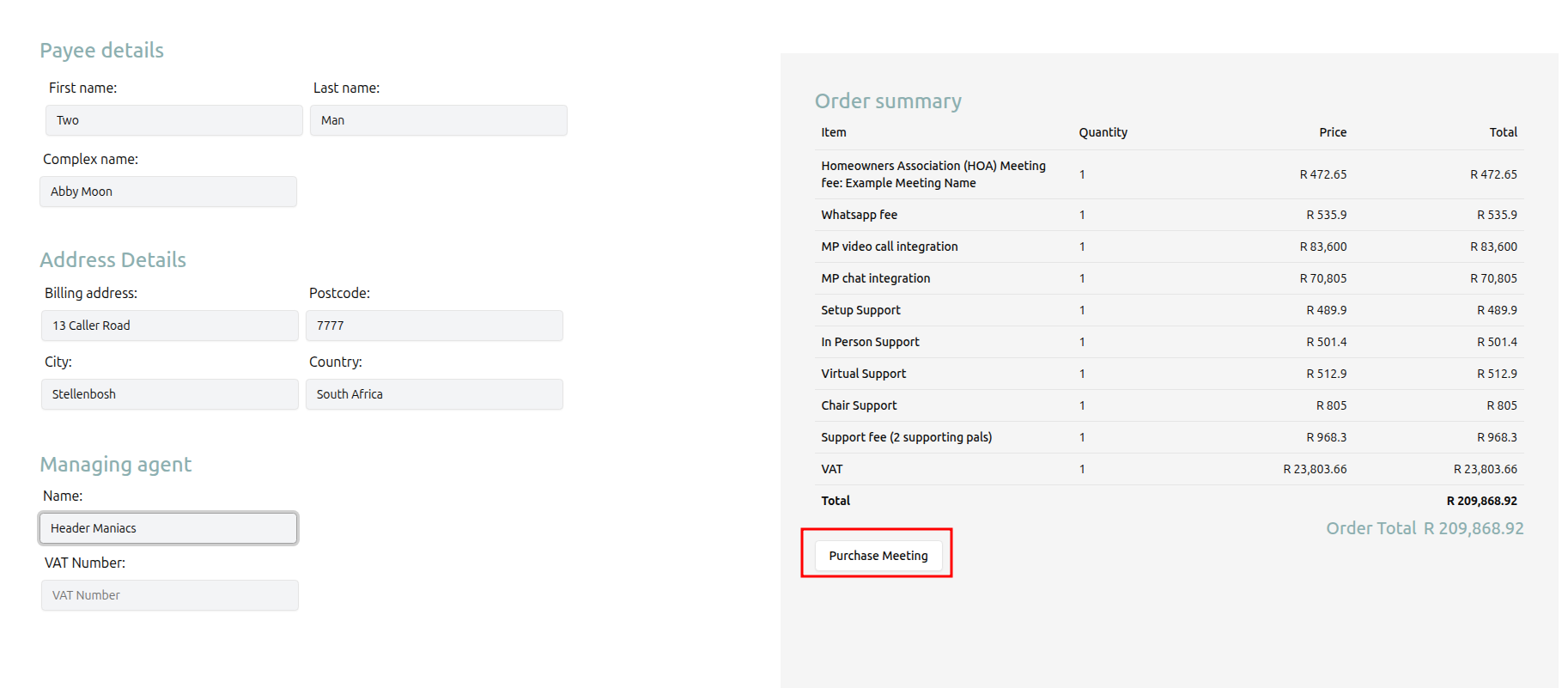
Payee Details and Quote Generation
At the final step, you’ll be asked to provide payee details. Once all details are complete:
- Review your meeting configuration and costs in the summary panel on the right
- Select Purchase Meeting to generate a quote
After the quote is reviewed and accepted by both you and the MeetingPal team, the meeting will appear in your meetings management page and be ready for further management.