Confirm or Change Unit Details
How to Confirm or Change Unit Details
Access the Invitees View
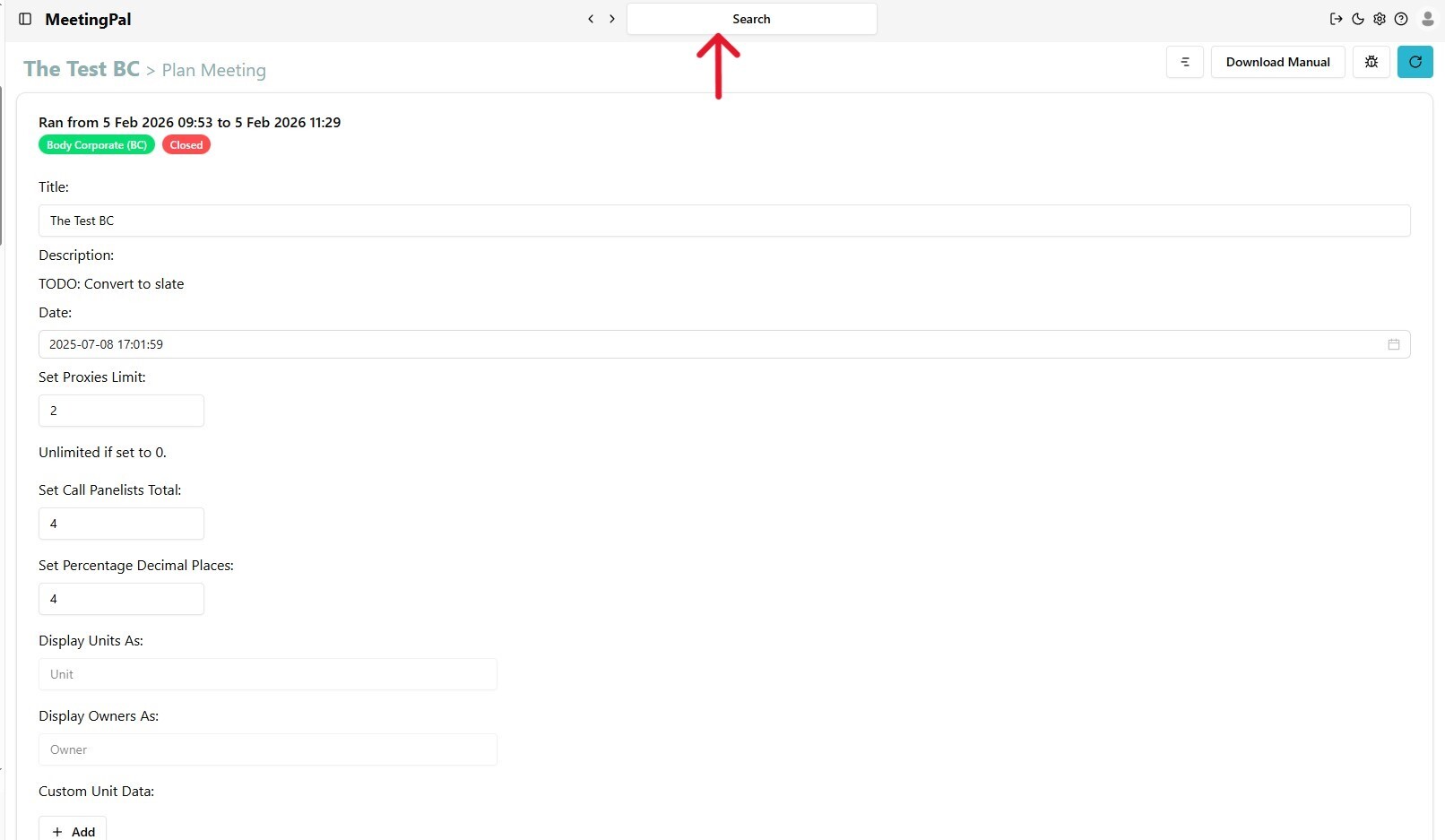
In the Search bar, type Invitees. This will take you to the Invitee view where all units and members are listed.
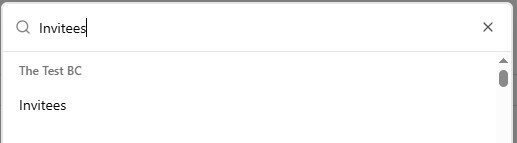
In the Invitees Search bar, type the name of the member whose details you want to confirm.
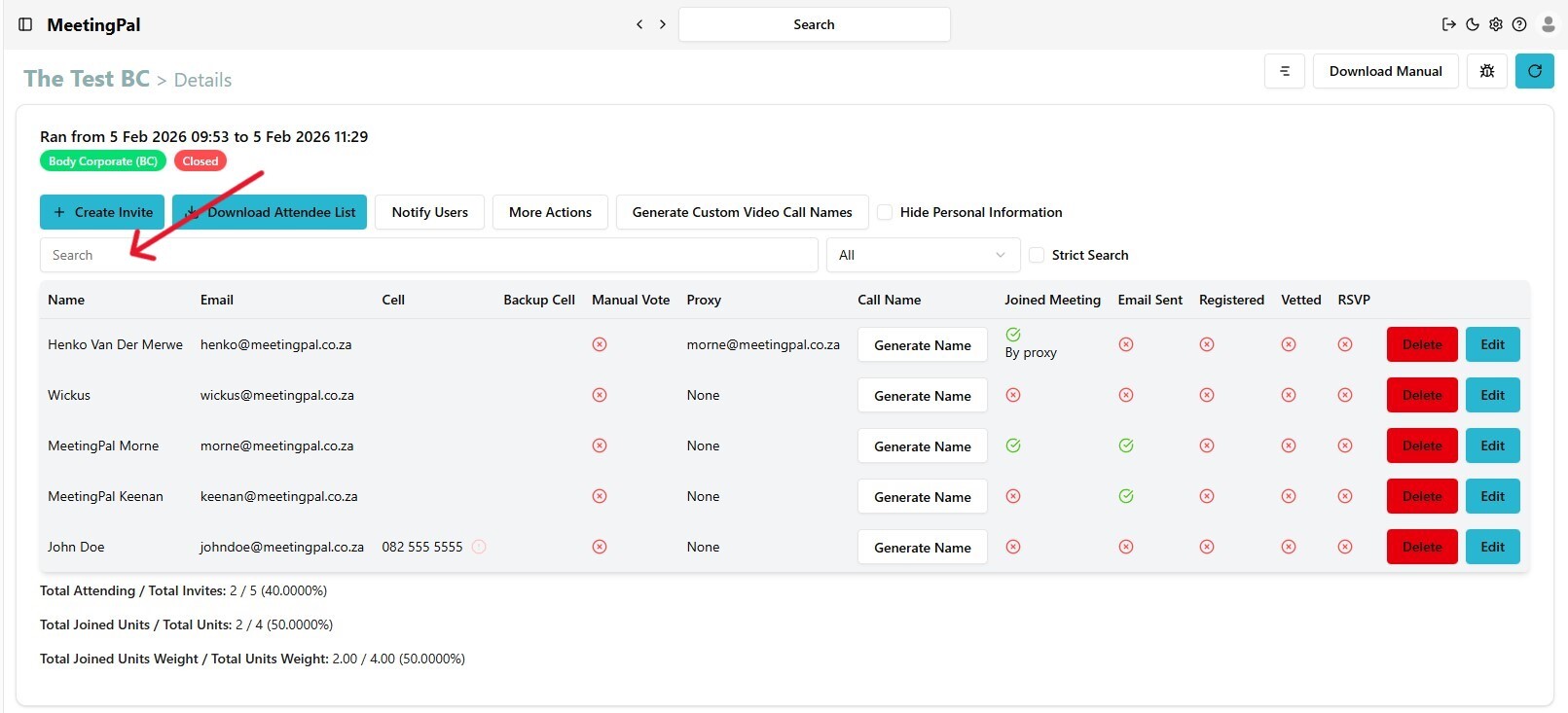
Once the member appears, look for the Edit button to the right to review their details.
Optional actions available:
You can set or change the following statuses by ticking or unticking the relevant selections:
- Observer
- Manual vote
- Suspension status
- Panel member
- Chat Muted
- Attending Physically
- Dominant vote
You can also re-invite a member by selecting the Email Invite button and sending an invite via email.
Access Unit Details from the Meeting Page
On the meeting page, click “Plan the Meeting.”
Select “Units” from the list.
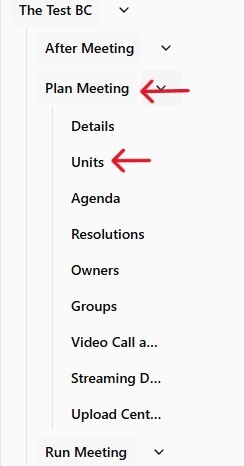
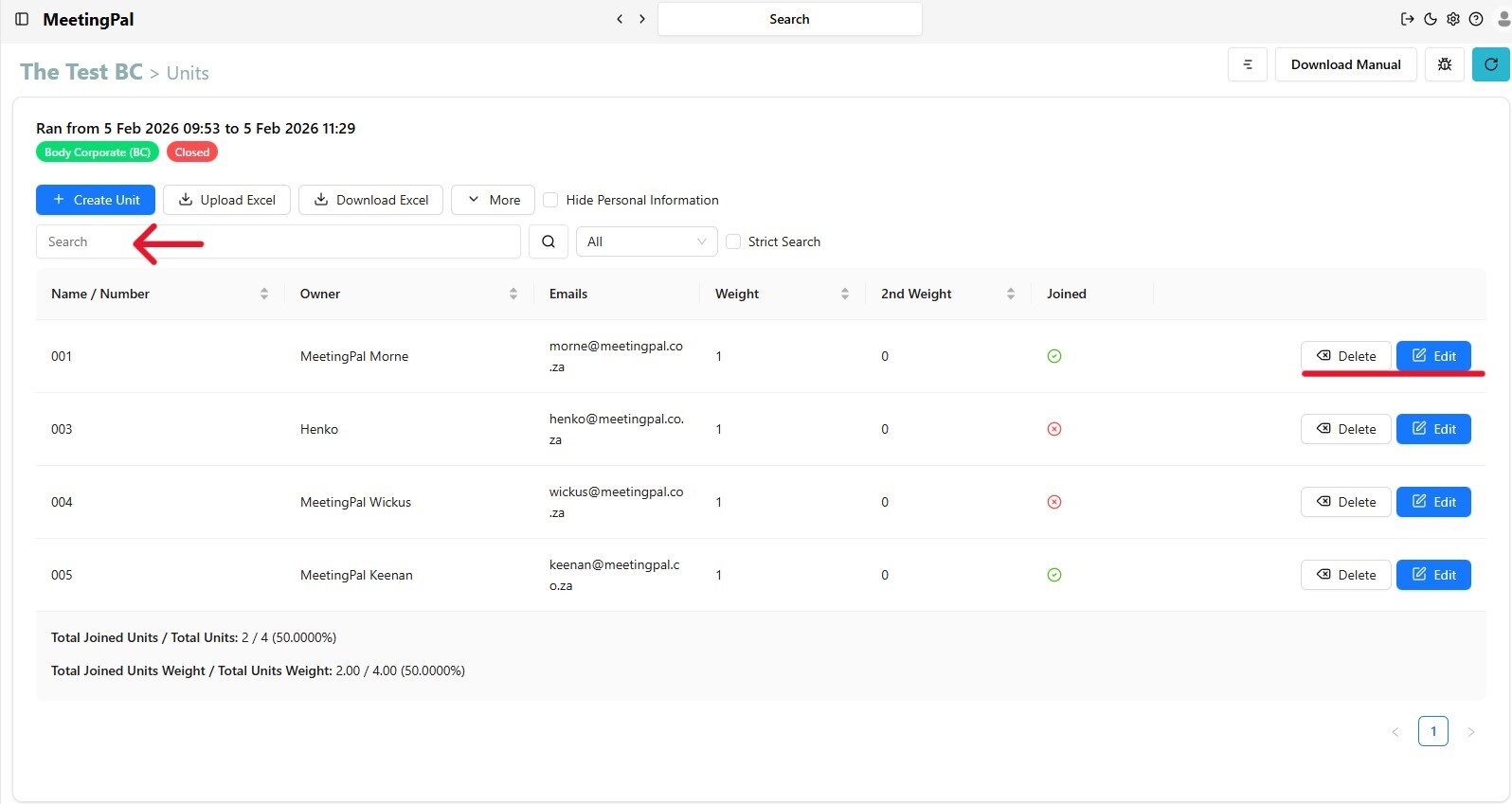
You will now see the list of all members and their unit details for the meeting.
Use the Search bar on the Unit page to find the member whose details you want to confirm or edit.
To confirm or change a member’s details, click the Edit button (blue button on the far right).
If you want to delete a member:
Click the Delete button.
Important: Deleting a member is permanent. If deleted by mistake, their details must be re-added manually.
Edit Member Information
After clicking Edit, you can confirm or update any of the following details:
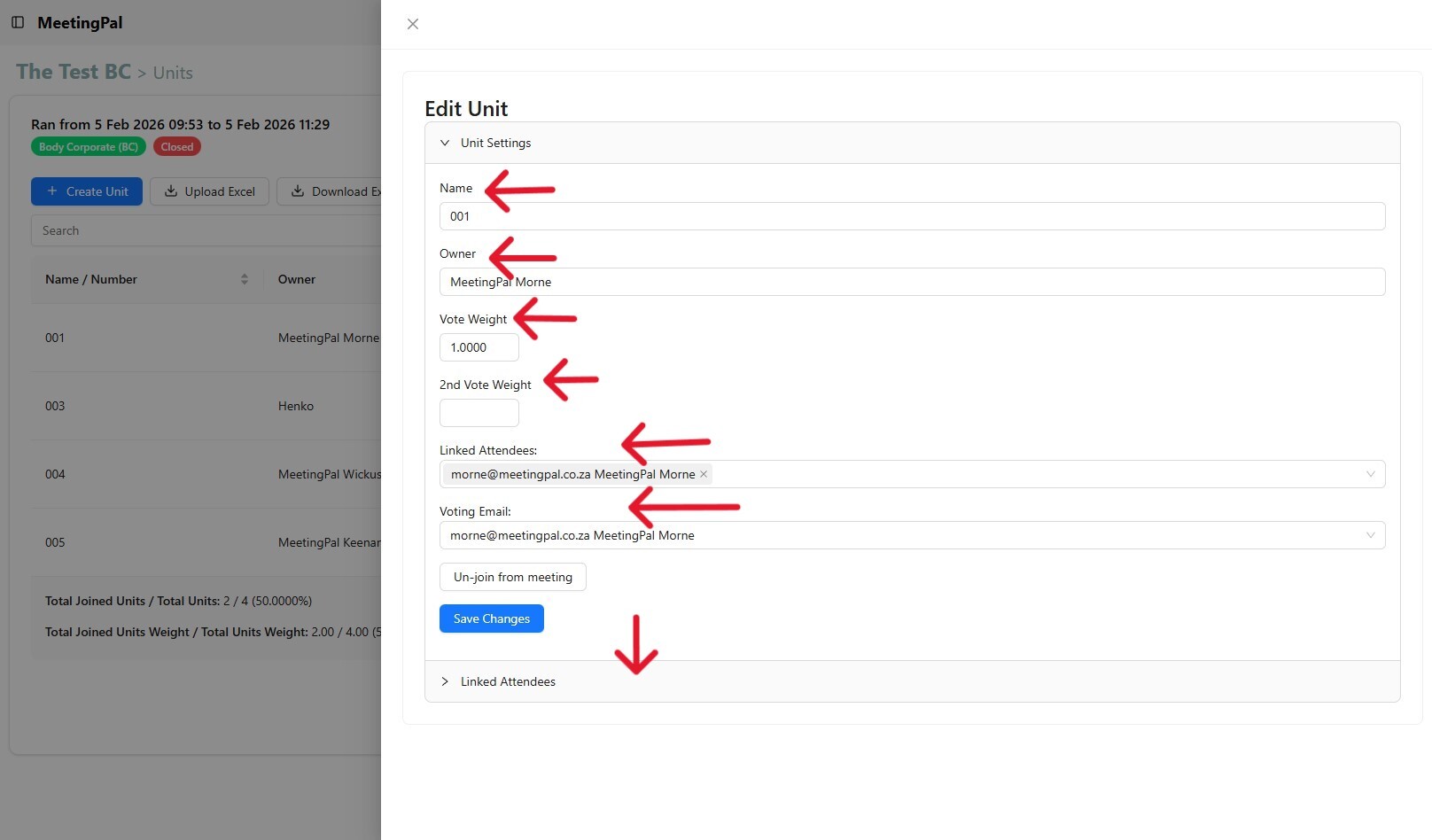
Editable Fields:
- Name: Usually the Unit number.
- Owner: The person or entity that owns the unit.
- Vote weight: The vote weighting assigned to the unit.
- 2nd Vote weight: Used by some Body Corporates when a second metric (different from the primary PQ) applies.
- Linked attendees: Email used for communication between MeetingPal and the unit owner.
- Voting email: Email used specifically for voting.
- You can also view the list of Units linked to an Owners' email by clicking on the Linked Attendees button.