email-invites
Sending Email Invites in MeetingPal
1. Access the Scheduled Meeting
- On the MeetingPal Home Page, locate the left‑hand menu.
- Select Meetings.
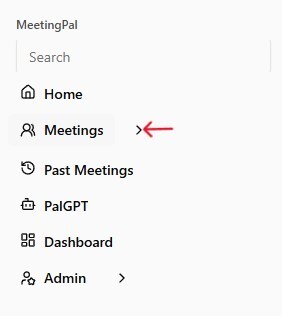
- From the dropdown list, find and select the scheduled meeting for which you want to send email invites.
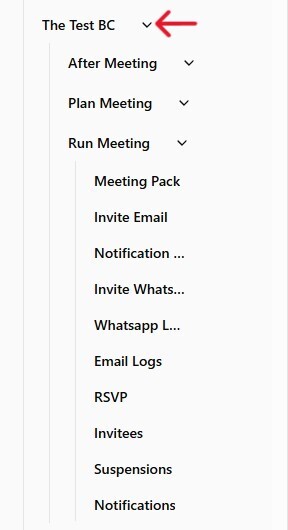
2. Open the Invite Email Section
- In the meeting’s dropdown menu, click Run Meeting.
- Scroll down and select Invite Email.
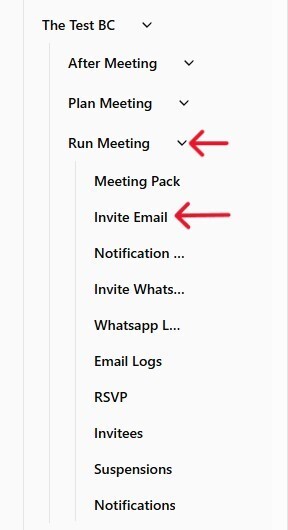
- The Invite Email Page will open.
3. Customize the Email Invite
On the Invite Email Page, you can:
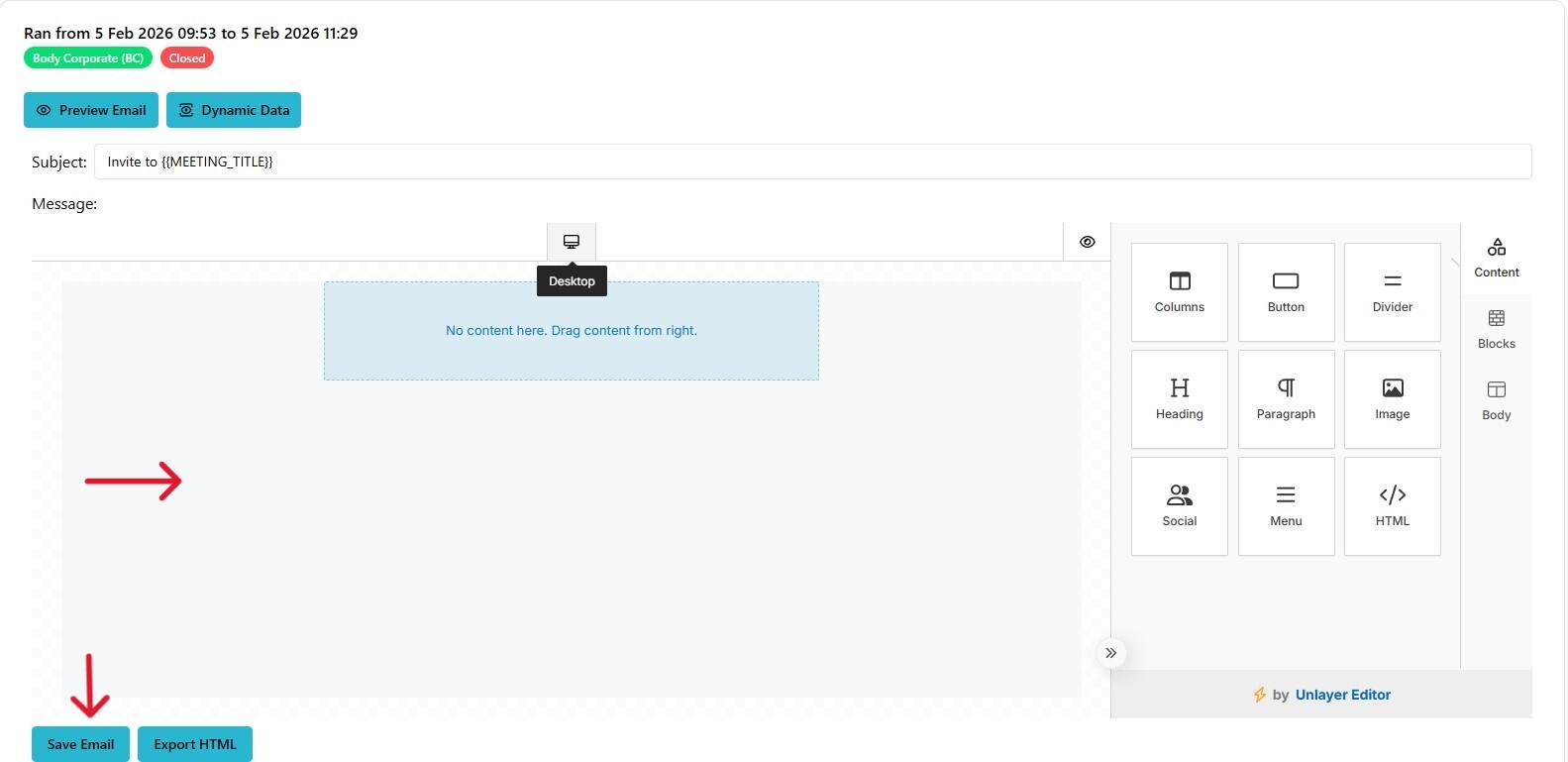
- Edit the email content you want to send to members.
- Include the unique meeting link.
- Add instructions for attendees and any additional meeting-related information.
Complete your customizations and Save Email(Bottom Left) before continuing.
4. Open the Invitees Page
- On the far left menu scroll down, select Invitees.
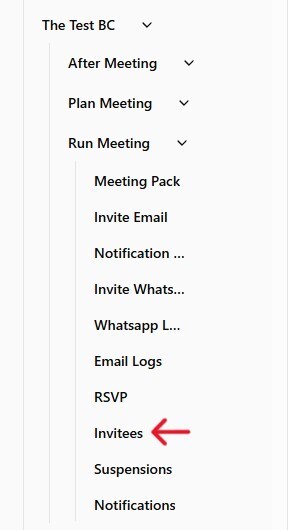
- This opens the Invitees Page where you will manage and send the invites to members and other invitees to the Meeting.
5. Send the Email Invites
- At the top of the Invitees Page, click the Notify Users button.
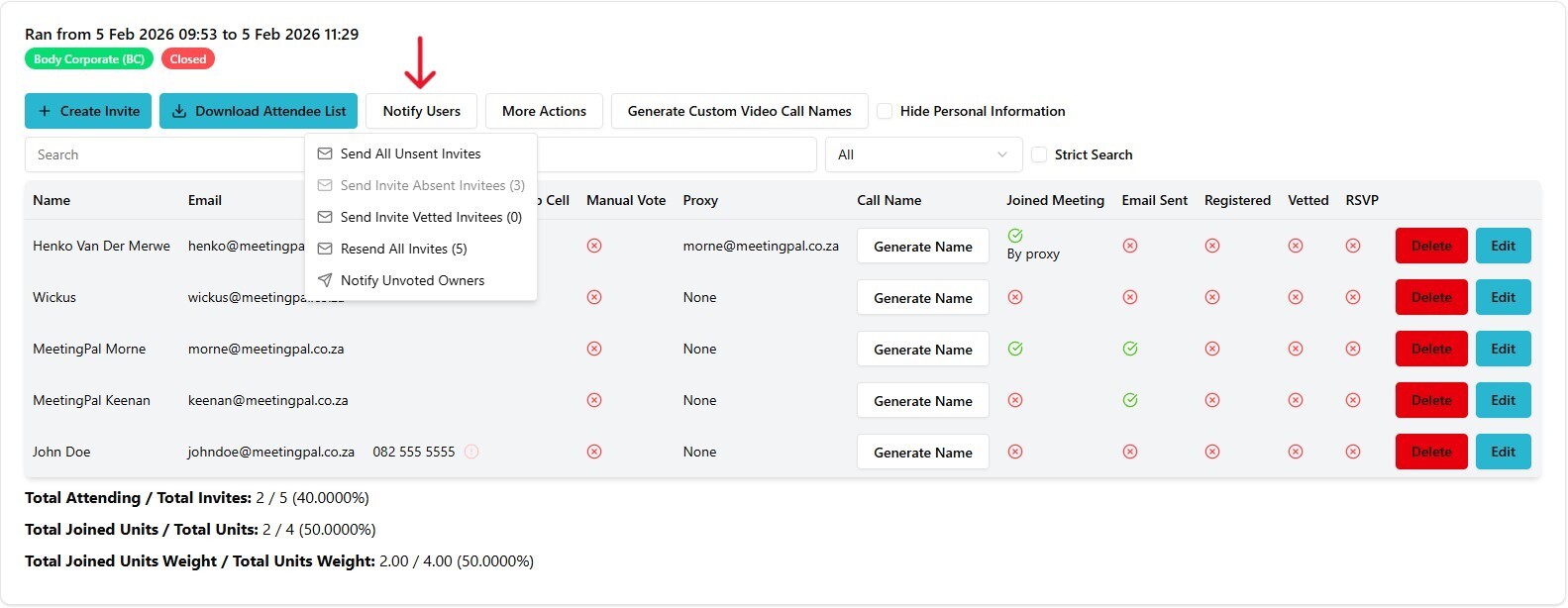
- You will be presented with the following options:
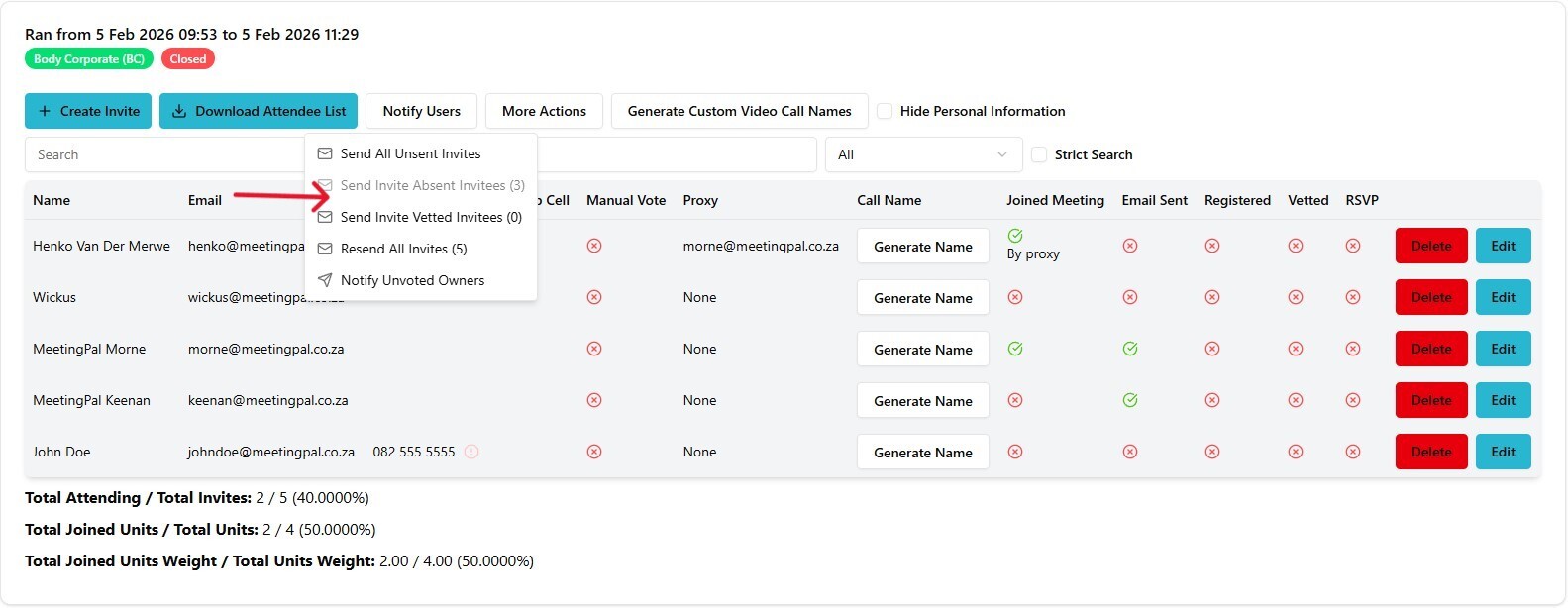
- Send All Unsent Invites
- Send Invite Absent Invitees
- Send Invite Vetted Invitees
- Resend All Invites
- Notify Unvoted Owners
- Select the option appropriate for your meeting needs.
6. Confirm Sending Options
After selecting an invite option:
- A pop‑up message will ask whether invites should also be sent to Suspended Members.
- Make your selection and click Send Now or Cancel
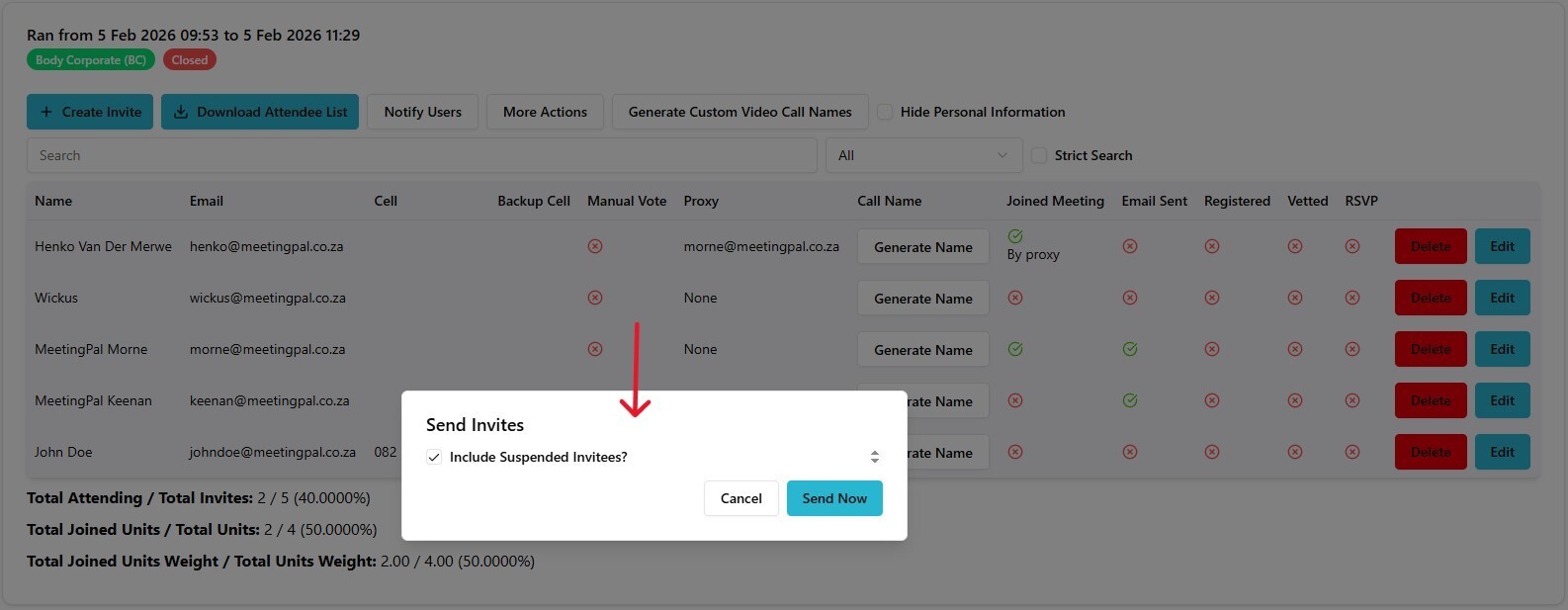
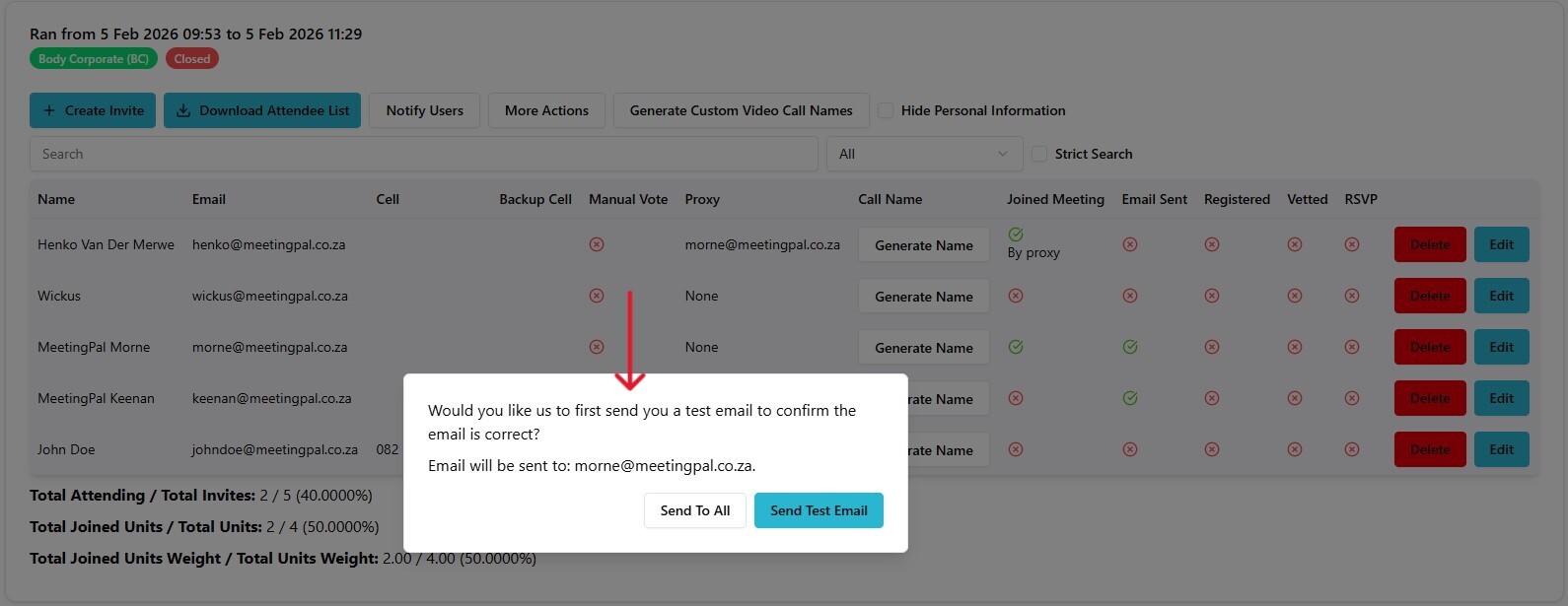
- A second pop‑up will ask whether you want to:
- Send Invites Immediately, or
- Send a Test Invite to your own email to verify the content.
- Select the option you prefer. Send to All will send Invites to all members immediately, while Send Test Email will send an invite to you email for content verification.
7. Member Delivery Notes
- Members will receive their Unique Email Invite using the email address uploaded to the meeting.
- Important: Sometimes email invites may arrive in members' Spam/Junk folders due to individual email settings.
- Inform members to check these folders if they do not receive the invite promptly. Or they can get in touch with MeetingPal at info@meetingpal.co.za