Compact Voting
How to vote on a meeting with compact voting enabled.
How to join a meeting.
To join a meeting you can click on the 'Join Meeting' button on the Home page.
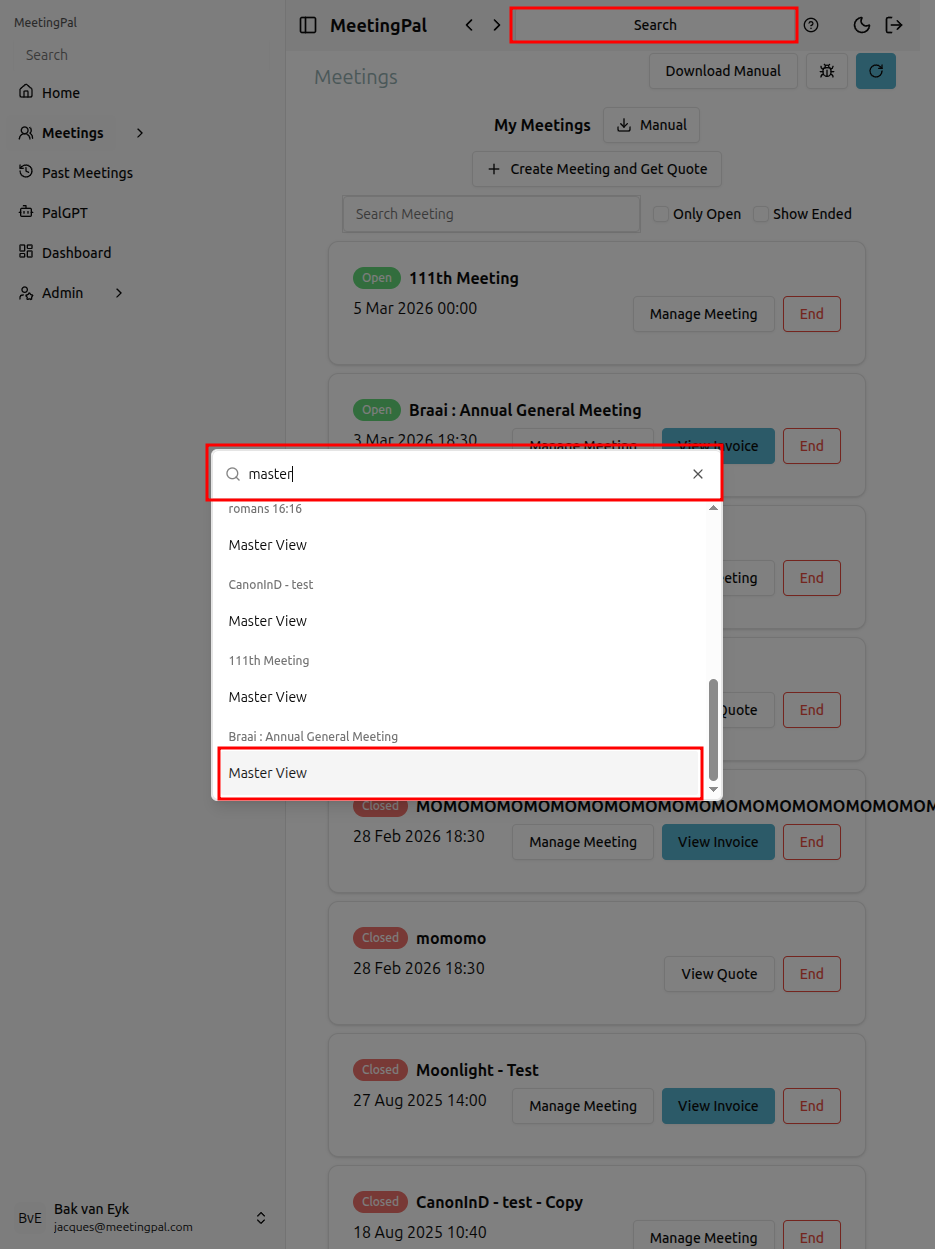
Or you can navigate to the Masterview page, using the search button at the top of your screen.
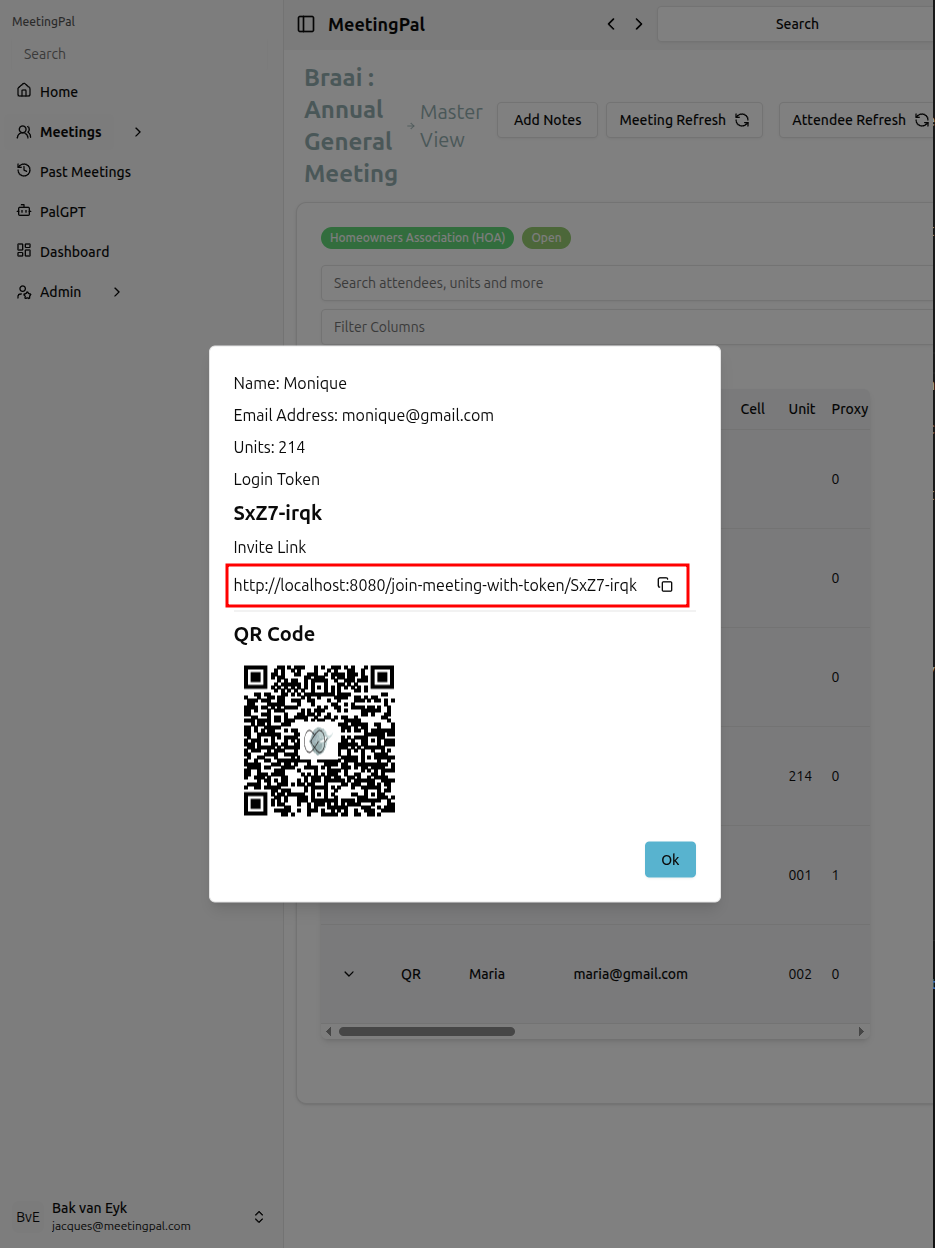
Then click on the QR button and then click on the link for the meeting or by scanning the QR Code.
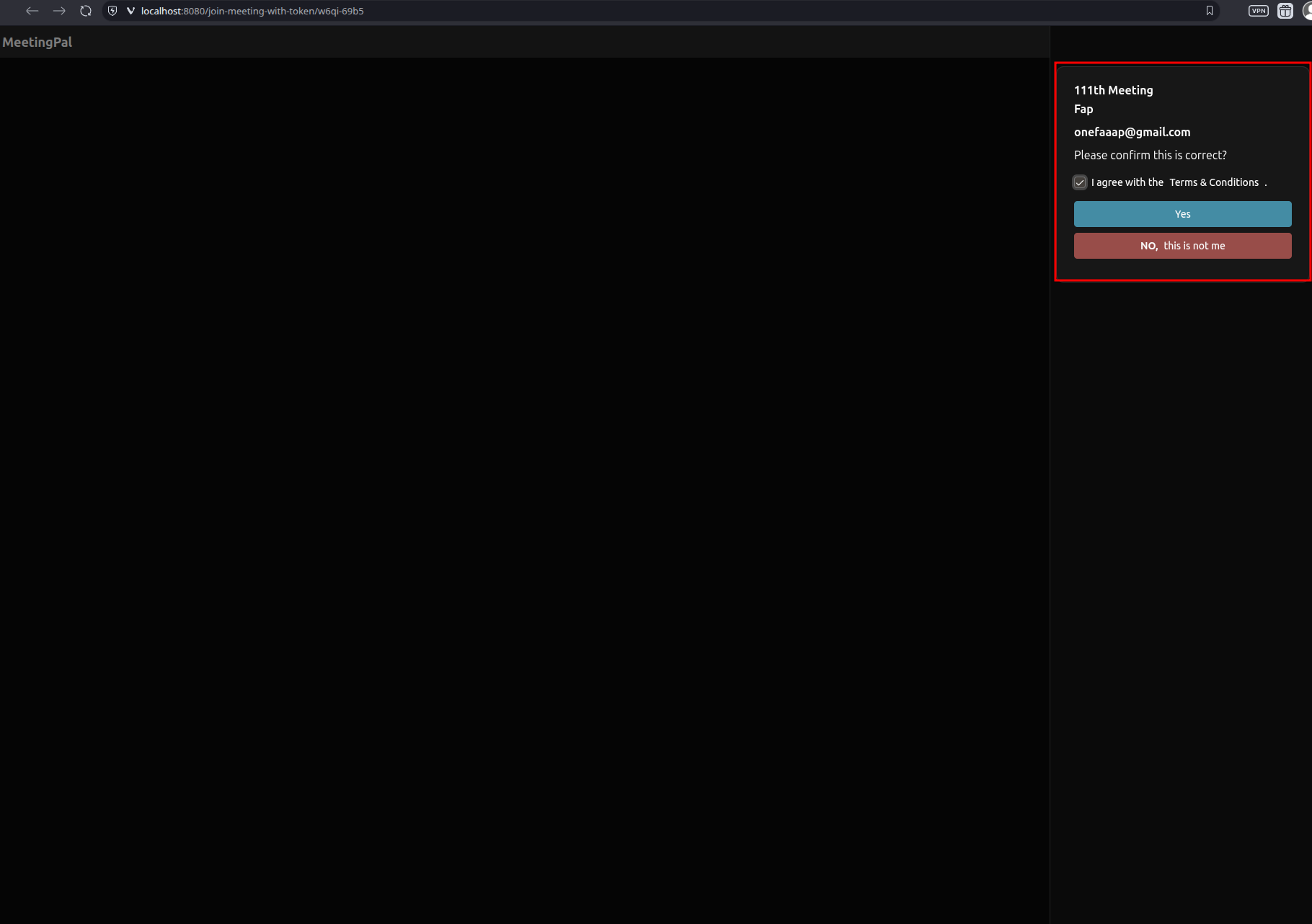
When joining a meeting
You will be presented with a sidebar popup to confirm who you are and for which units you will be voting for.
You will see the agenda tab automatically open on entering the meeting, here you will see the items on the agenda, including the resolutions to vote on.
How to open resolutions.
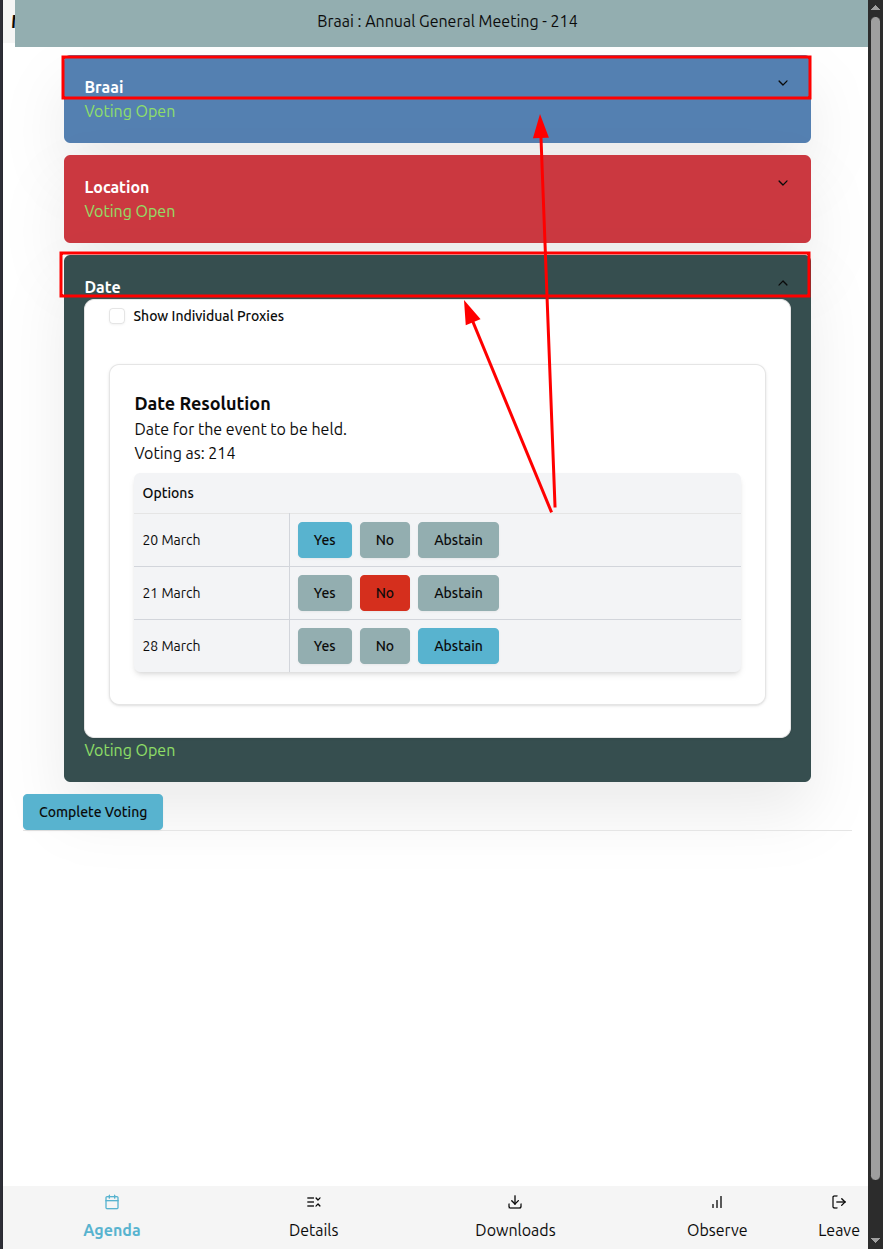
In the agenda tab, you will see the resolution components.
To open the resolution you have to click/tap on the component and you will bee able to see the resolution in it's entirety.
How to cast your vote.
To cast a vote, you have to click/tap on one of the voting options, which will change based on what type of resolution it is.
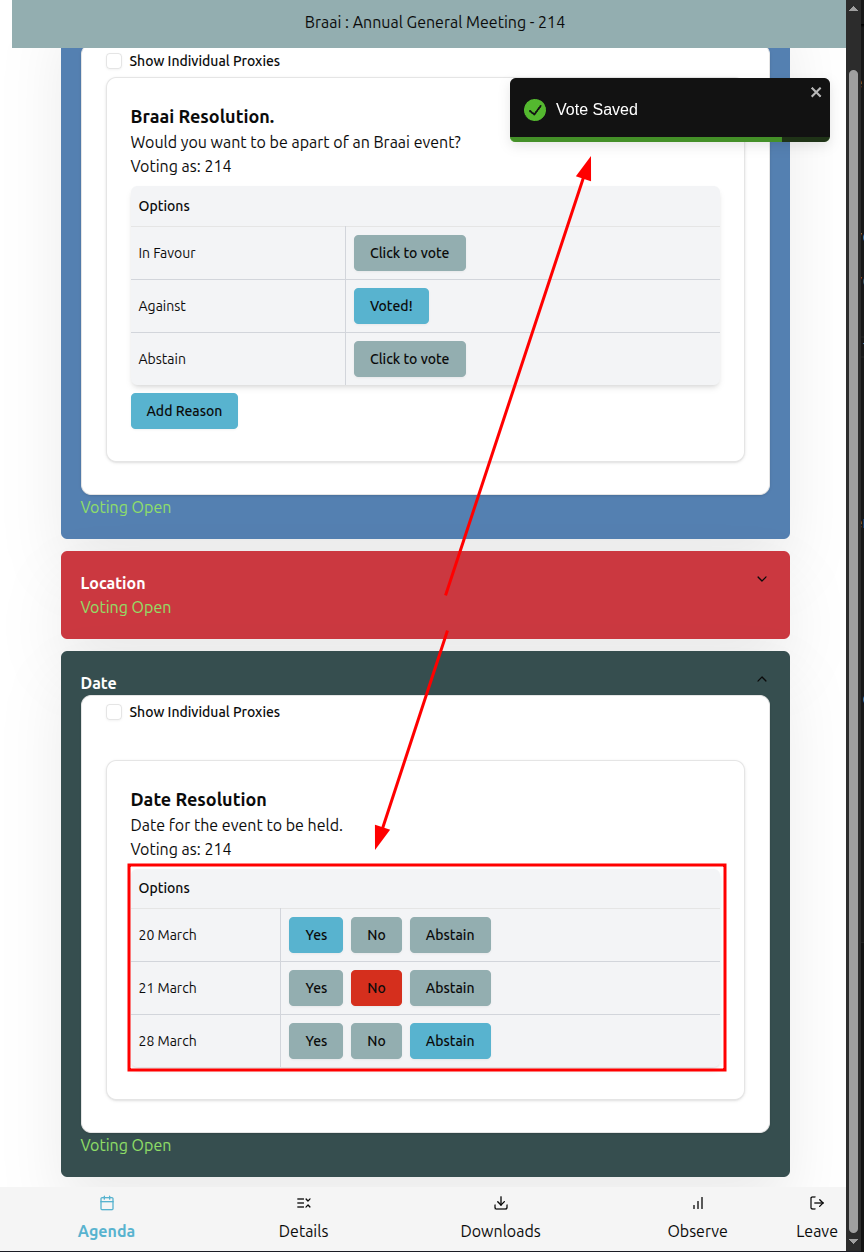
Your vote will automatically be saved when casted.
How to vote as a proxy.
On the resolution item you will see a checkbox with the label:"Show Individual Proxies".
Clicking this checkbox will allow you to cast votes as a proxy apart from your own votes.
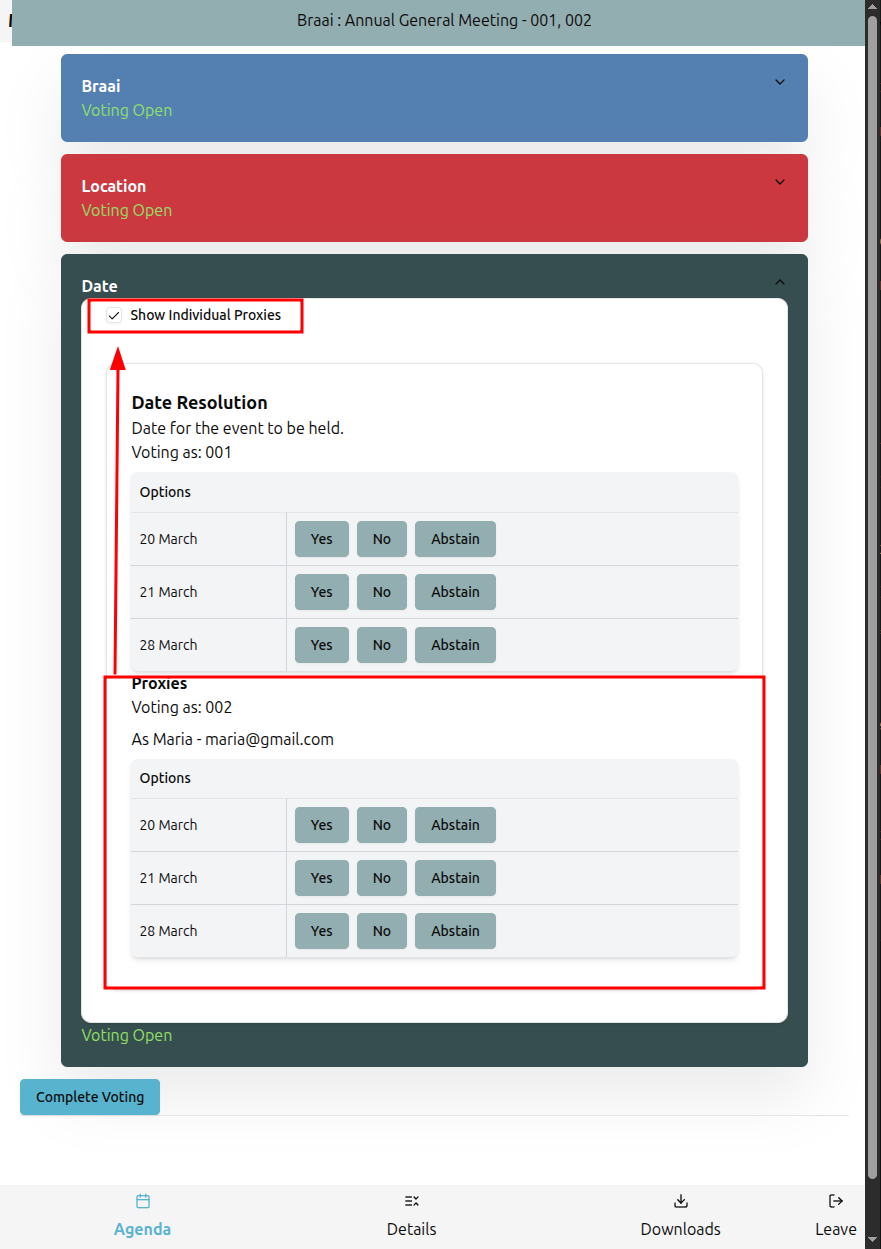
if you do not check this checkbox, your votes and the votes for whome you are a proxy will be the same.
How to use the observer view.
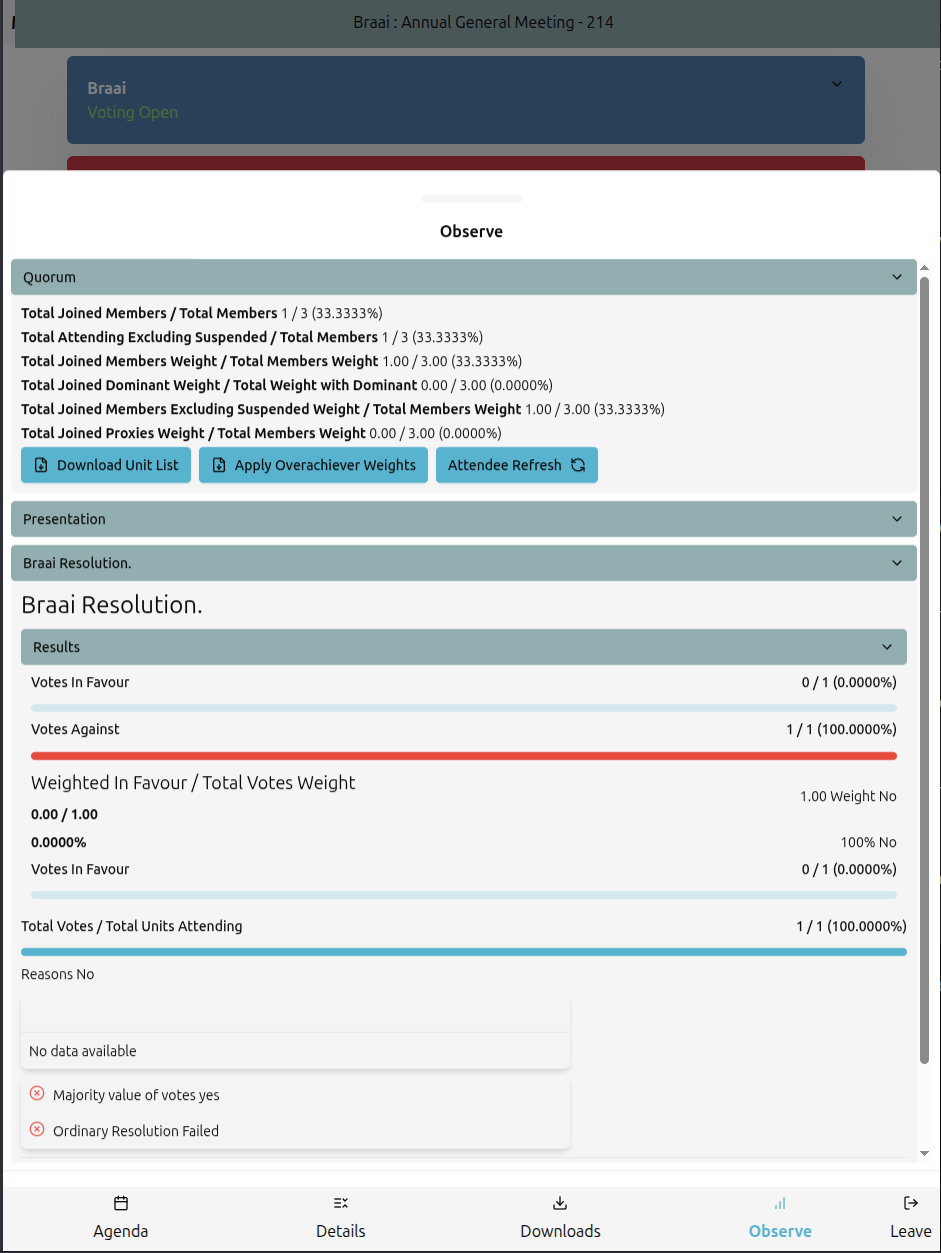
Click on the observer item in the bottom menu bar to open the observe tab.
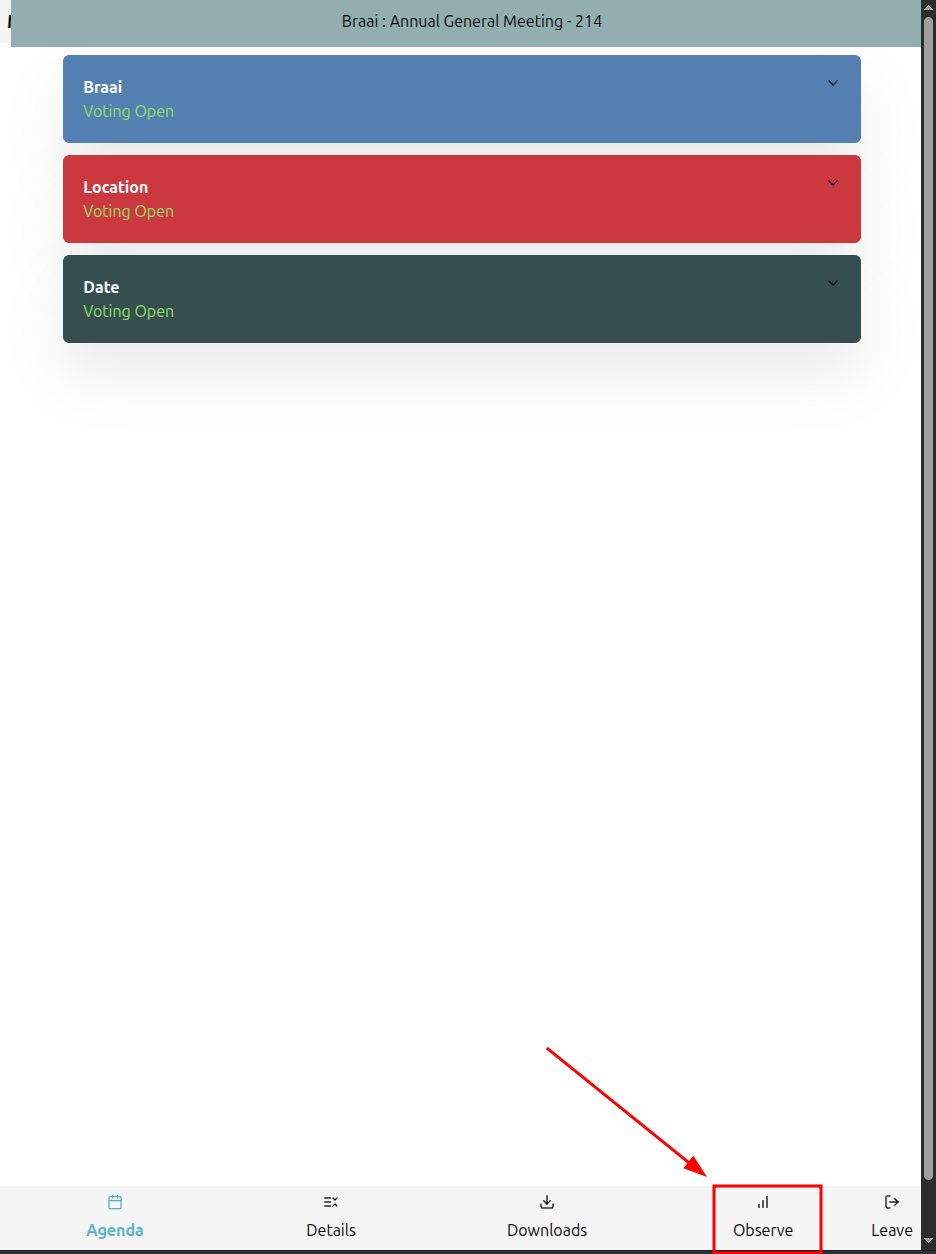
In the observe tab you can see the quorum details of the meeting and the results of all the resolutions for the meeting.