Administrator Registration Manual
(For Portfolio Managers & Administrators)
Purpose of This Manual
This manual explains exactly how to register as an Administrator on MeetingPal.
Administrator access is required if you want to:
• Create meetings • Set up agendas and resolutions • Upload owner/member data • Send meeting invitations • Manage proxies and voting If you do not register as an Administrator, you cannot set up or manage meetings.
What You Need Before You Start
Before you begin, please ensure the following:
Required Information
You must have:
• A valid email address (this will become your login username) • A mobile phone number (used for SMS and WhatsApp notifications) • A password you can remember
WARNING: Do not use a shared office email address.
Each administrator must have their own personal login.
Supported Internet Browsers
MeetingPal works best in modern, Chromium-based browsers.
Recommended Browsers
Please use one of the following:
• Google Chrome • Microsoft Edge • Safari • Mozilla Firefox • Brave
WARNING: Do not use outdated browsers or Internet Explorer.
Accessing the MeetingPal Administrator Portal
Step 1: Open Your Internet Browser:
Open: Chrome, Edge, Safari, or Firefox.
Step 2: Go to the Administrator Website
In the address bar at the top of your browser, carefully type: https://admin.meetingpal.app Then press Enter on your keyboard.
Starting the Registration Process
Step 3: Locate the “Register” Button You will see the MeetingPal Login page At the bottom of the page, look for a button labelled: “Register”
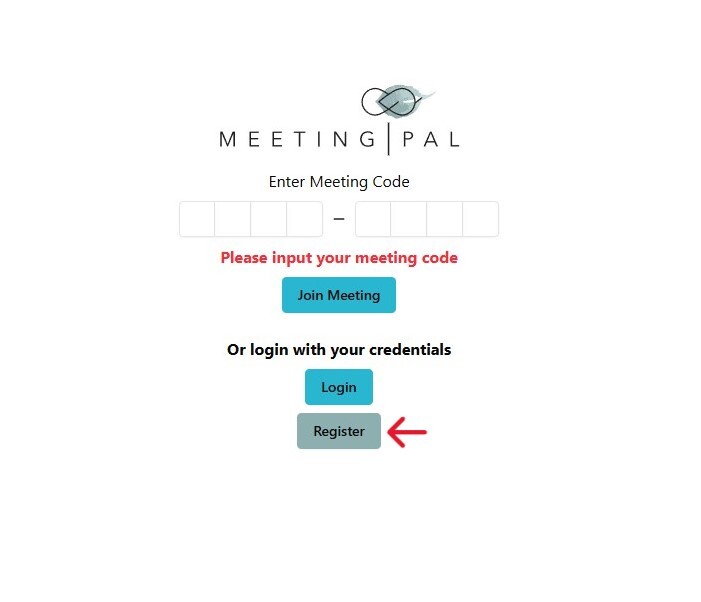
Click on Register.
Initial Registration Details
You will now be asked to enter basic login details.
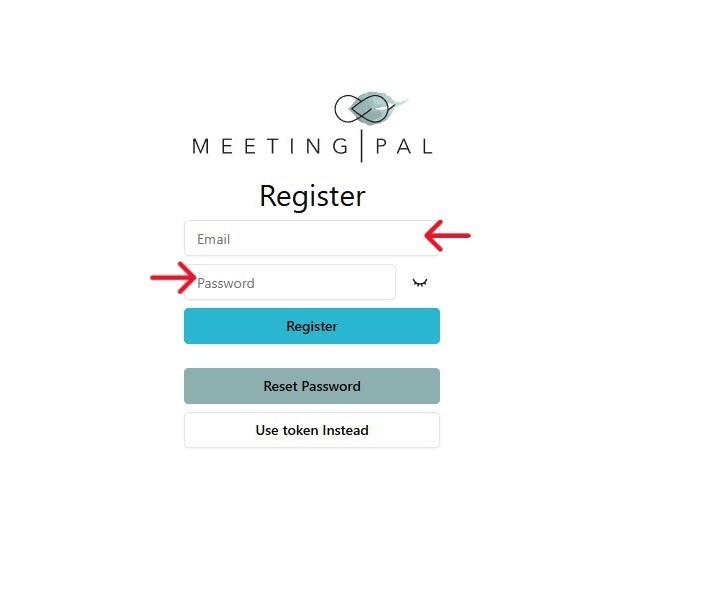
Step 4: Enter Your Email Address Type your own email address. This email address will be used:
• To log in • To receive system notifications • To receive meeting-related communications
Step 5: Create a Password
Enter a password of your choice Choose something: • Secure • Easy for you to remember
Tip: Write your password down and store it securely if needed.
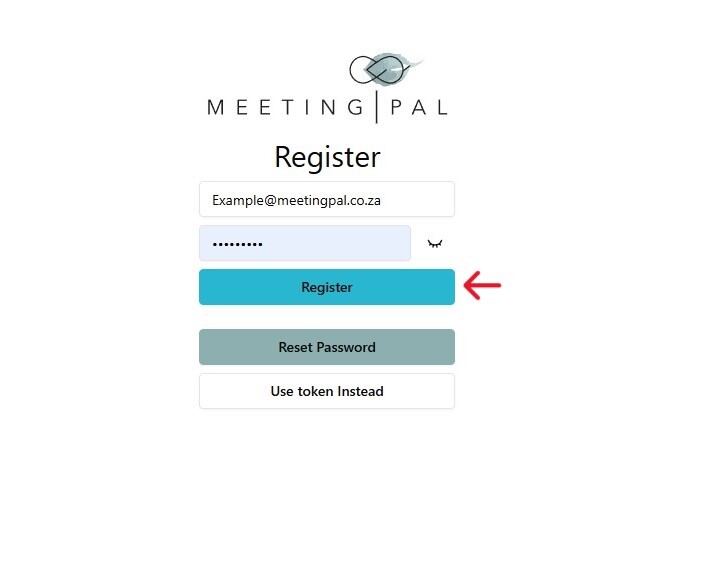
Step 6: Click “Register”
• Once your email and password are entered, click Register.
- Completing Your Administrator Profile You will now be asked for additional required information.
Step 7: Confirm Your Password
• Re-enter the same password • This ensures there are no typing errors
Step 8: Enter Your Personal Details
• First Name • Last Name
These details will appear in: • Administrator records • Audit logs
Meeting administration records
- Entering Your Mobile Phone Number
Your phone number is important.
Why Your Phone Number Is Required It is used for: • SMS notifications • WhatsApp messages (if enabled) • Sending test messages to yourself
Step 9: Select Your Country Code
• Click on the country dropdown • Select your country
This ensures the correct international dialing code. *You do not need to be South African.*Just ensure the correct country code is selected.
Step 10: Enter Your Phone Number
• Just ensure the correct country code is selected. • Enter your mobile number without spaces • Do not include the country code again
- Accepting Terms and Privacy Conditions
After completing your details, you will be shown:
• Terms and Conditions • Privacy Policy • Data-usage explanation • Important Legal Notes (Plain English) MeetingPal: • Only collects data required by law • Complies with: -POPIA -Companies Act -Sectional Title Schemes Management legislation • Uses data solely for: -Meeting invitations -Attendance tracking -Voting and audit purposes MeetingPal does not: -Sell your data -Collect unnecessary personal information
Step 11: Accept the Terms
Read through the conditions • Click Accept
- Successful Registration
Once accepted:
• Your administrator account is created • You will see a welcome message • You will be logged into the MeetingPal Admin system
- What You Will See After Logging In

• You will now see the MeetingPal Administrator Dashboard. • Main Menu Items (Left or Top Menu)
You will notice options such as:

• Home • Meetings • Past Meetings • Administration
At this stage the system may look empty. This is normal as no meetings exist yet.
- What Happens Next:
• You are now successfully registered as an Administrator.
In subsequent steps/videos/manuals, you will learn:
• How to create your first meeting • How to upload member data • How to send invitations
- Common Mistakes to Avoid: VERY IMPORTANT
• Avoid using a shared office email • Avoid forgetting your password • Avoid selecting the wrong country code • Avoid skipping the Terms & Conditions
- Summary Checklist Before moving on, confirm:
• You can log in successfully • Your name and phone number are correct • You see the administrator dashboard
You are now ready to proceed to setting up your first MeetingPal meeting!