Token Report Tab
Access the Scheduled Meeting
On the MeetingPal Home Page, locate the left-hand menu. Select Meetings.
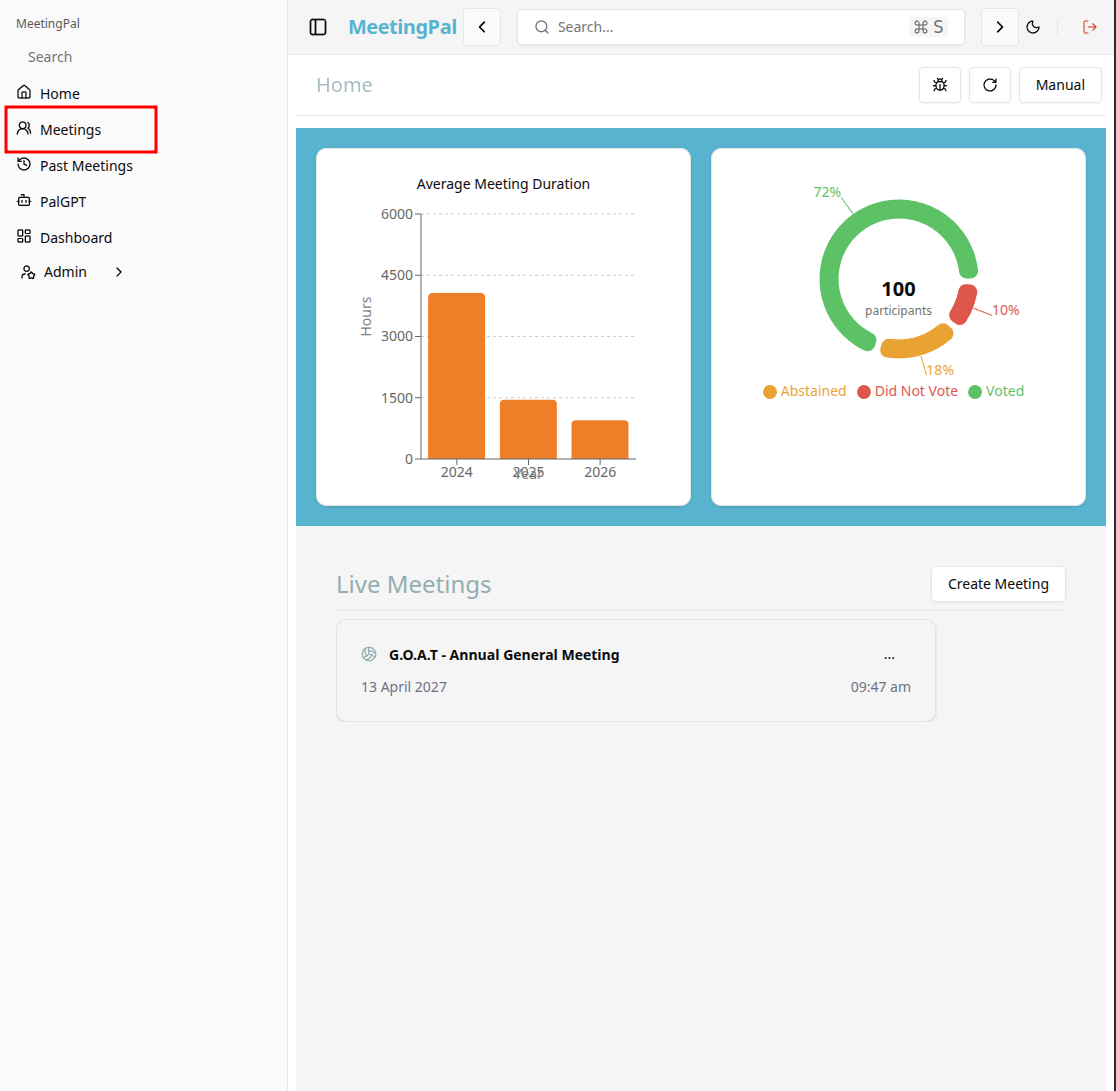
Start editing the meeting
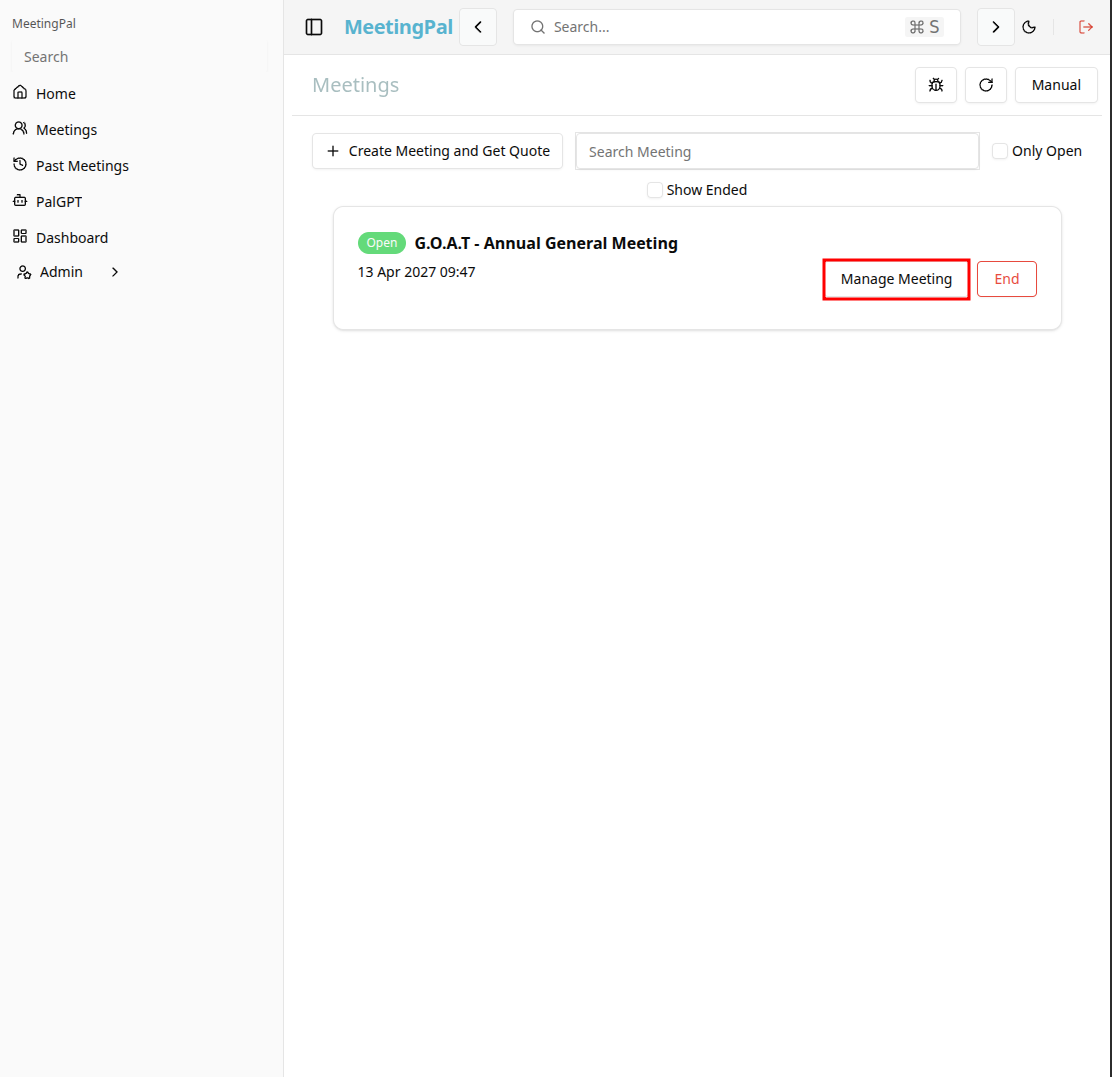
In the meetings page ,you will see all your meetings and the meetings that you are scheduled to attend.
Click on the 'Manage Meeting' button to begin editing the selected meeting.
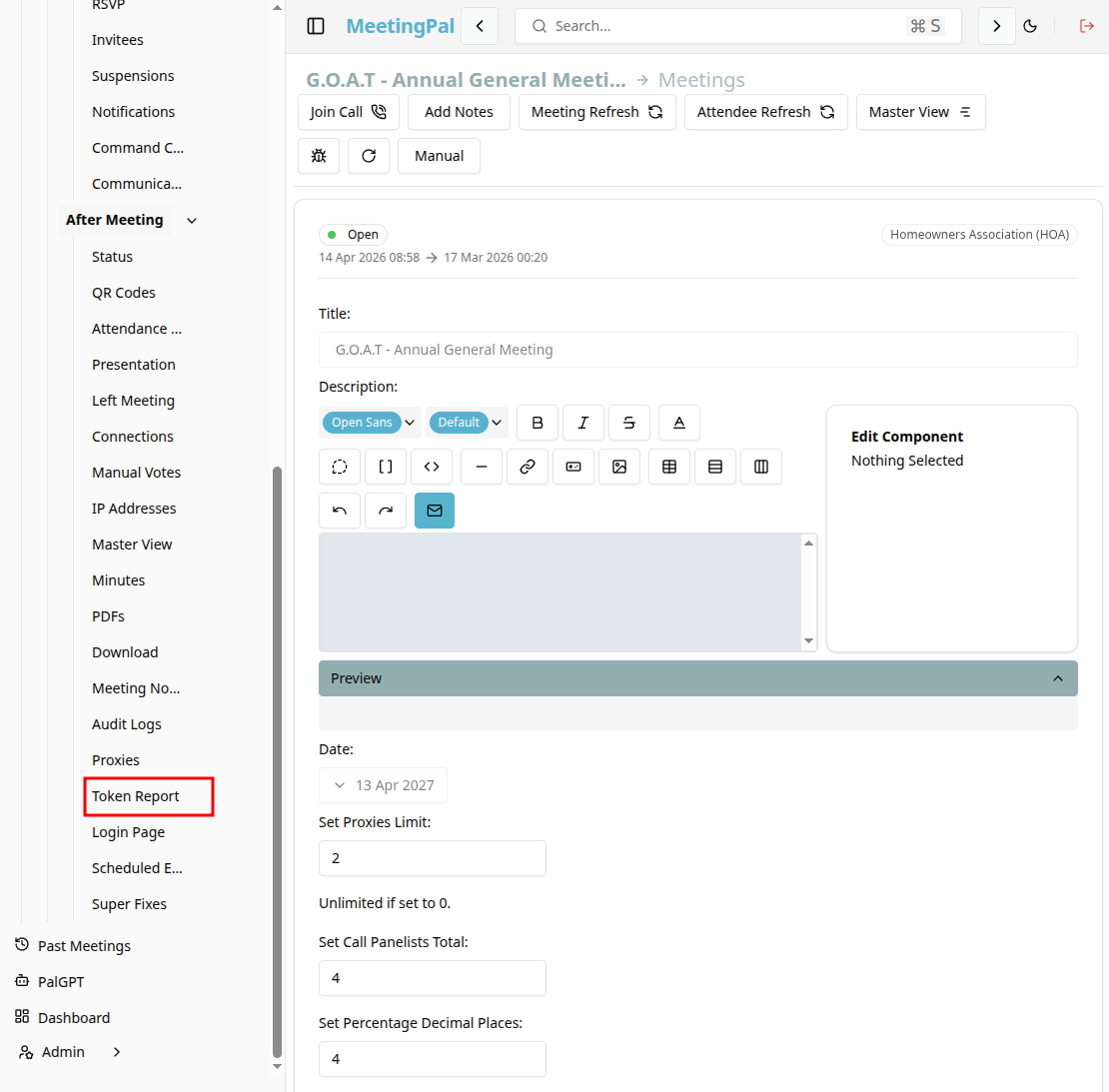
Open the Token Report Tab
In the selected meeting’s dropdown menu, click Token Report.
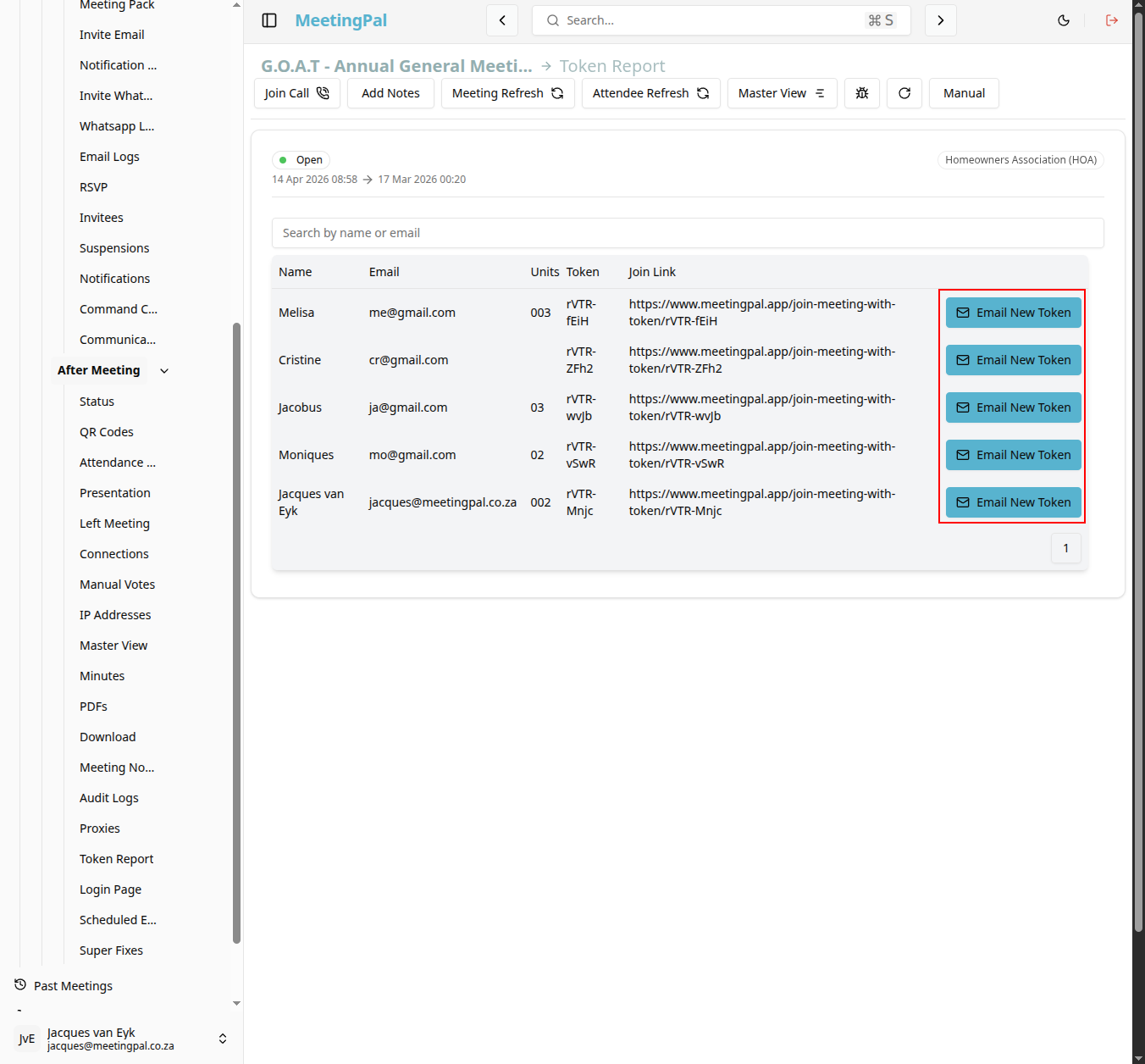
The Token Report page will open.
Understanding the Token Report Page
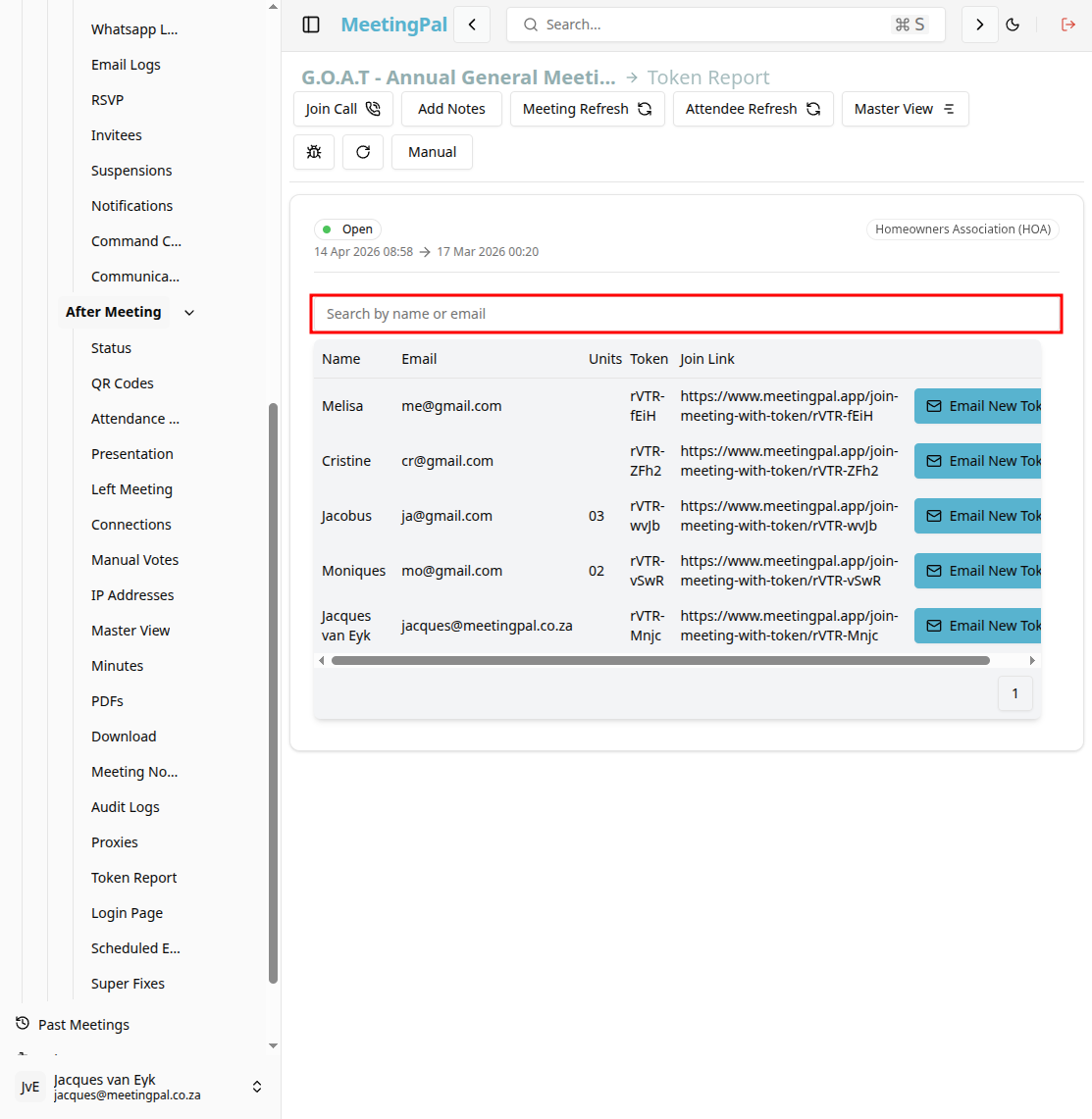
The Token Report page provides a detailed record of the secure access tokens generated for attendees and invitees.
These tokens are used to create personalised meeting links that allow participants to join the meeting, vote, and access meeting materials.
From this page, you can:
- View all generated tokens.
- See which attendee each token belongs to.
- Email the login token to specific the invitees
Review Token Details
Each token record may include:
- Attendee Name.
- Email Address.
- Unique Token Value
- Units linked to the invitees
This information helps you verify that personalised links were generated and used correctly.
Search and Filter Tokens
Use the search bar and filters to locate specific token records.
You may be able to filter by:
- Attendee name.
- Email address.
- Token status.
- Date created.
- Last used date.
Investigate Access Problems
If an attendee cannot join the meeting:
- Search for their name in the Token Report.
- Confirm that a token was generated.
- Resend the invitation if necessary.
You can send/resend an token via email with the 'email new token' button.
Common Uses for the Token Report
The Token Report is useful for:
- Verifying attendee access links.
- Troubleshooting login issues.
- Monitoring token usage.
- Maintaining an audit trail of personalised invitations.
Best Practices
Review the Token Report before sending invitations.
Use the report to identify invitees who have not yet accessed the meeting.
Regenerate or resend invitations if tokens appear invalid.
Restrict access to token information to authorized administrators.
Important Notes
Tokens are unique and linked to specific attendees.
Token values may be partially hidden for security reasons.
Access token usage is recorded automatically.
Token information should be treated as confidential.