Suspensions Tab
Access the Scheduled Meeting
On the MeetingPal Home Page, locate the left-hand menu. Select Meetings.
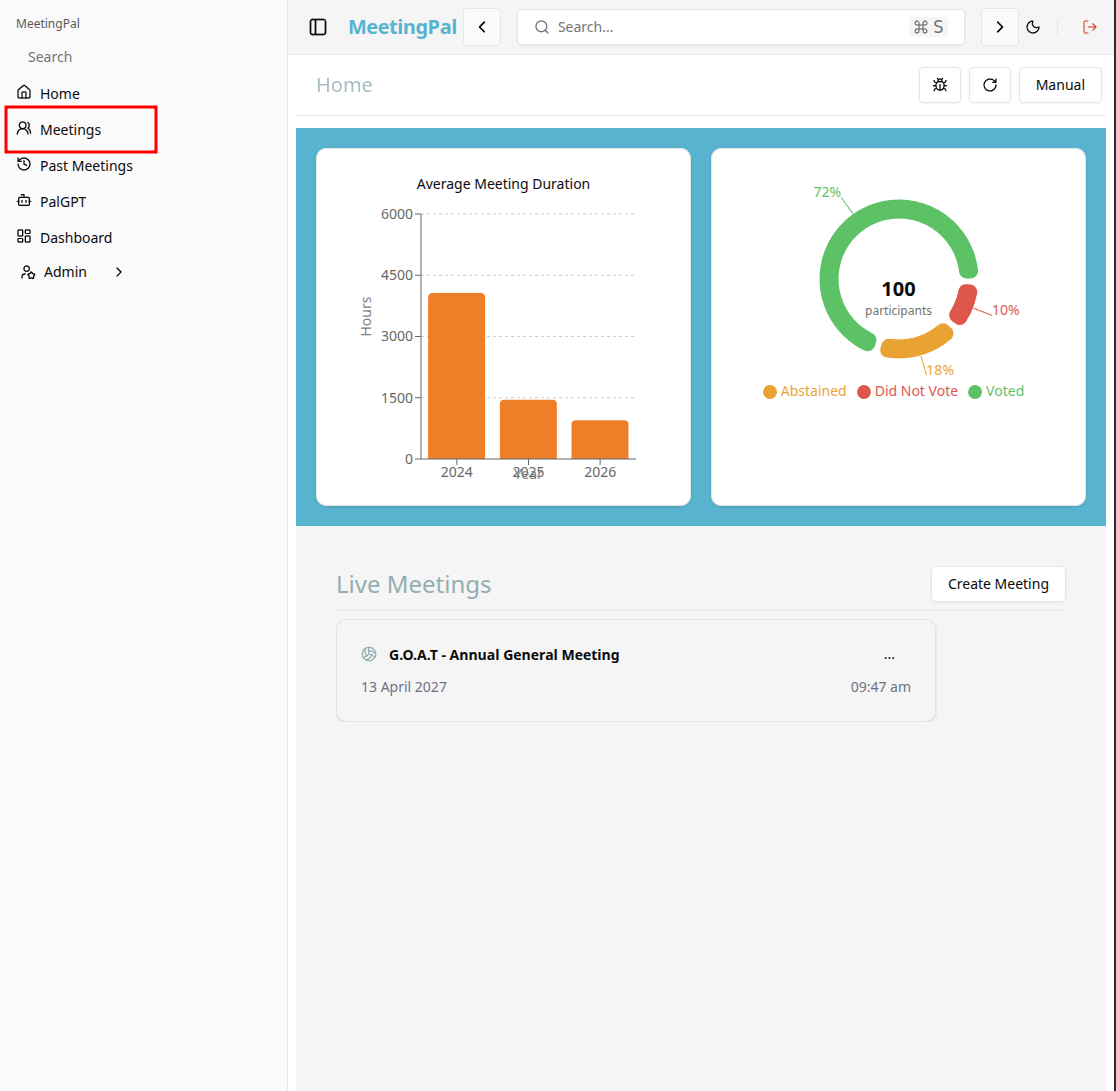
Start editing the meeting
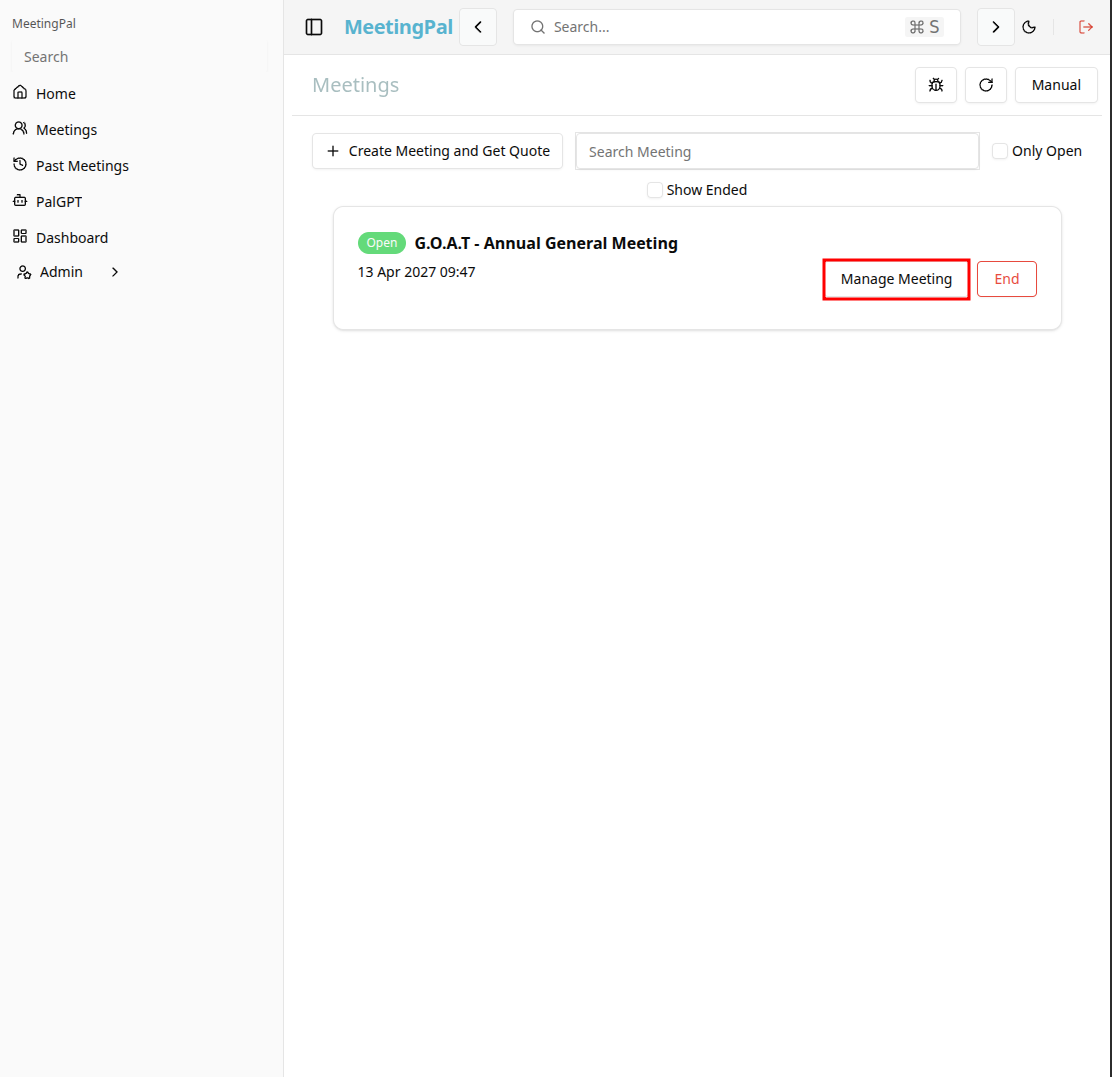
In the meetings page ,you will see all your meetings and the meetings that you are scheduled to attend.
Click on the 'Manage Meeting' button to begin editing the selected meeting.
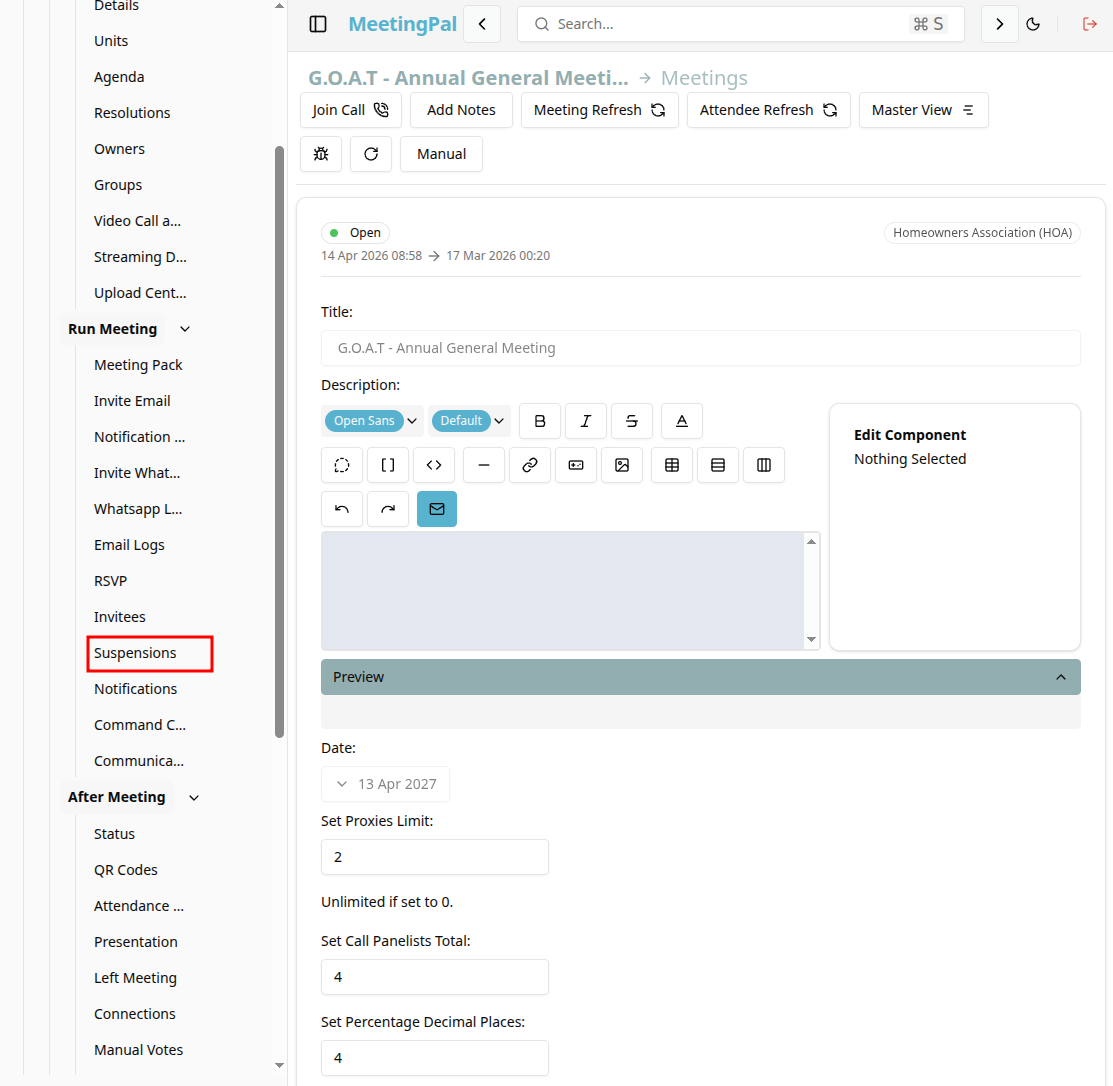
Open the Suspensions Tab
In the selected meeting’s dropdown menu, click Suspensions.
The Suspensions page will open.
Understanding the Suspensions Page
The Suspensions page allows you to manage members or owners whose voting rights or meeting participation are temporarily suspended.
From this page, you can:
- View all suspended participants.
- Add new suspensions.
- Remove suspensions.
- Record reasons for suspension.
- Specify suspension periods.
- Review how suspensions affect voting eligibility.
Edit an Existing Suspension
Locate the suspension in the list.
Click the Edit icon or select the record.
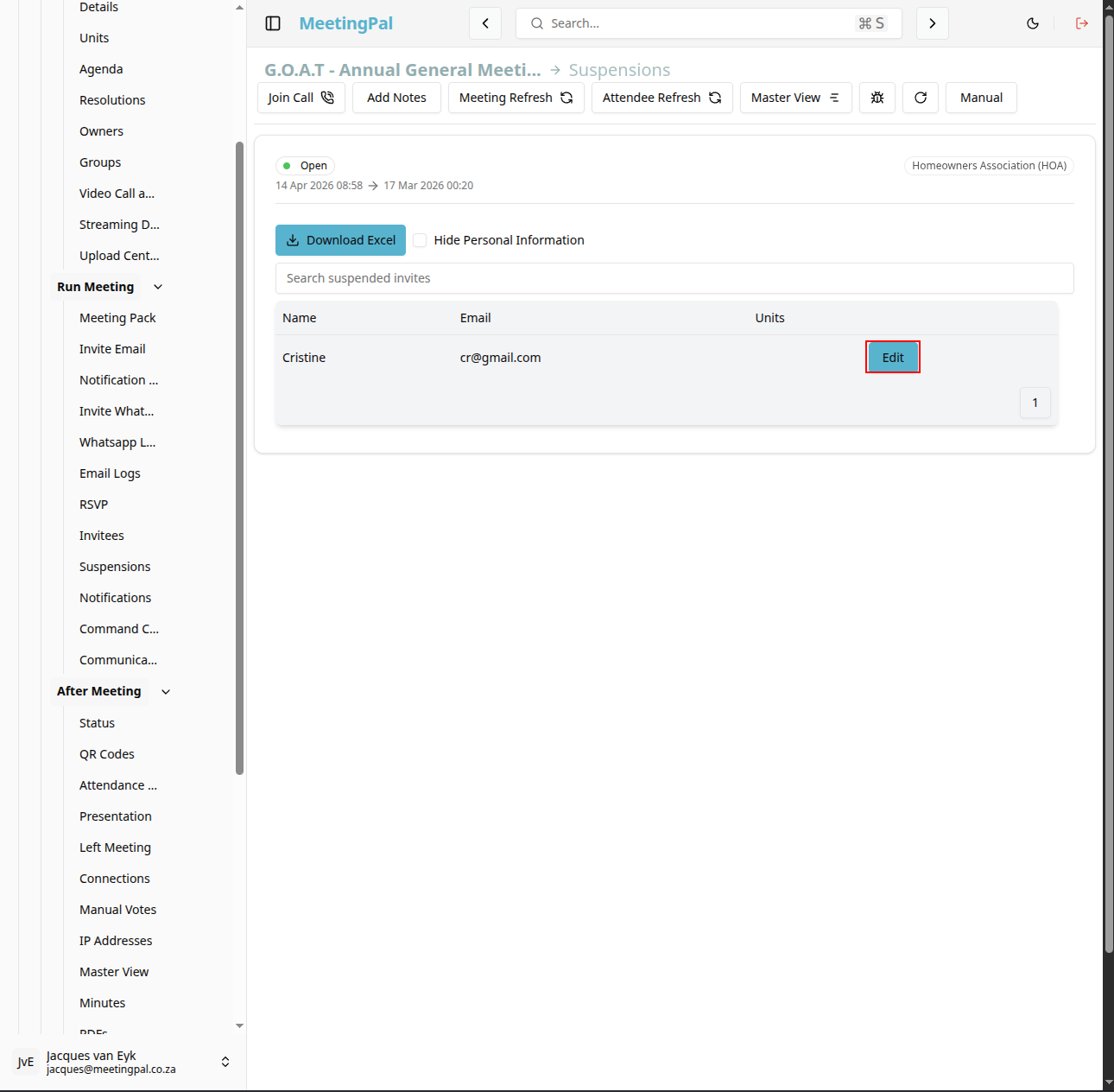
Update the required details.
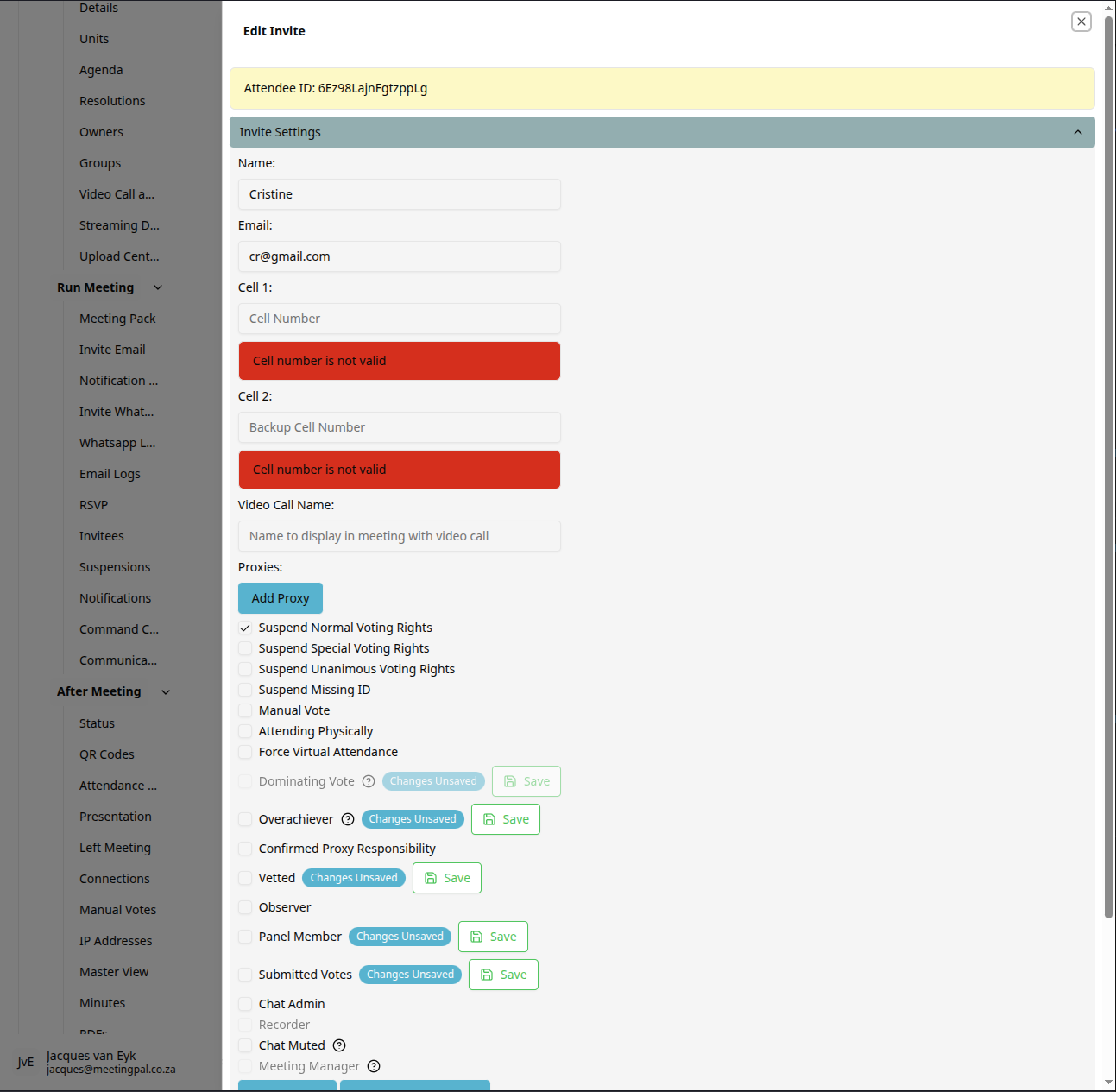
Click Save Changes.
Search and Filter Suspensions
Use the search bar and filters to locate records quickly.
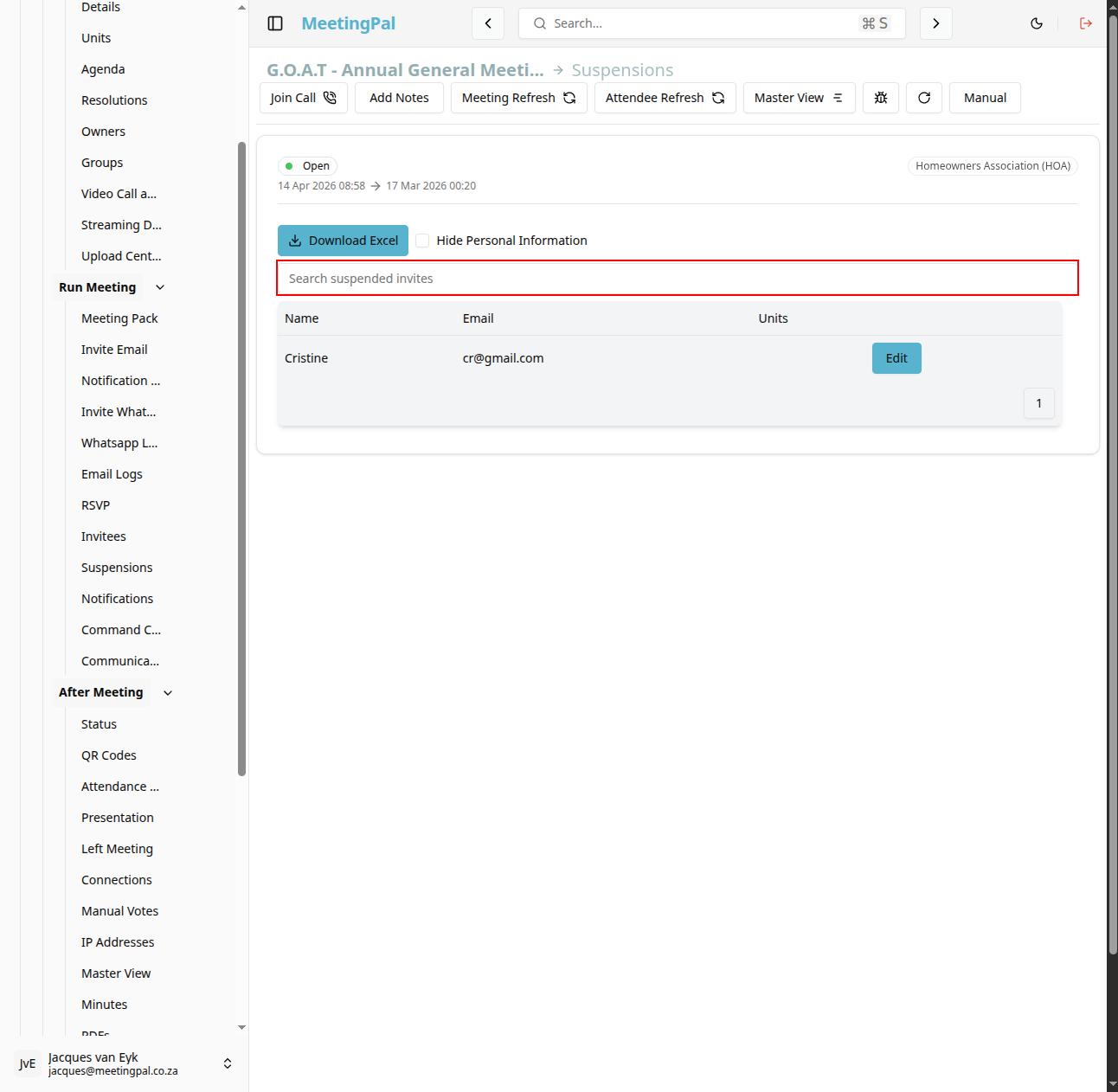
You may be able to filter by:
Member or owner. Unit number. Active or expired suspensions. Suspension reason.
Impact of Suspensions
Suspended participants may:
- Be excluded from voting.
- Be prevented from receiving invitations.
- Be excluded from quorum calculations.
- Lose access to certain meeting features.
The exact impact depends on your organization’s MeetingPal configuration and meeting rules.
Review Suspension Records
Before sending invitations or opening voting, confirm that:
- All required suspensions are accurately recorded.
- Expired suspensions have been removed.
- Voting eligibility reflects the correct status.
Best Practices
Record clear reasons for every suspension.
Review active suspensions before each meeting.
Confirm suspension dates are accurate.
Notify affected members where required by your governance rules.
Important Notes
Suspensions may affect invitation delivery, voting rights, and quorum calculations.
Only authorized users should manage suspension records.
Some suspension features may vary depending on your organization’s configuration.