Upload Unit Details Using Excel Spreadsheet
Prepare Your Excel Spreadsheet
Ensure all data in the excel is correct before uploading it to your meeting.
The following fields are compulsory:
- Unit / Stand Nr / Erf Nr
- PQ (Participation Quota)
- Owner Name (entity or personal)
- Voting Email Address (main)
- Voting Cell Number
An Example of a prepared Excel Spreadsheet
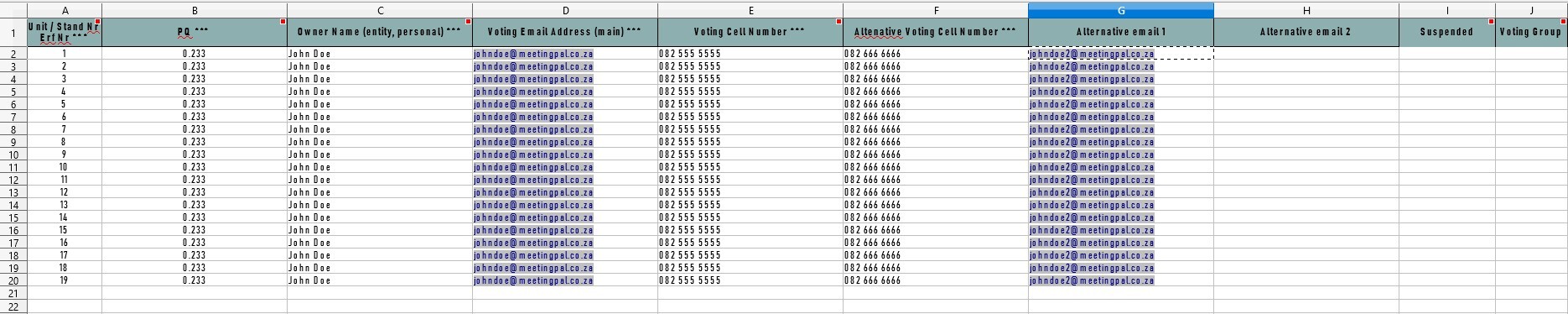
Best Practice: Ensure that all data entered is correct and up-to-date. Incorrect or outdated Member data can cause difficulties when running meetings.
Steps to Load Units
How to access Unit Settings:
Navigate to the Units Section on the far left of the page in MeetingPal
- Click on the “Plan Meeting” tab.
- Scroll to and select “Units”.
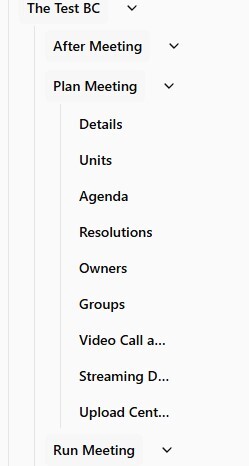
Alternatively you can navigate to the Search bar at the top of the page
- Use the search bar and type “Units”.
Example of Unit Page
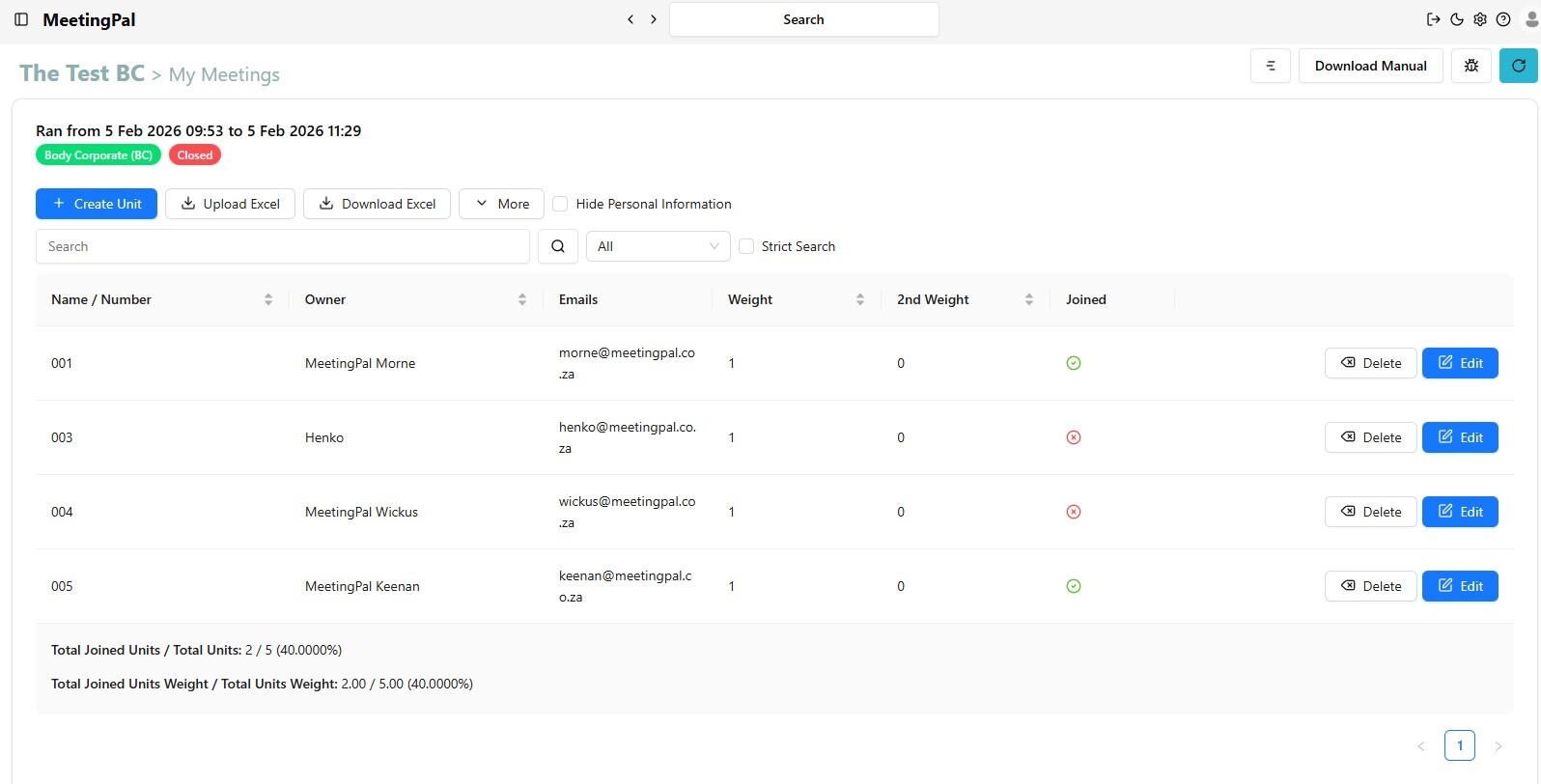
How to add Units to a meeting
On the “Unit” page, you can:
- Select “Create Unit” to enter member details manually, or
- Select “Upload Excel” to upload your prepared spreadsheet.
Best Practice: It is advisable to load an Excel Spreadsheet page with Members' data already checked and loaded. This is a quicker and easier method of loading data especially if Meetings have a large number of Members attending.
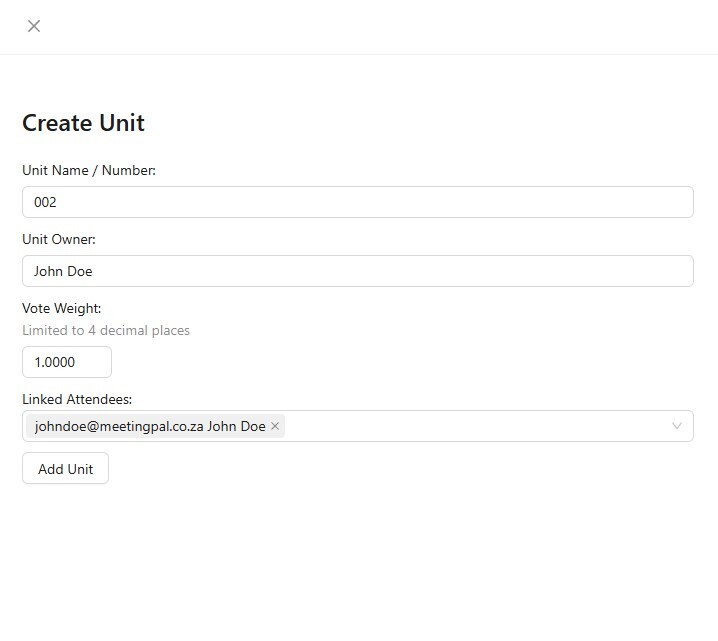
Adding a Unit Manually
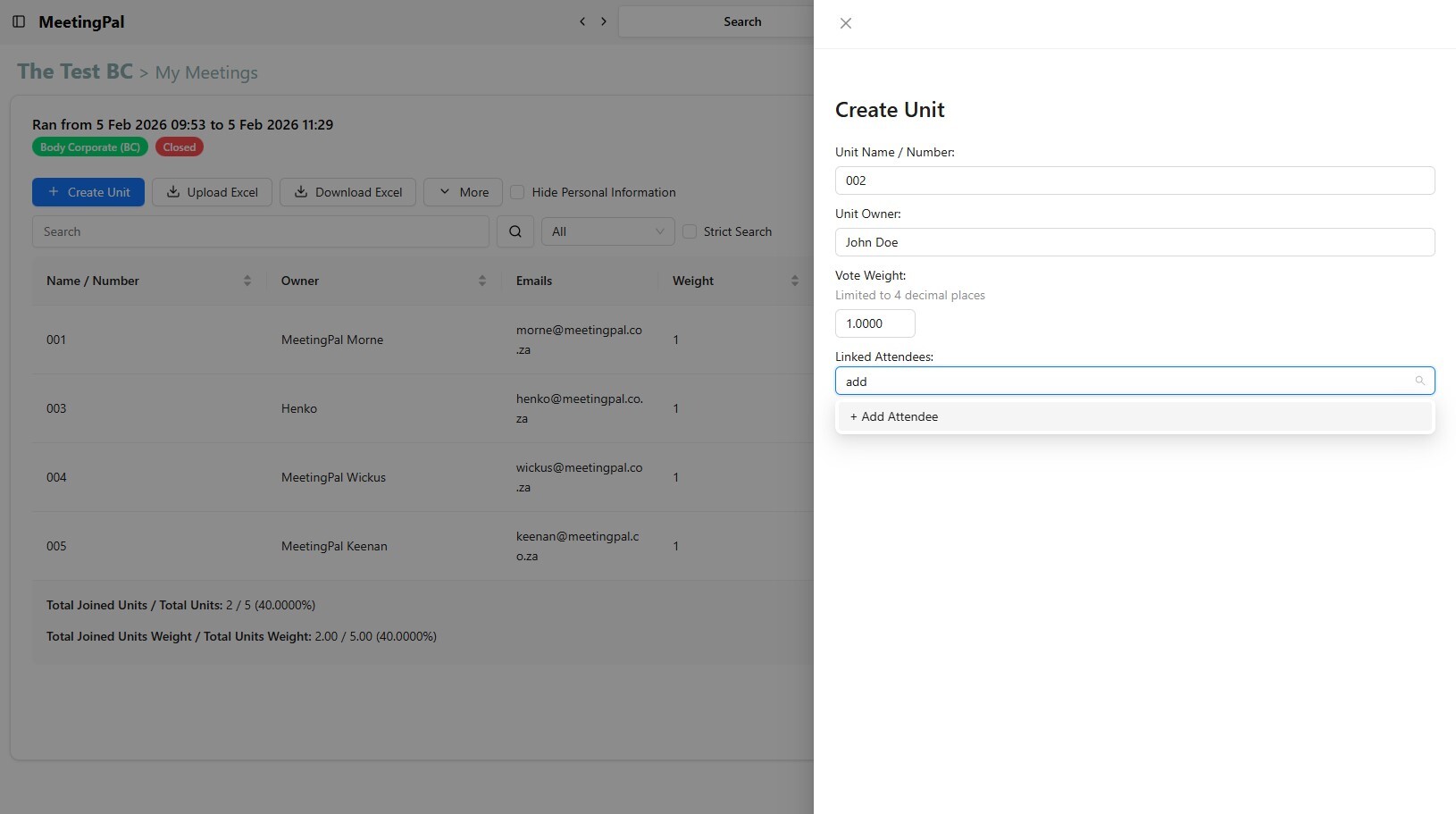
- Select Create Unit
- On the Create Unit Page, add the details of the new member as presented.
- Type Add Attendee in the Linked Attendee section
- Enter the Members' details and select Create and Send Invite or Create Invite and Don't Send
- After the new Invitee details were added, select the email address entered in the Linked Attendee section and click Add Unit
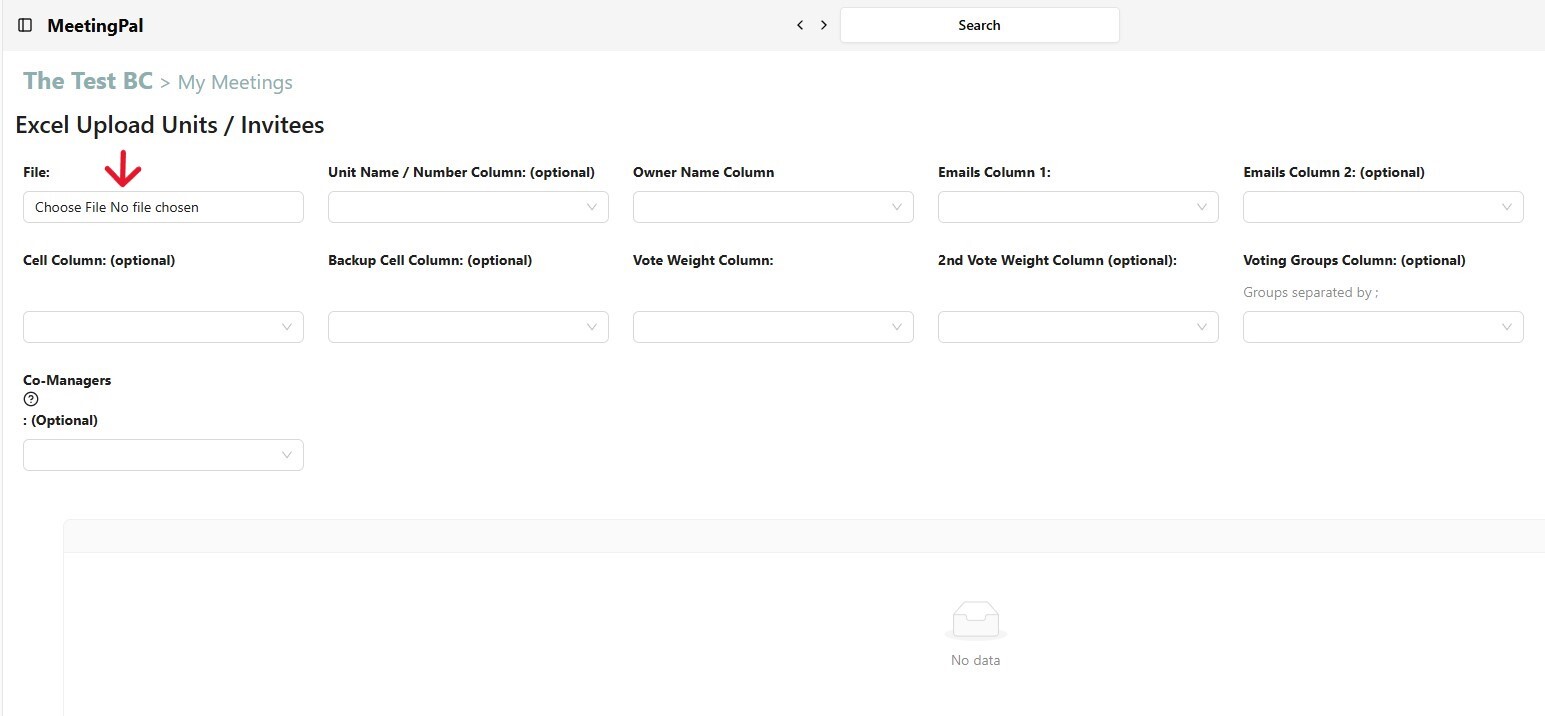
Upload the Excel Spreadsheet
- On the “Upload Excel” page, click “File / Choose file”.
- Select the Excel Spreadsheet from your device.
- The spreadsheet will appear on MeetingPal once it has been loaded.
Map the Data Fields
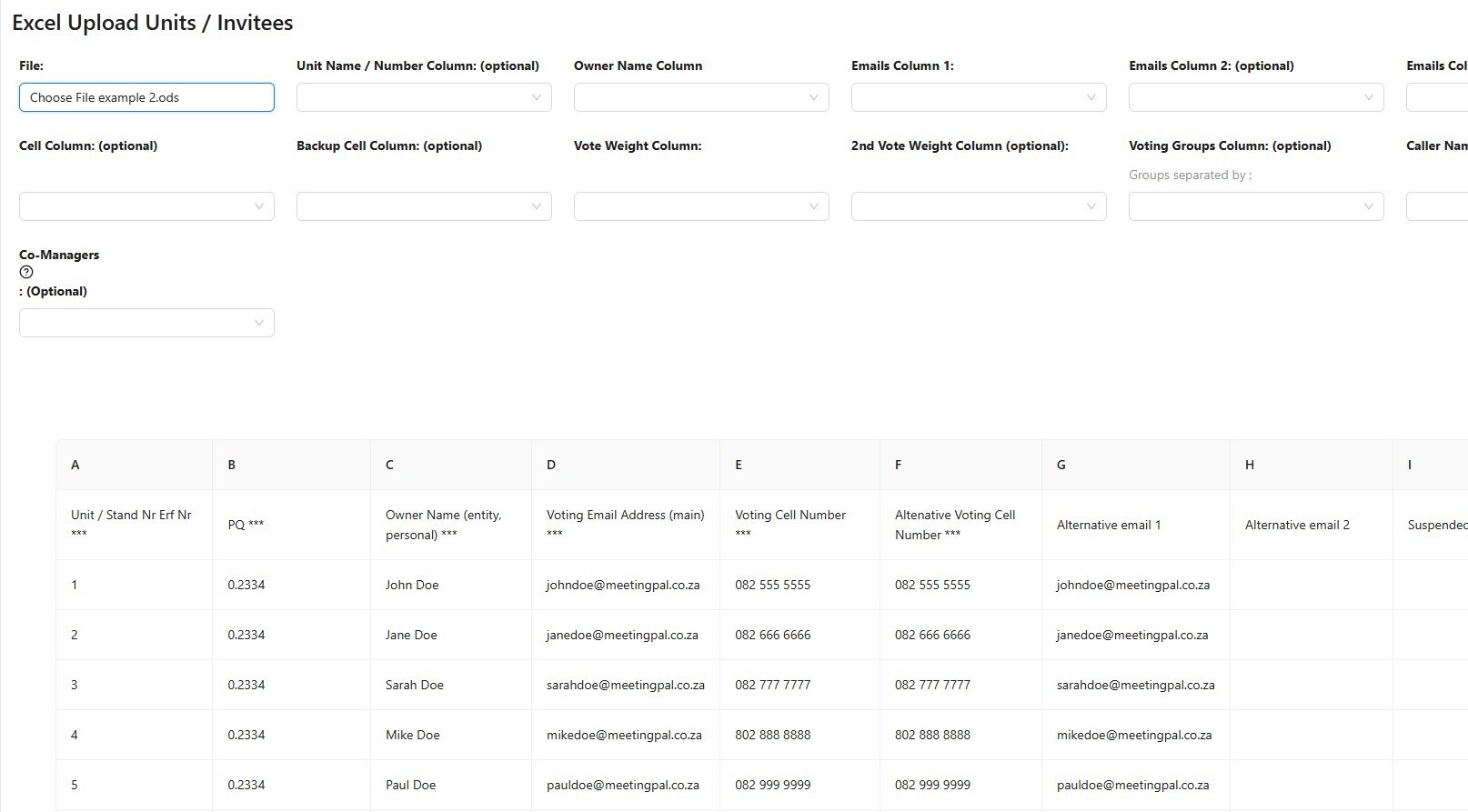
- At the top of the page, choose the correct column for each data field.
- For example: In “Unit Name / Number Column (optional)”, choose the column in your spreadsheet that contains the information.
Complete and Submit the Upload
- After all fields are correctly mapped, click the “Upload Excel” button. If all fields were entered correctly the Unit list will be available under the Unit sub-section in the Plan the Meeting drop down menu.
- Important Notice: Ensure that the Participation Quota(PQ) values were worked out correctly. Body Corporate or BC schemes' PQ values must add up to 100% to be compliant.