Assigning Units to Invitees/Attendees
Access the Scheduled Meeting
On the MeetingPal Home Page, locate the left-hand menu. Select Meetings.
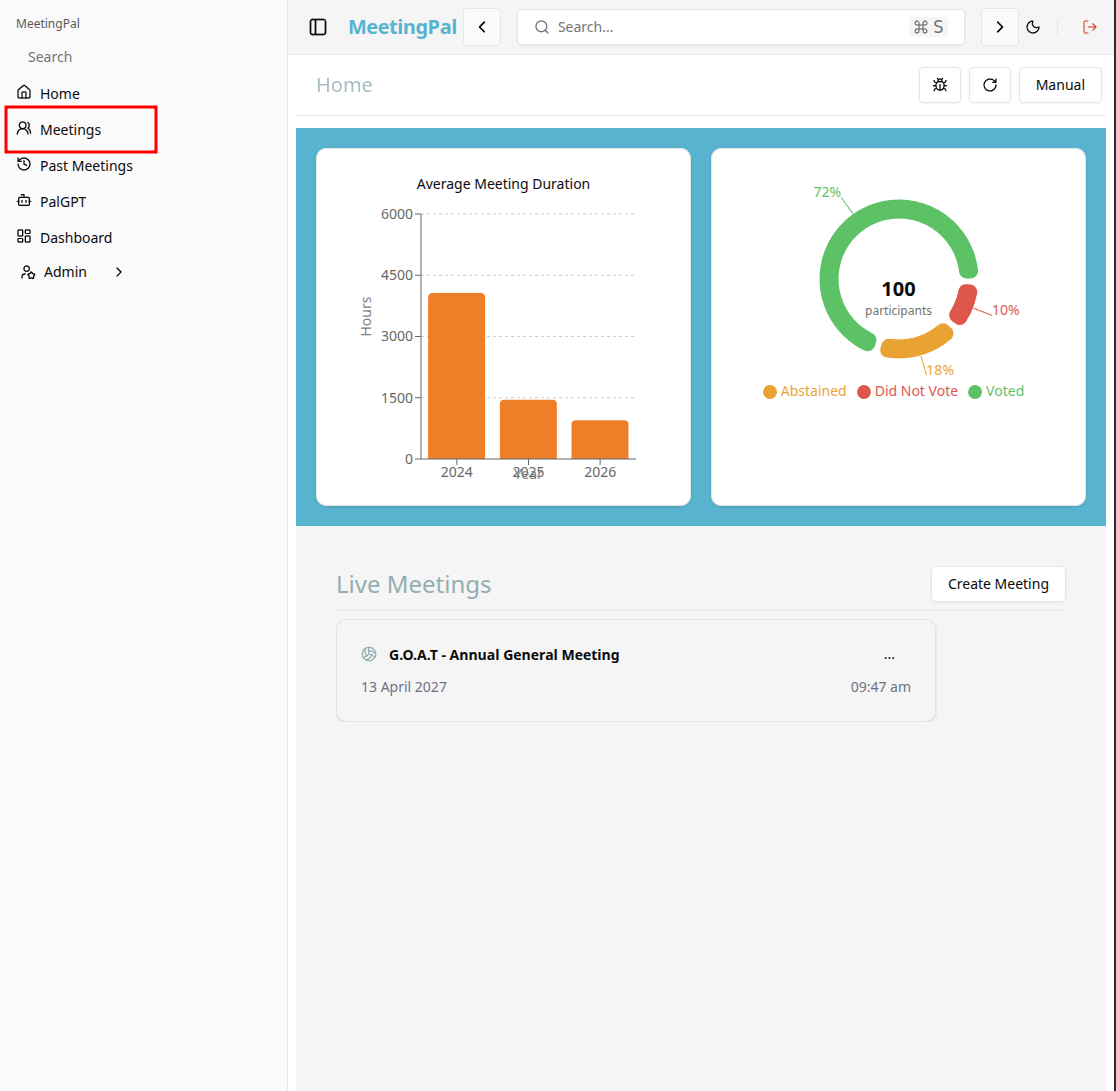
Start editing the meeting
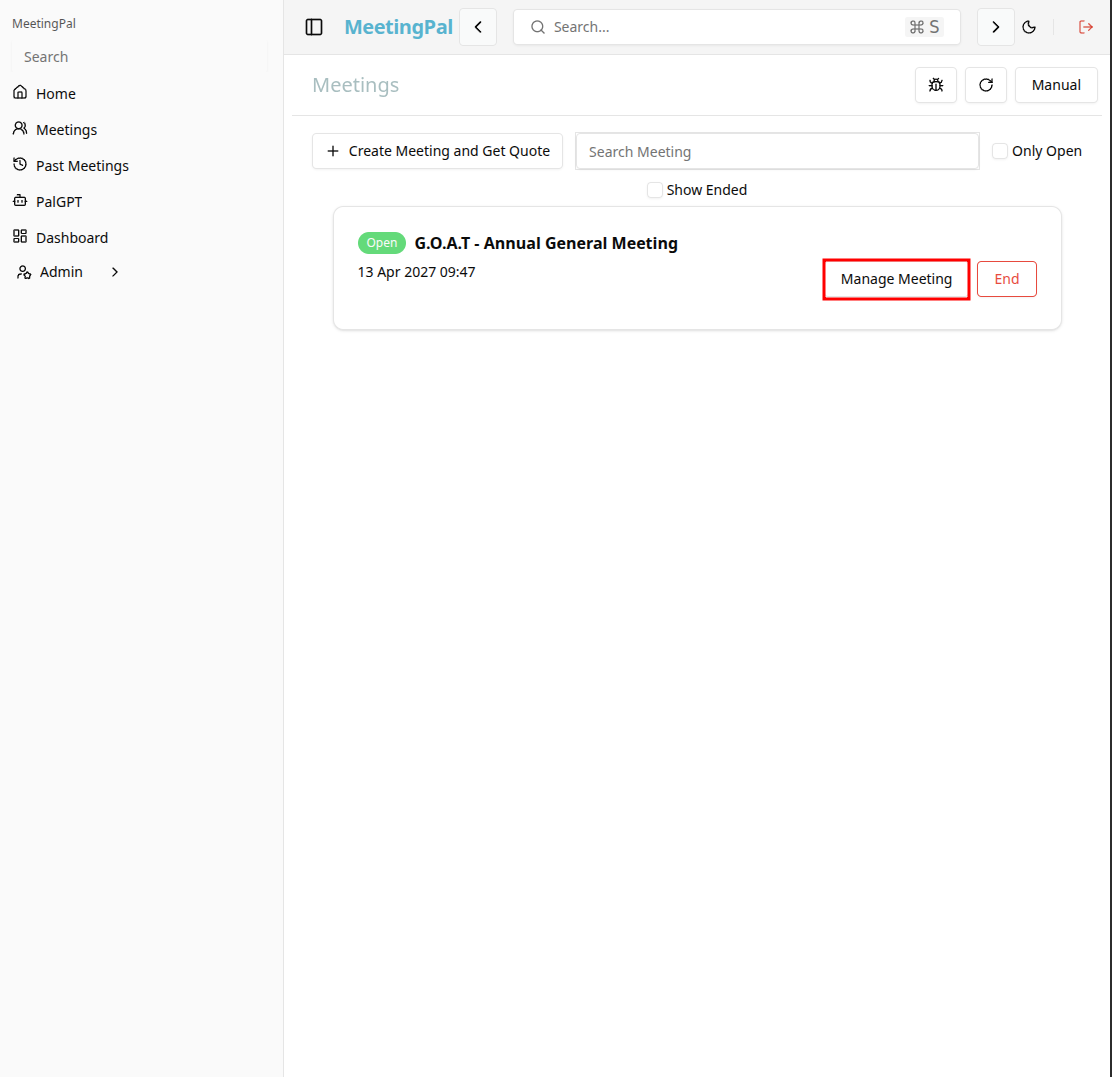
In the meetings page ,you will see all your meetings and the meetings that you are scheduled to attend.
Click on the 'Manage Meeting' button to begin editing the selected meeting.
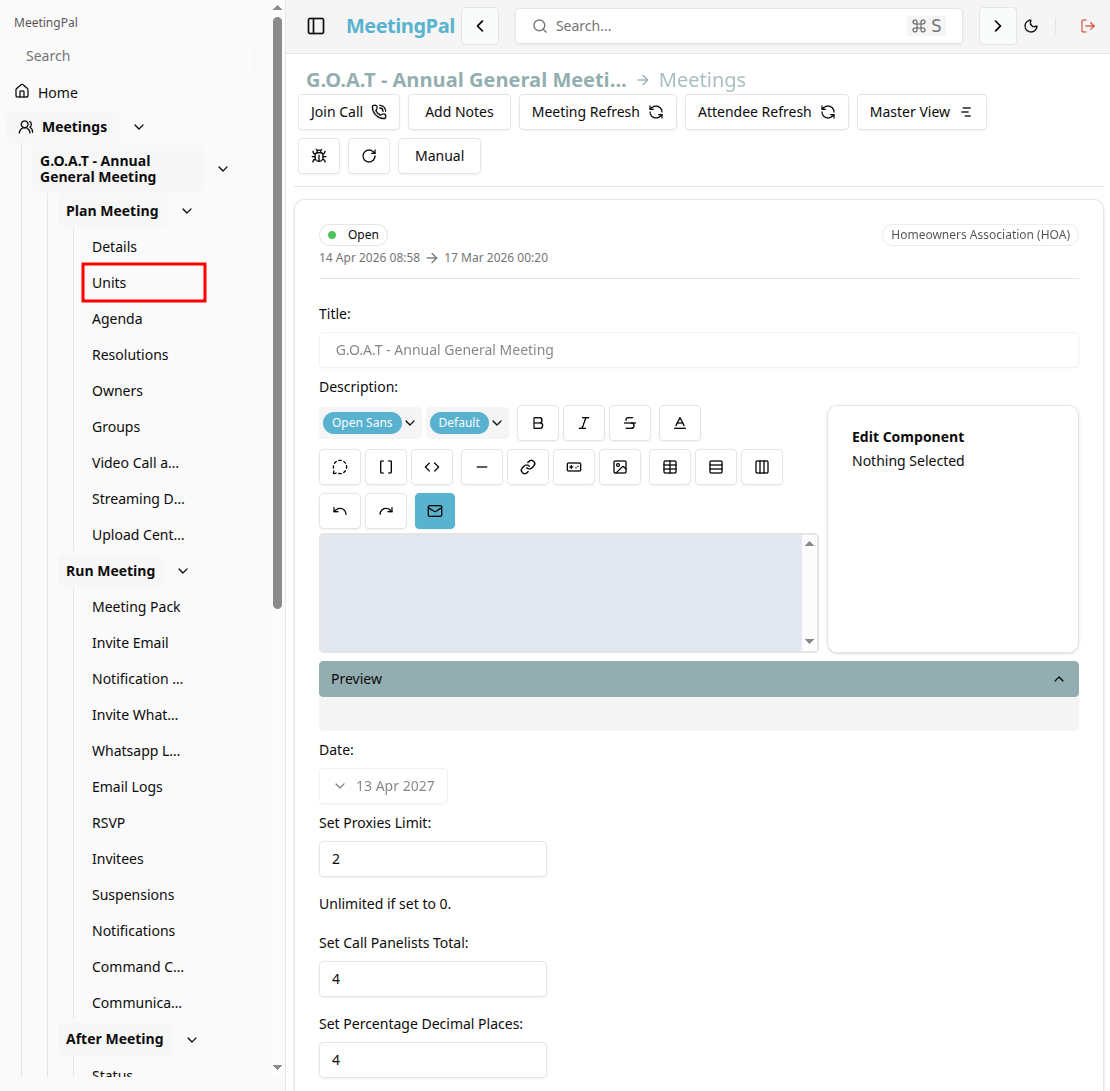
Open the Units Page
In the selected meeting’s dropdown menu, click Units.
The Units Page will open, displaying all members and attendees associated with the meeting.
Locate the Invitee or Attendee
Use the search bar or scroll through the invitee list to find the attendee to whom you want to assign a unit.
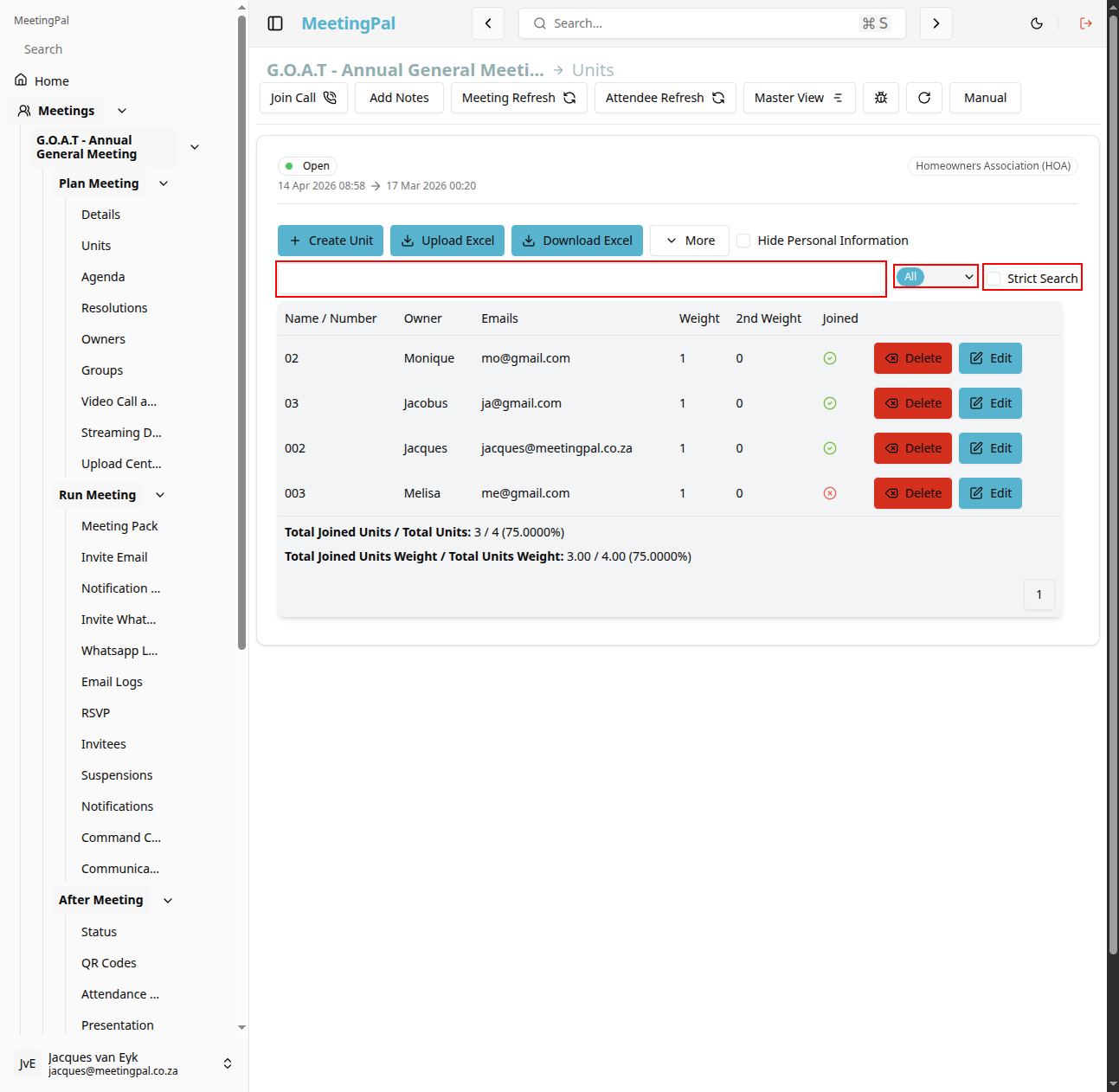
Click the attendee’s row to open their details, or select the Edit option.
Edit the units of an invitee
In the table of invitees, click the edit button next to the invitee whose units you want to edit/assign.
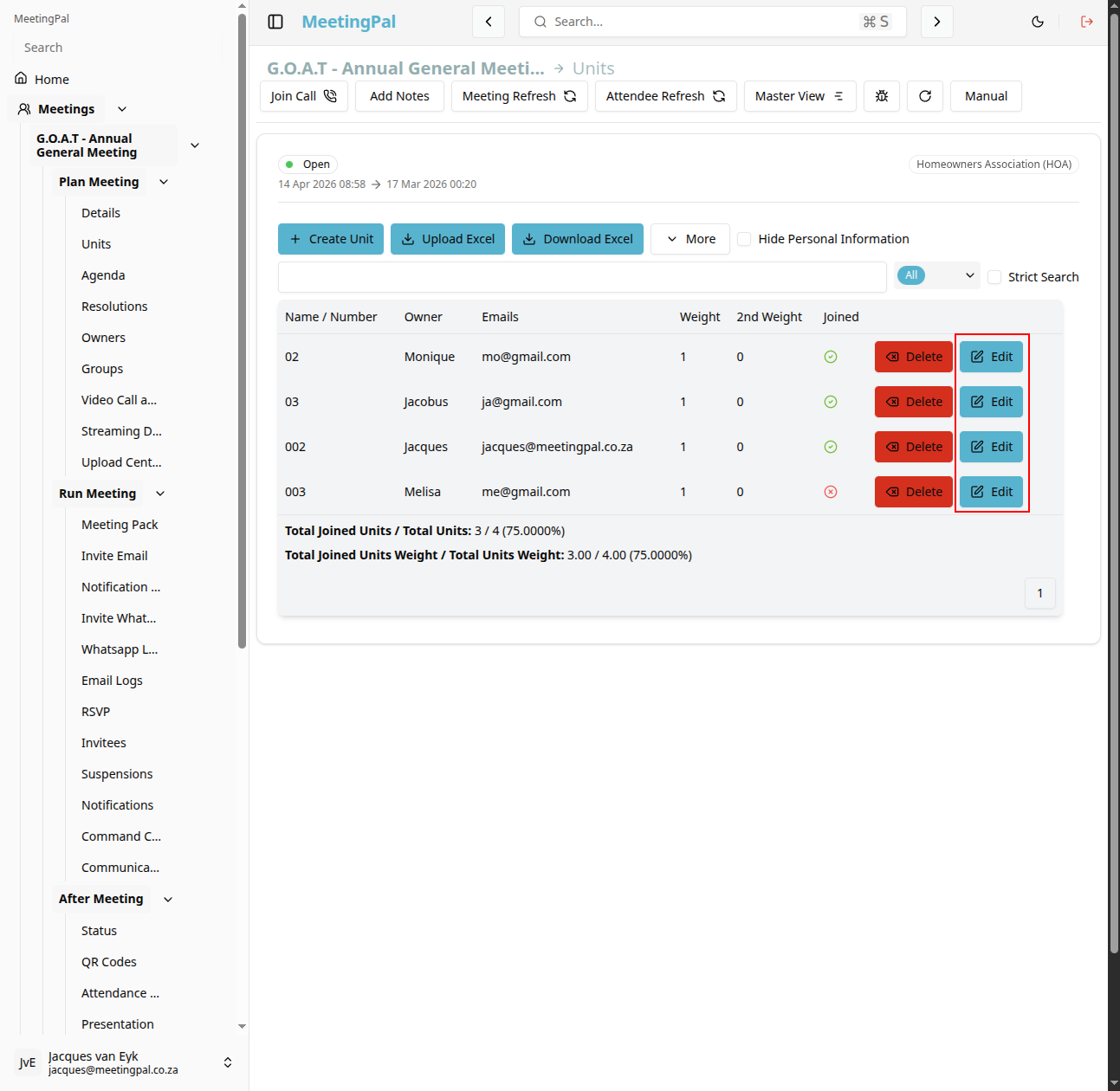
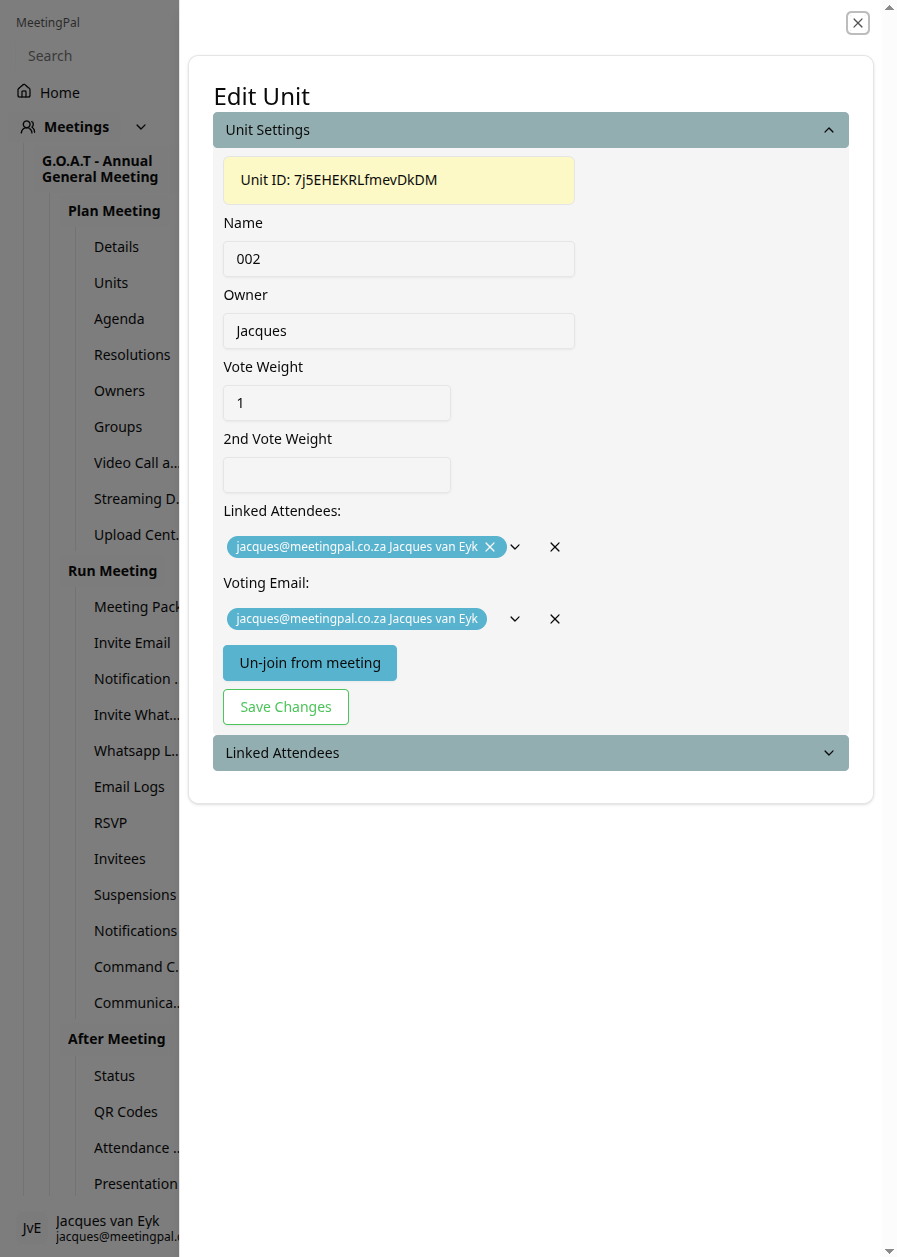
Then the pop-up window for editing the units for an invitee will appear.
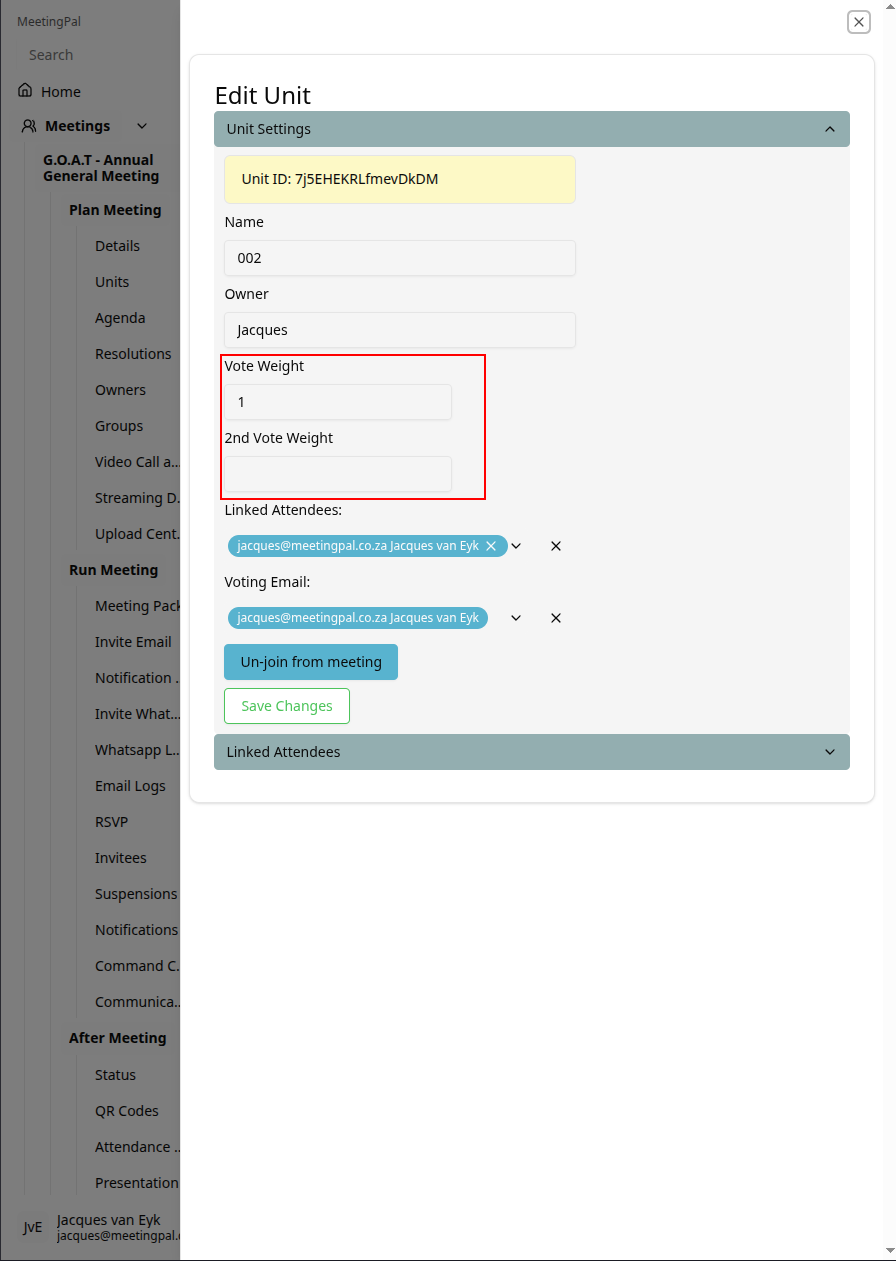
You can the add custom vote weights for this unit.
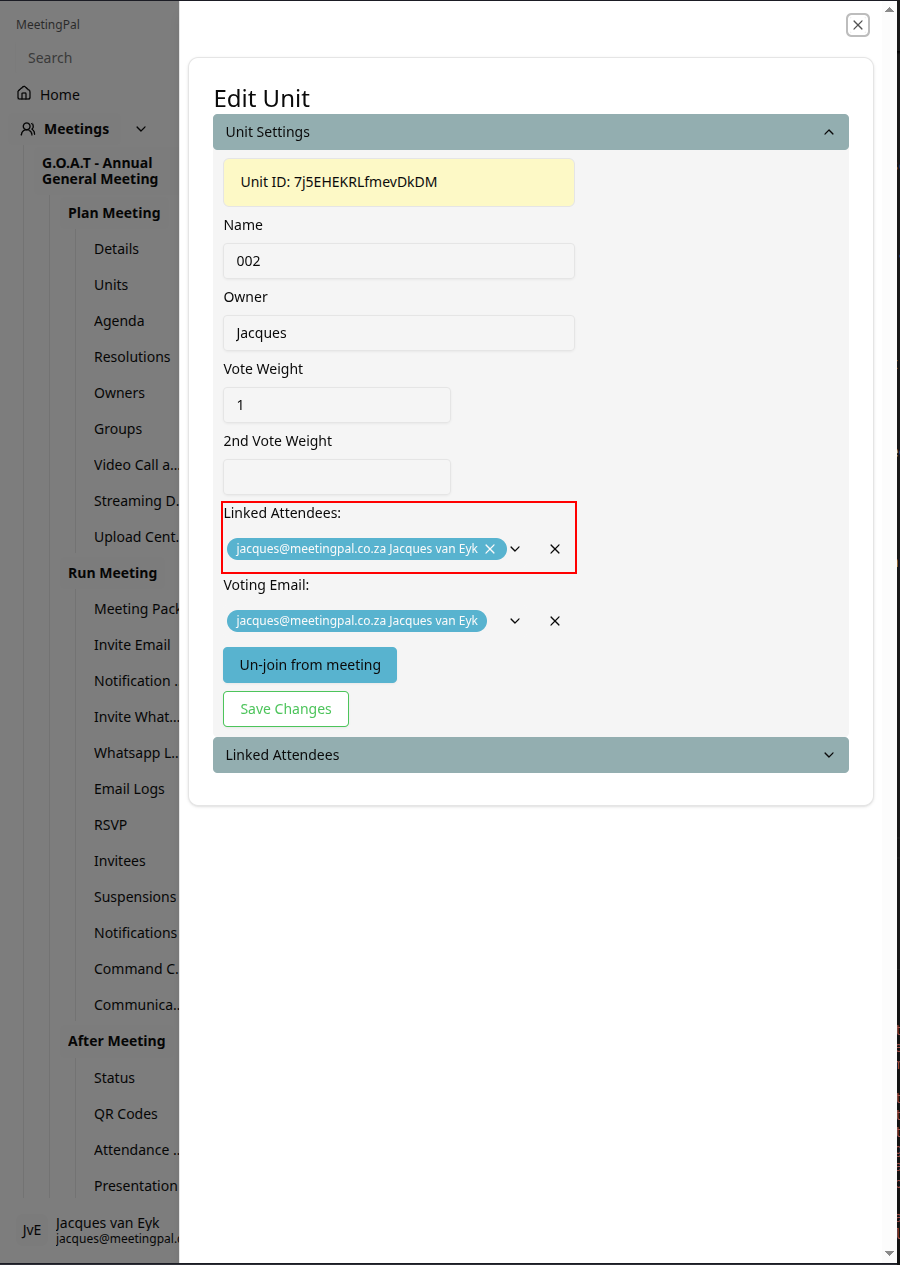
You can also add all invitees that should be linked to this unit.
Review Unit Assignments
After saving:
- Confirm the correct unit names appear next to each invitee.
- Verify that voting rights or ownership allocations are updated correctly.
- Edit assignments if changes are required before the meeting starts.
Important Notes
Units are often used to represent ownership, voting weight, or membership allocations.
Assigned units may affect quorum calculations and voting outcomes.
Ensure each invitee is assigned the correct unit(s) before sending invites or opening voting.
Bulk assignment options may vary depending on your organization’s MeetingPal configuration.