Minutes Tab
Access the Scheduled Meeting
On the MeetingPal Home Page, locate the left-hand menu. Select Meetings.
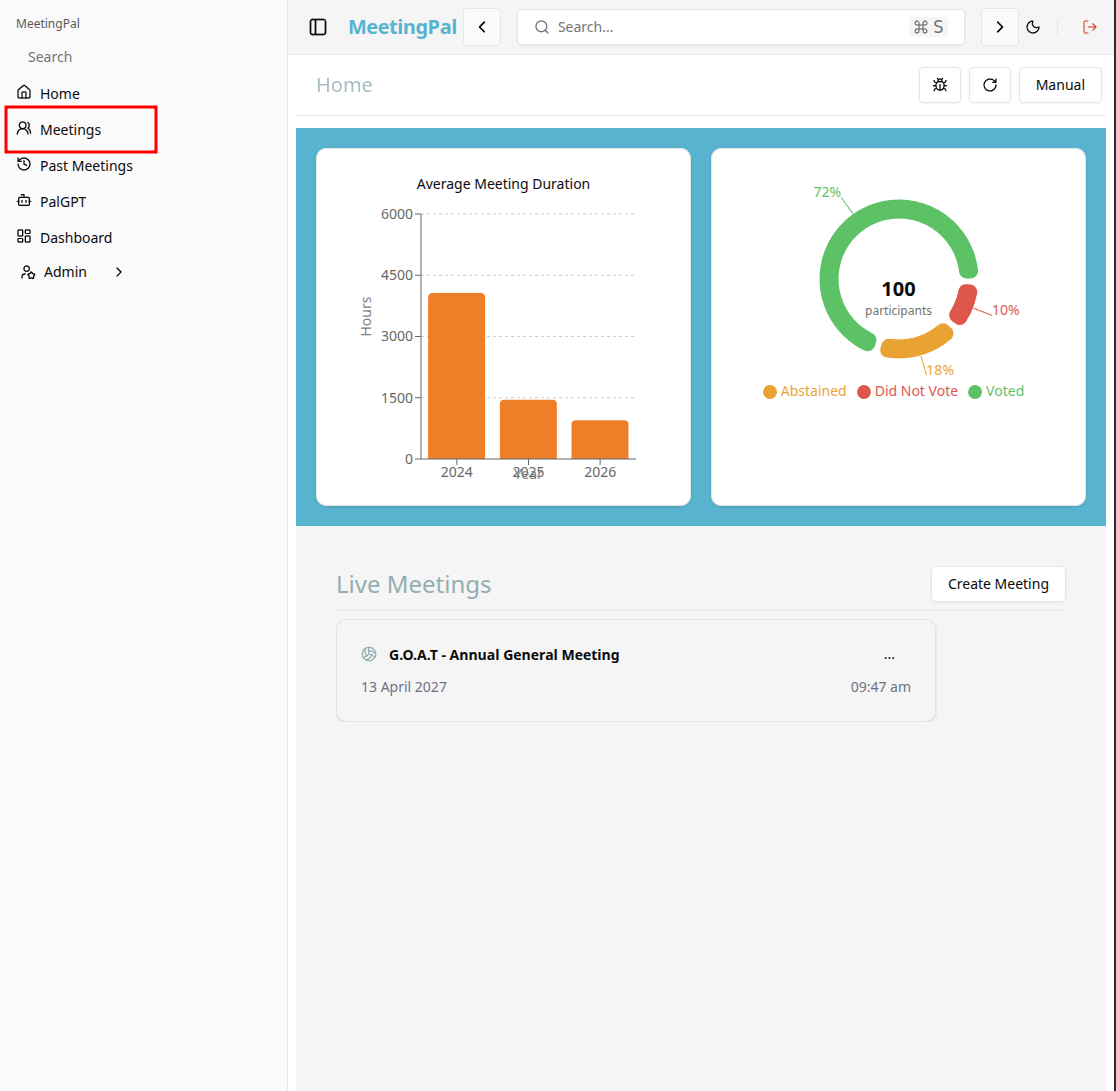
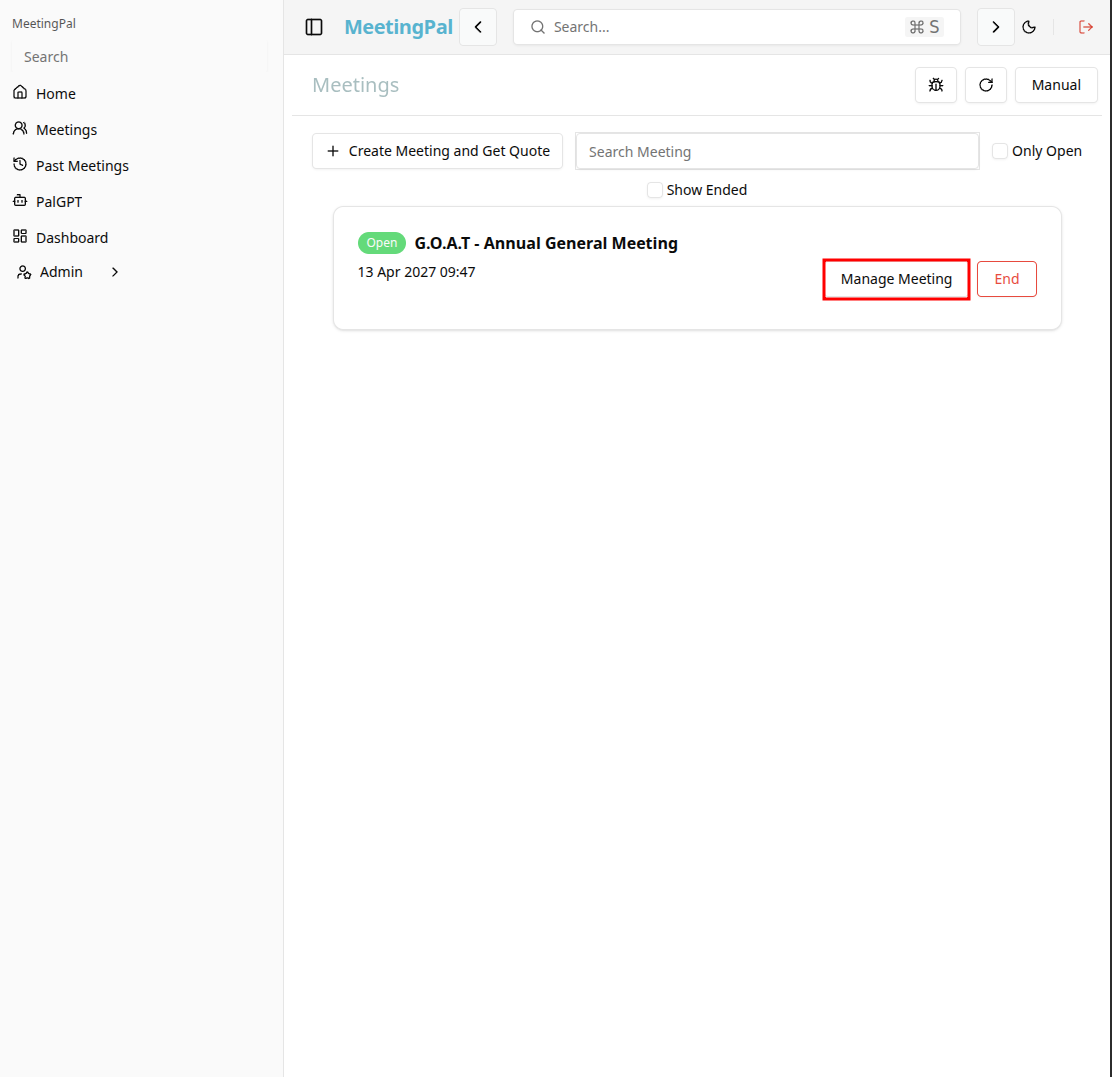
Start editing the meeting
In the meetings page ,you will see all your meetings and the meetings that you are scheduled to attend.
Click on the 'Manage Meeting' button to begin editing the selected meeting.
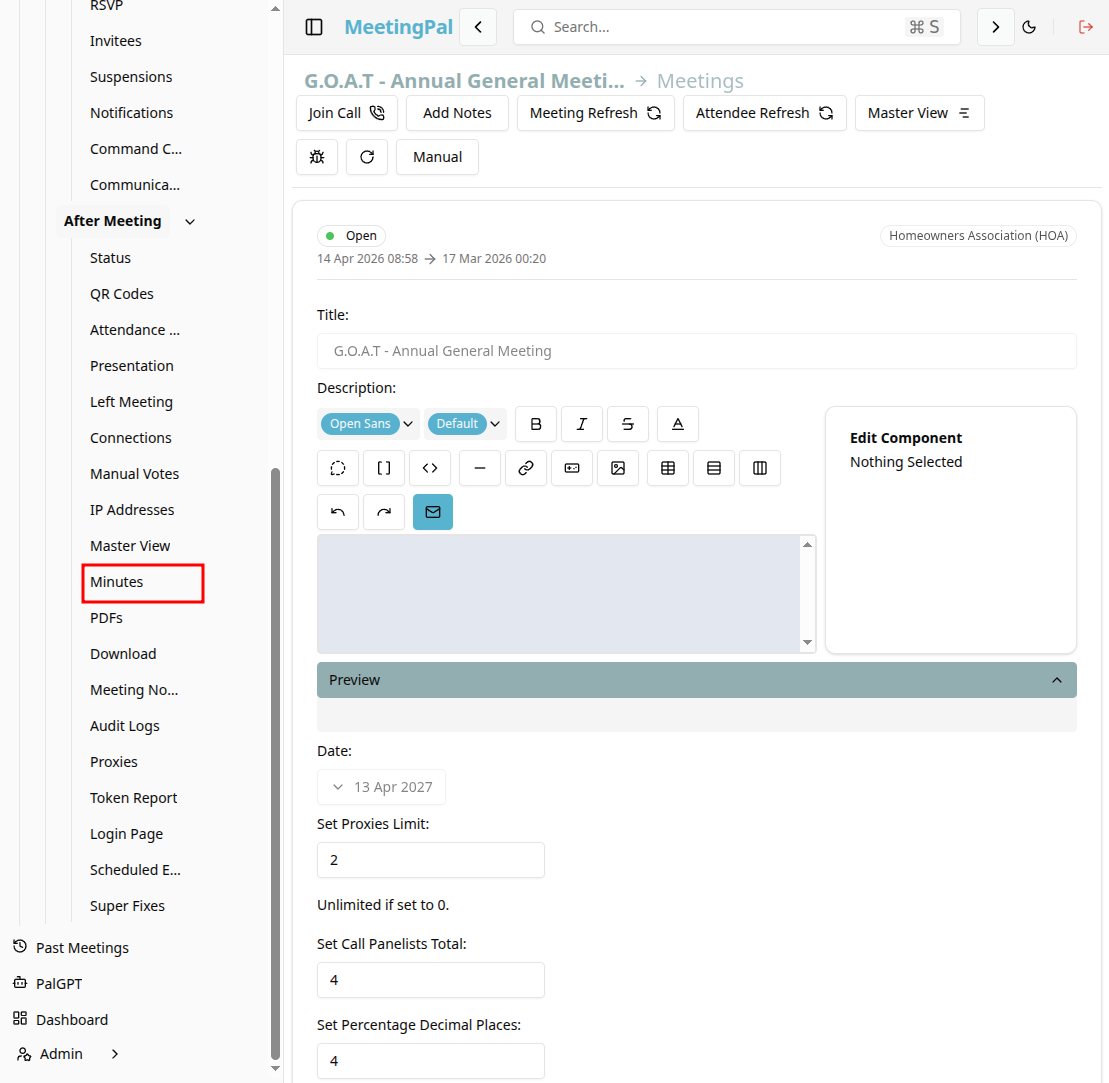
Open the Minutes Tab
In the selected meeting’s dropdown menu, click Minutes.
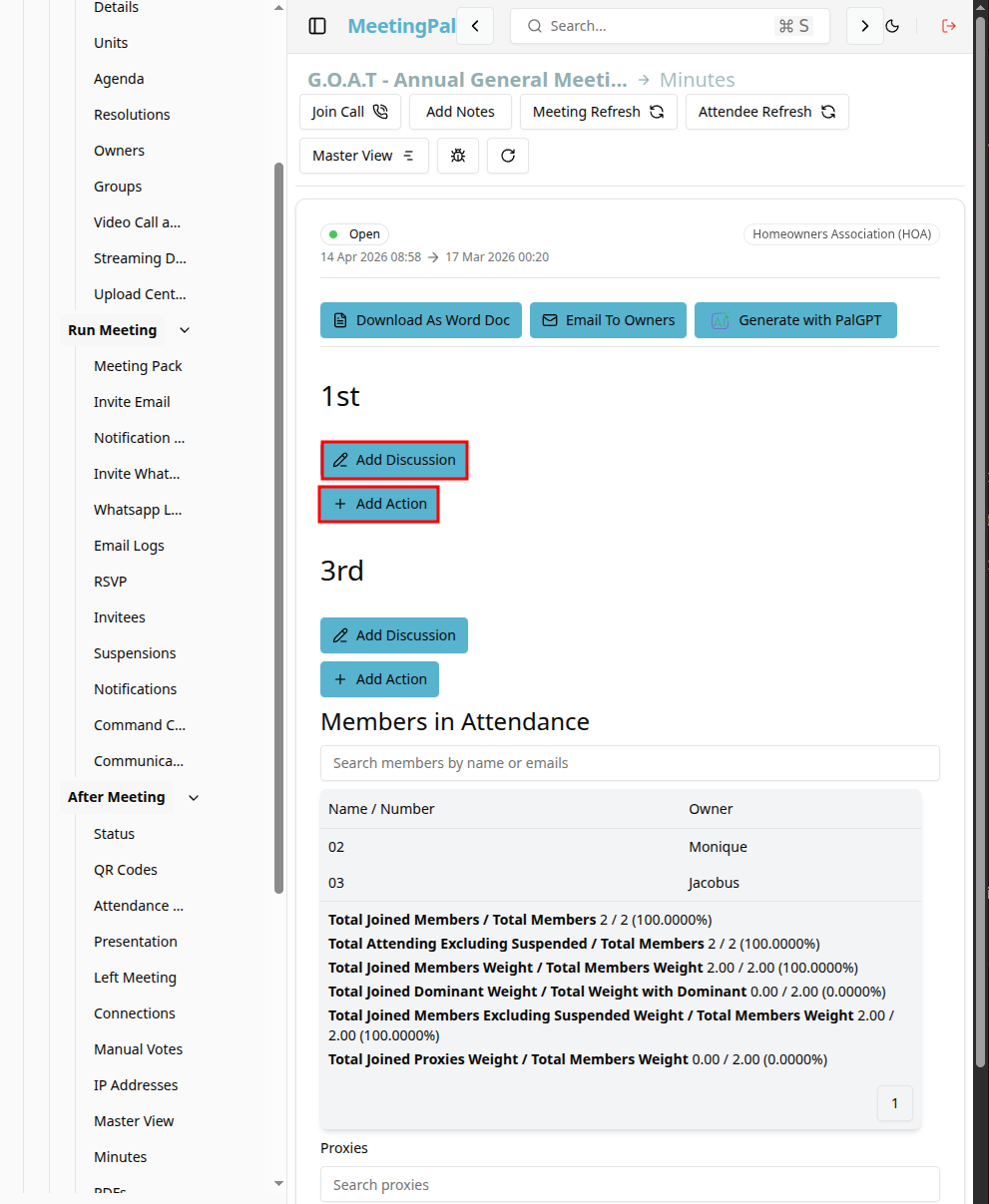
The Minutes page will open.
Understanding the Minutes Page
The Minutes page allows you to create, edit, and finalize the official record of the meeting.
From this page, you can:
- Draft meeting minutes.
- Record discussions and decisions.
- Include attendance and quorum information.
- Capture resolution outcomes.
- Insert agenda item notes.
Create or Edit Meeting Minutes
Click into the minutes tab. Enter or update the meeting minutes.
You can add a discusion for a custom format or use the 'add action' button to use a default format for the minutes.
Typical content may include:
- Meeting title and date.
- Attendees present and apologies.
- Confirmation of quorum.
- Summary of discussions.
- Resolution wording and outcomes.
- Action items.
- Closing time.
- Click Save Minutes to store your changes.
Insert Automated Meeting Data
Depending on your configuration, MeetingPal may allow you to insert automatically generated content such as:
- Attendance register.
- Agenda items.
- Resolution results.
- Voting summaries.
- Proxy information.
This can significantly reduce manual editing.
Review and Format the Minutes
Use the editor tools to:
- Apply headings and formatting.
- Insert tables.
- Add bullet points.
- Include hyperlinks and attachments.
Review the document carefully to ensure all information is accurate.
Common Uses for the Minutes Tab
The Minutes tab is useful for:
- Recording formal meeting proceedings.
- Capturing decisions and action items.
- Producing governance-compliant meeting records.
- Emailing the professionally formatted minutes.
Best Practices
Draft minutes during or immediately after the meeting.
Use MeetingPal’s automated data to improve accuracy.
Review voting results and attendance before finalizing.
Save changes regularly.
Important Notes
The Minutes tab may integrate with agenda items, attendance, and voting results.
Only authorized users may be able to edit or finalize the minutes.