WhatsApp Logs Tab
Access the Scheduled Meeting
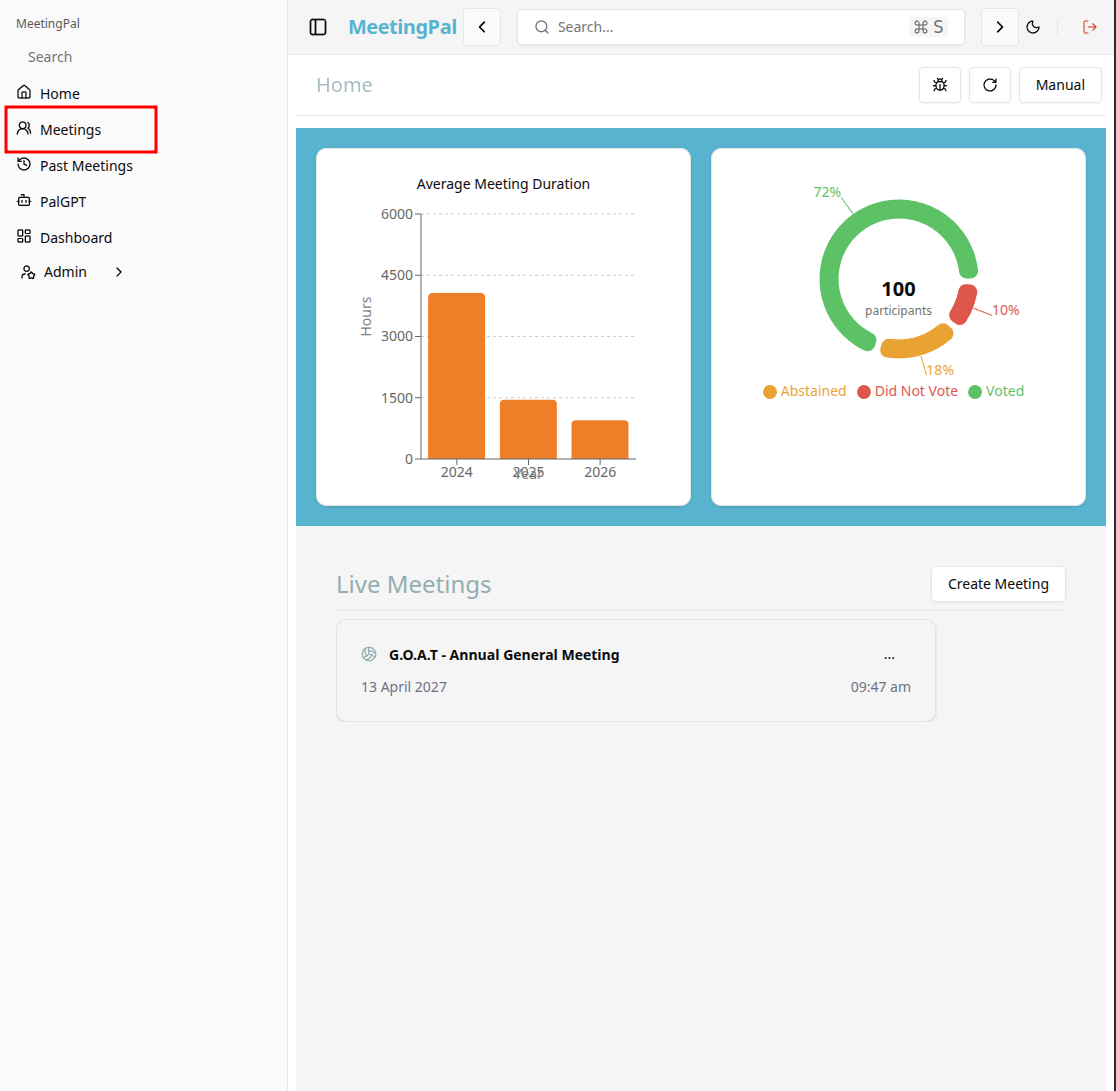
On the MeetingPal Home Page, locate the left-hand menu. Select Meetings.
Start editing the meeting
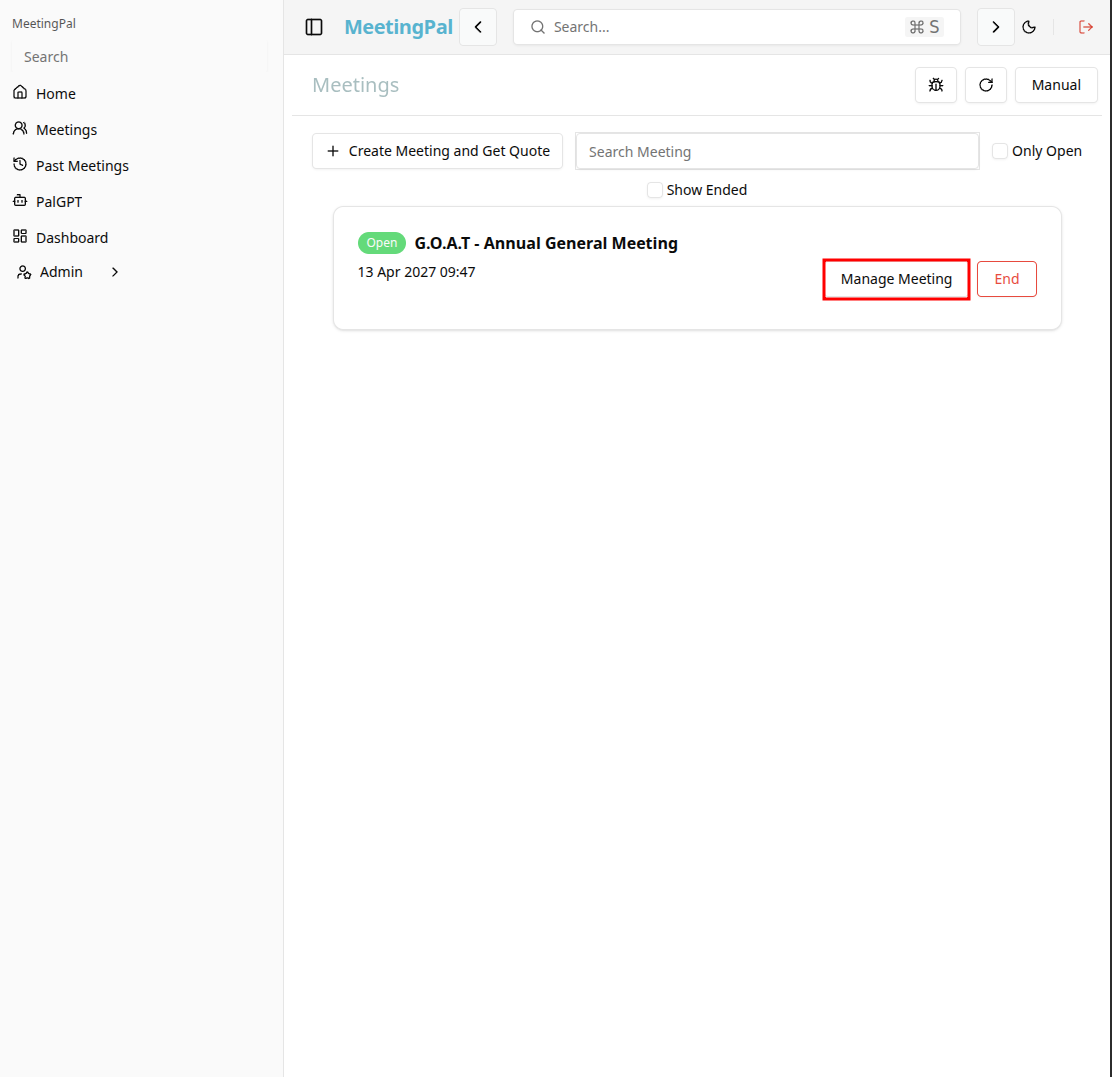
In the meetings page ,you will see all your meetings and the meetings that you are scheduled to attend.
Click on the 'Manage Meeting' button to begin editing the selected meeting.
Open the WhatsApp Logs Tab
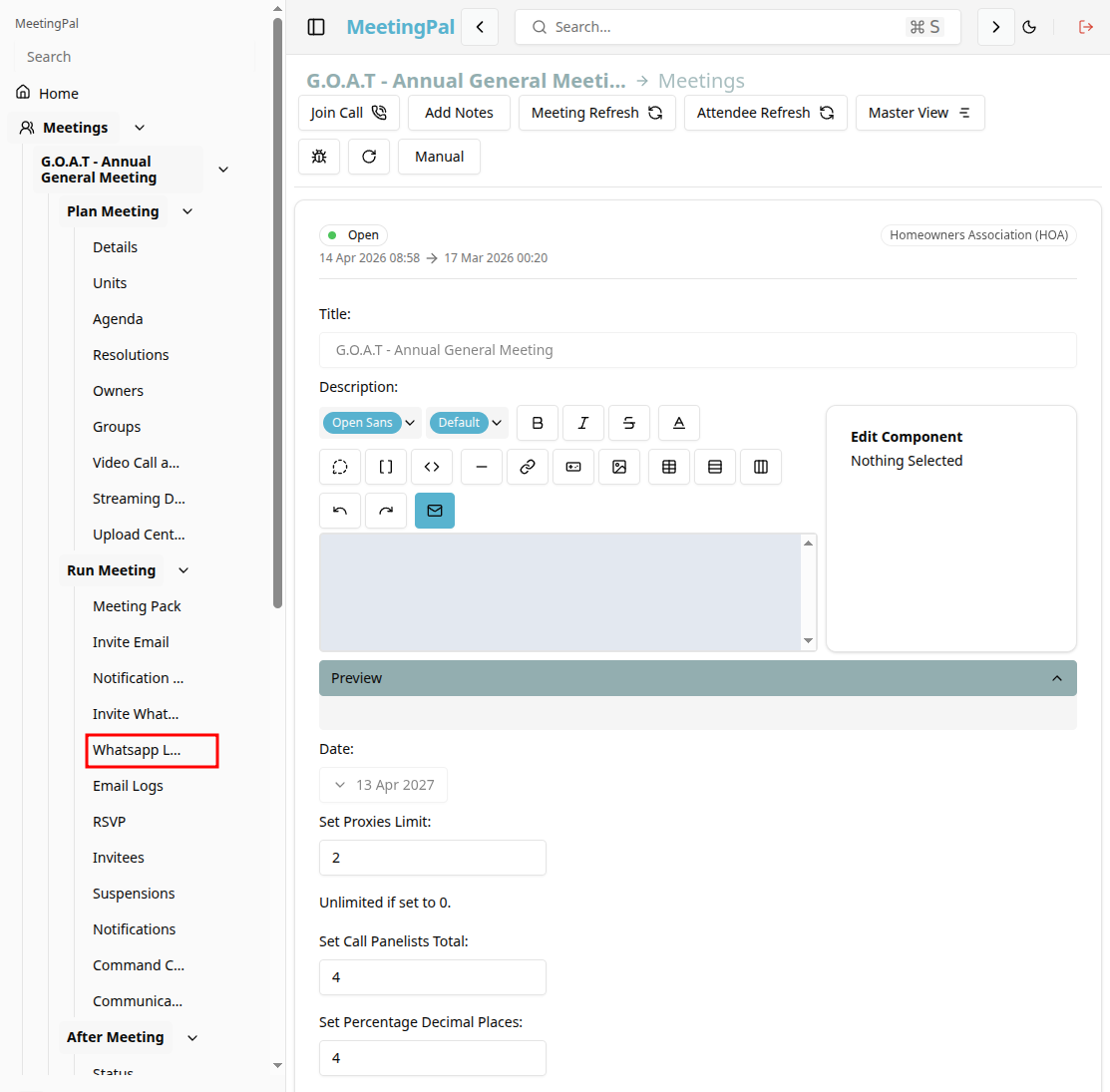
In the selected meeting’s dropdown menu, click WhatsApp Logs.
The WhatsApp Logs page will open.
Understanding the WhatsApp Logs Page
The WhatsApp Logs page provides a record of all WhatsApp messages sent for the meeting.
You can use this page to:
- View sent WhatsApp invitations and notifications.
- Monitor delivery statuses.
- Review message timestamps.
- Identify failed deliveries.
- Troubleshoot invalid mobile numbers.
Review Log Information
Each log entry may display details such as:
- Recipient Name.
- Mobile Number.
- Message Type.
- Delivery Status.
- Date and Time Sent.
- Delivery Confirmation Time.
- Error Messages (if any).
Use this information to verify whether attendees successfully received their WhatsApp messages.
Filter and Search the Logs
Use the available filters and search tools to locate specific messages.
You may be able to filter by:
- Recipient name.
- Mobile number.
- Delivery status.
- Date range.
- Message type.
This is especially useful when troubleshooting delivery issues for specific attendees.
Understand Delivery Statuses
Common statuses may include:
- Queued – Message is waiting to be sent.
- Sent – Message was submitted to WhatsApp.
- Delivered – Message was successfully delivered.
- Read – Recipient has opened the message (if supported).
- Failed – Delivery was unsuccessful.
If a message fails, review the error details to determine the cause.
Troubleshoot Failed Deliveries
If a message is marked as Failed:
- Verify the attendee’s mobile number is correct and includes the country code.
- Confirm the attendee has an active WhatsApp account.
- Check whether your organization’s WhatsApp messaging service is operational.
- Resend the message after correcting any issues.
Common Uses for WhatsApp Logs
The WhatsApp Logs tab is useful for:
- Confirming delivery of meeting invitations.
- Tracking reminder notifications.
- Investigating delivery failures.
- Maintaining communication audit records.
Important Notes
WhatsApp Logs are only available if WhatsApp messaging is enabled for your organization.
Delivery and read confirmations depend on WhatsApp’s reporting capabilities.
Some log details may take a few moments to update.
Messaging charges may apply based on your account configuration.